
The cash register and the fiscal receipt
How you give the fiscal receipt: a register connected through FiscalNet or one with keys, VAT groups, codes and the X and Z reports.
The app screens shown here are in Romanian; each button's Romanian name follows it in brackets.
A cash register connected through FiscalNet
FiscalNet sends the receipt to the Datecs cash register, which prints it on its own when you charge.
Where to find it:Till (Casă)Receipts (Bon fiscal)
FiscalNet is the program on the front-desk computer that is connected to the cash register.
- Open Receipts (Bon fiscal) and choose the location.
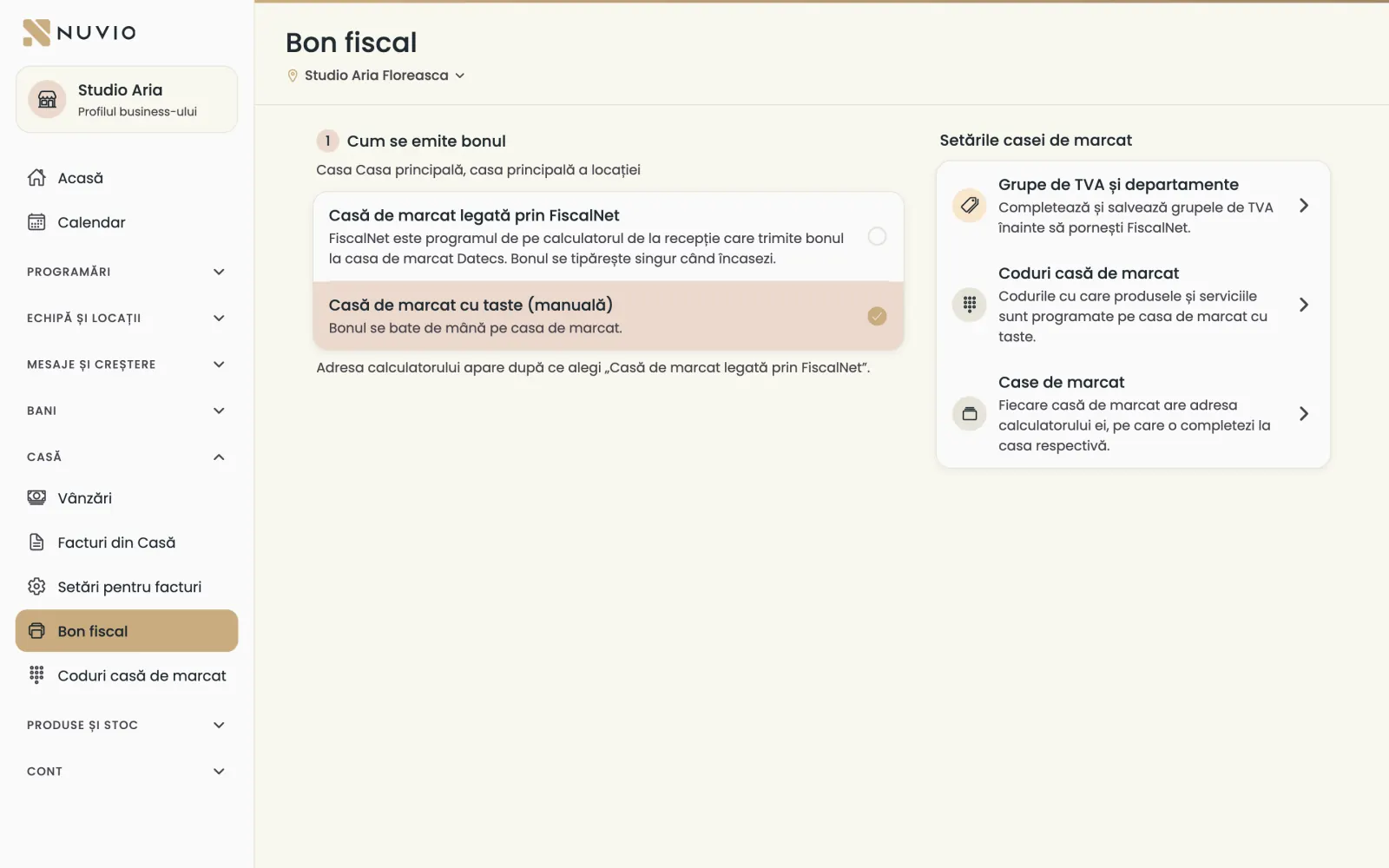
- Choose Cash register connected through FiscalNet (Casă de marcat legată prin FiscalNet).
- Fill in and save VAT groups and departments (Grupe de TVA și departamente).
- Type The computer's network address (Adresa calculatorului în rețea) where FiscalNet runs.
- Tap Test the connection (Testează legătura); once FiscalNet answers, receipts print on their own.
On the computer that runs FiscalNet, leave this device's address empty.
A cash register with keys
You key the receipt on the cash register, following the lines Nuvio shows you.
Where to find it:Till (Casă)Receipts (Bon fiscal)Cash register with keys (manual) (Casă de marcat cu taste (manuală))
- Open Receipts (Bon fiscal) and choose Cash register with keys (manual) (Casă de marcat cu taste (manuală)).
- At each sale, Nuvio opens Key it on the register (Bate pe casă) with the lines, codes and departments.
- Key the receipt on the cash register and tap Receipt given (Am dat bonul).
To key receipts easily, add the codes of products and services in Cash register codes.
VAT groups and departments
Tell the cash register which VAT group each rate has and which department products and services go on.
Where to find it:Till (Casă)Receipts (Bon fiscal)VAT groups and departments (Grupe de TVA și departamente)
- Open VAT groups and departments (Grupe de TVA și departamente).
- Choose the register's group for each VAT rate, for example 21% and 11%.
- Choose the department for products and for services.
- Save.
The account owner or whoever manages the money changes them.
The cash register codes
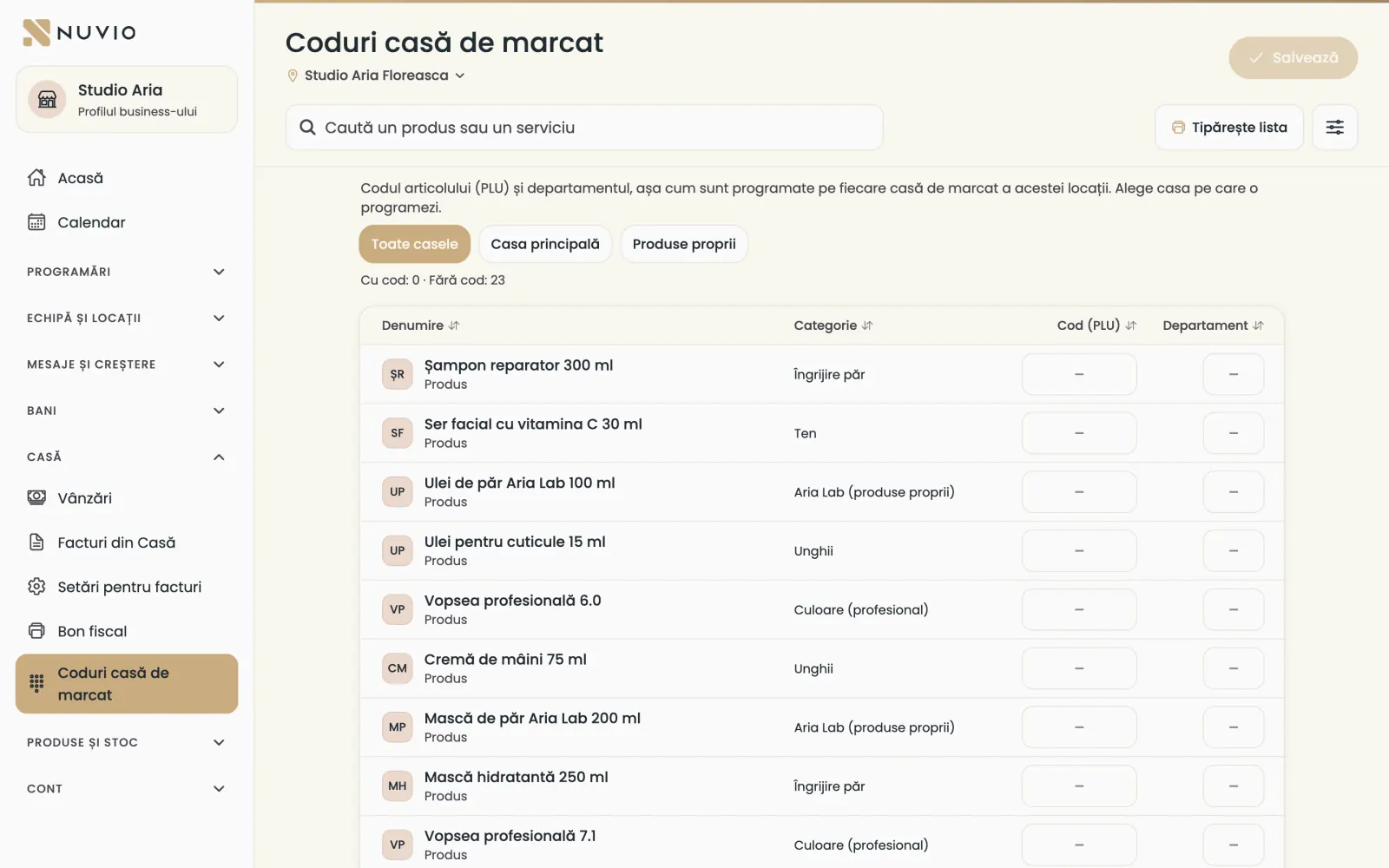
Next to each product and service you put the code (PLU) and department it is programmed with on the register.
Where to find it:Till (Casă)Cash register codes (Coduri casă de marcat)
- Open Cash register codes (Coduri casă de marcat) and choose the register you are programming.
- Type Code (PLU) (Cod (PLU)) and Department (Departament) for each item.
- Tap Save (Salvează).
- With Print the list (Tipărește lista) you get the list for whoever programs the register.
With the Without a code (Fără cod) filter you see what is left to fill in.
A code stays taken by a deactivated product; you find it under the list, where you can free it.
The X report and the Z report
The X report shows sales so far without closing the day; the Z report closes the fiscal day.
- X report (Raport X)
- A check during the day; it changes nothing on the cash register.
- Z report (Raport Z)
- The day's close on the cash register; printed once a day, at the end.
With FiscalNet you print them from Receipts (Bon fiscal); on a register with keys, straight from the register.
You compare the Z report totals in Nuvio in Close the day.
Cash register problems
What to do when the receipt doesn't print or the register doesn't answer.
The connection status shows in Receipts (Bon fiscal): Answers (Răspunde), Not answering (Nu răspunde) or No address (Fără adresă).
Common problems
What if FiscalNet doesn't answer?
Check that the FiscalNet computer and the cash register are on.
Tap Test the connection (Testează legătura) again.
If it still doesn't work, write to us on WhatsApp.
What if I don't know whether the receipt printed?
Don't print again until you check on the cash register.
Nuvio keeps the sale waiting and tells you what happened.
Updated on
Help
If the answer is not here, write to us on WhatsApp or by e-mail.