
Payments through Nuvio
You take card payments and deposits, with e-Factura invoices issued in your name.
The app screens shown here are in Romanian; each button's Romanian name follows it in brackets.
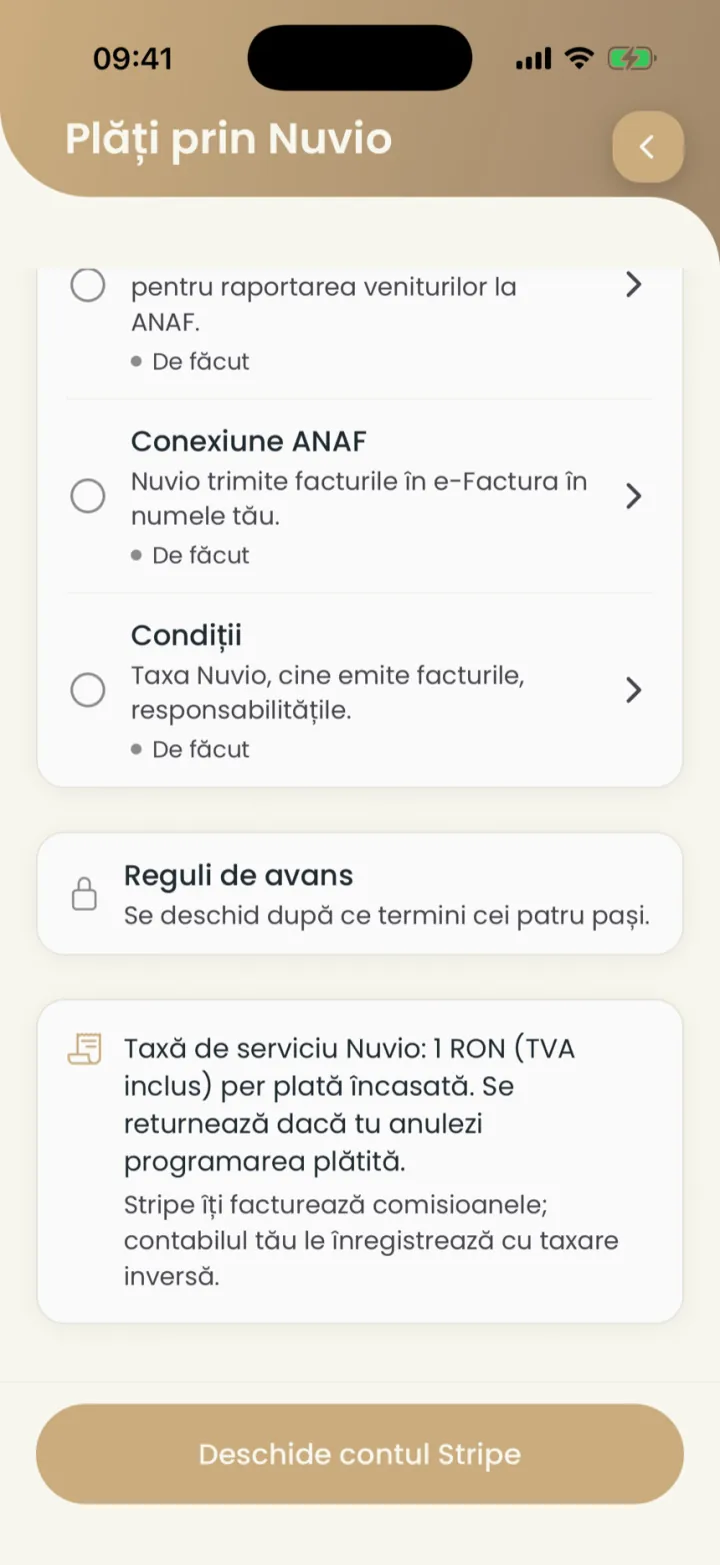
Turn on payments in 4 steps
Clients pay when they book, and the money goes straight to your Stripe account.
Where to find it:Settings (Setări)Payments through Nuvio (Plăți prin Nuvio)
- Open Settings and tap Payments through Nuvio (Plăți prin Nuvio).
- Do the 4 steps in turn: Stripe account (Cont Stripe), Invoice details (Date de facturare), ANAF connection (Conexiune ANAF) and Terms (Condiții).
- Tap the button at the bottom, which always shows the next step.
- After the 4 steps, Deposit rules (Reguli de avans) open.
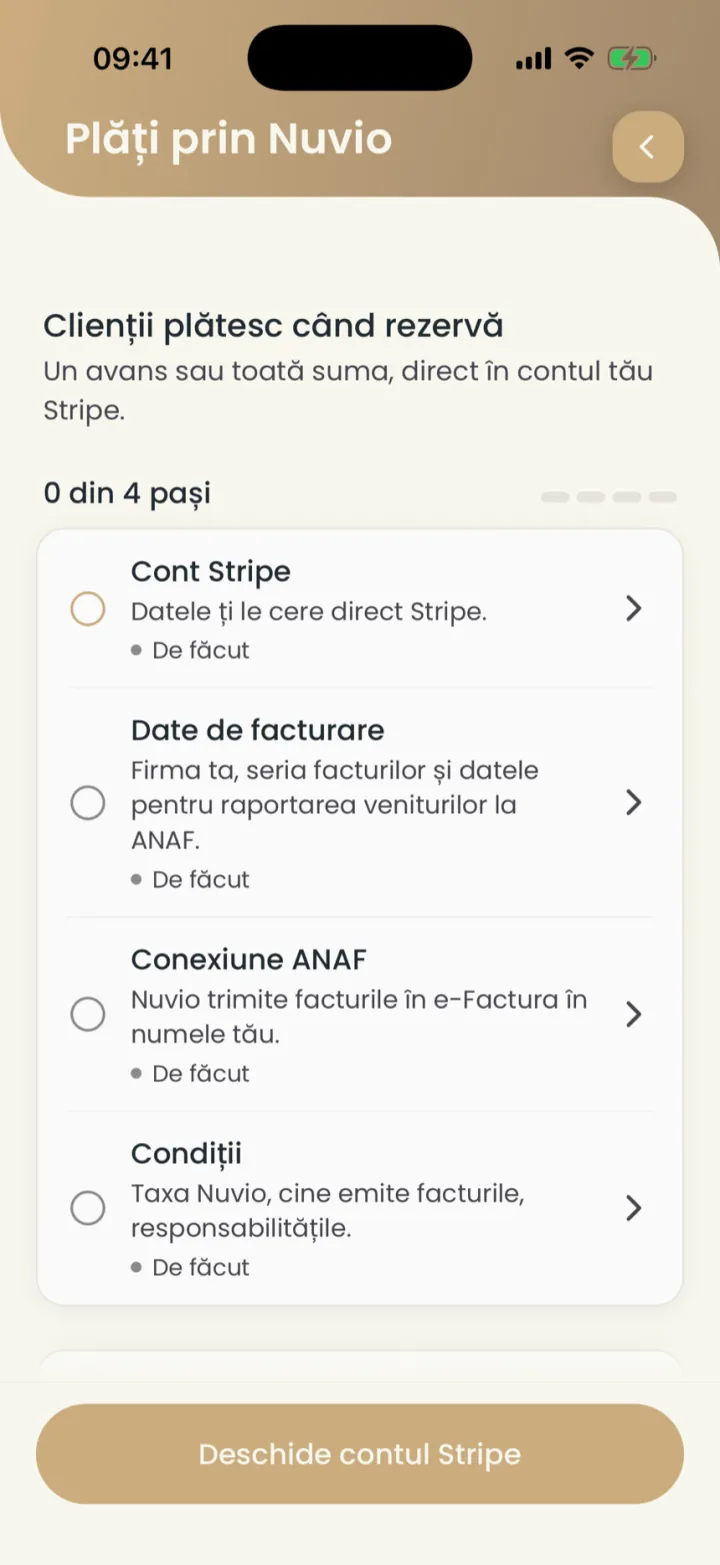
- Stripe account (Cont Stripe)
- Terms (Condiții)
- The next step
You can also fill in the company details and the ANAF connection on a computer, at pro.nuvio.ro.
The Stripe account
Stripe takes the money from clients and sends it to your bank account.
Where to find it:Settings (Setări)Payments through Nuvio (Plăți prin Nuvio)Stripe account (Cont Stripe)
- Tap Open the Stripe account (Deschide contul Stripe).
- Fill in what Stripe asks for: the company, your identity and your bank account.
- Come back to the app when you are done.
Payouts to your bank turn on after Stripe checks your details.
Invoice details
Your company, the invoice series and the details for reporting income to ANAF.
Where to find it:Settings (Setări)Payments through Nuvio (Plăți prin Nuvio)Invoice details (Date de facturare)
- Tap Complete billing details (Completează datele de facturare).
- Fill in the company, the address and the invoice series.
- Save.
The ANAF connection
You let Nuvio send invoices to e-Factura, the ANAF invoice system, on your behalf.
Where to find it:Settings (Setări)Payments through Nuvio (Plăți prin Nuvio)ANAF connection (Conexiune ANAF)
- Tap Connect ANAF (Conectează ANAF).
- Log in to SPV with the company's digital certificate and approve the access.
If the certificate is on another computer, send the connection link with Share (Trimite) and open it there.
The terms
You read the Nuvio fee, who issues the invoices and the responsibilities, then accept them.
Where to find it:Settings (Setări)Payments through Nuvio (Plăți prin Nuvio)Terms (Condiții)
- Tap Accept the terms (Acceptă condițiile).
- Read the terms and accept them.
The deposit
The client pays part of the price, or all of it, when they book.
Where to find it:Settings (Setări)Payments through Nuvio (Plăți prin Nuvio)Deposit rules (Reguli de avans)
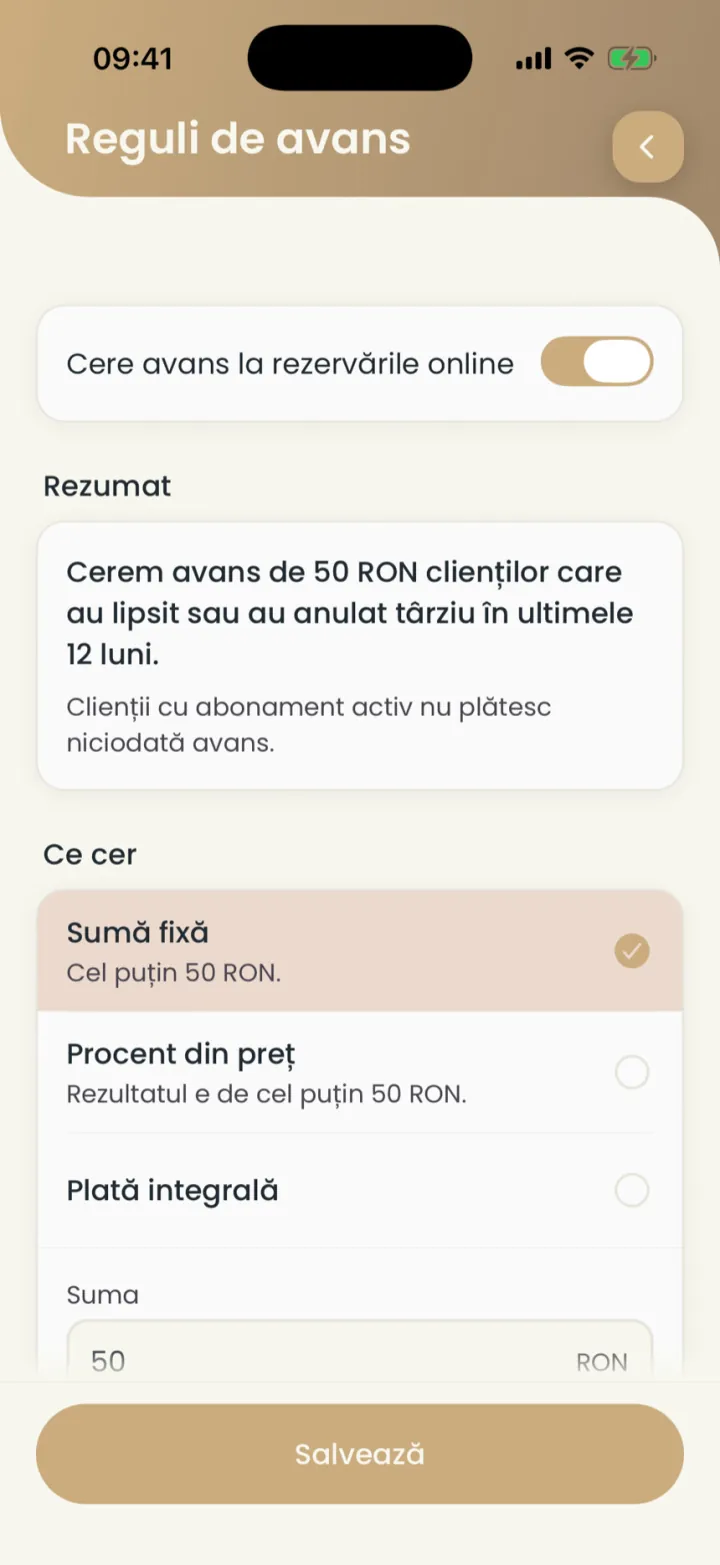
- In Payments through Nuvio (Plăți prin Nuvio) open Deposit rules (Reguli de avans).
- Turn on Ask for a deposit on online bookings (Cere avans la rezervările online).
- Pick Fixed amount (Sumă fixă), Percentage of the price (Procent din preț) or Full payment (Plată integrală).
- Type the amount, at least 50 RON.
- Tap Save (Salvează).
Common problems
Can I ask for a deposit under 50 RON?
No. The minimum deposit is 50 RON, so it is not lost to the card fee.
Who pays a deposit and when
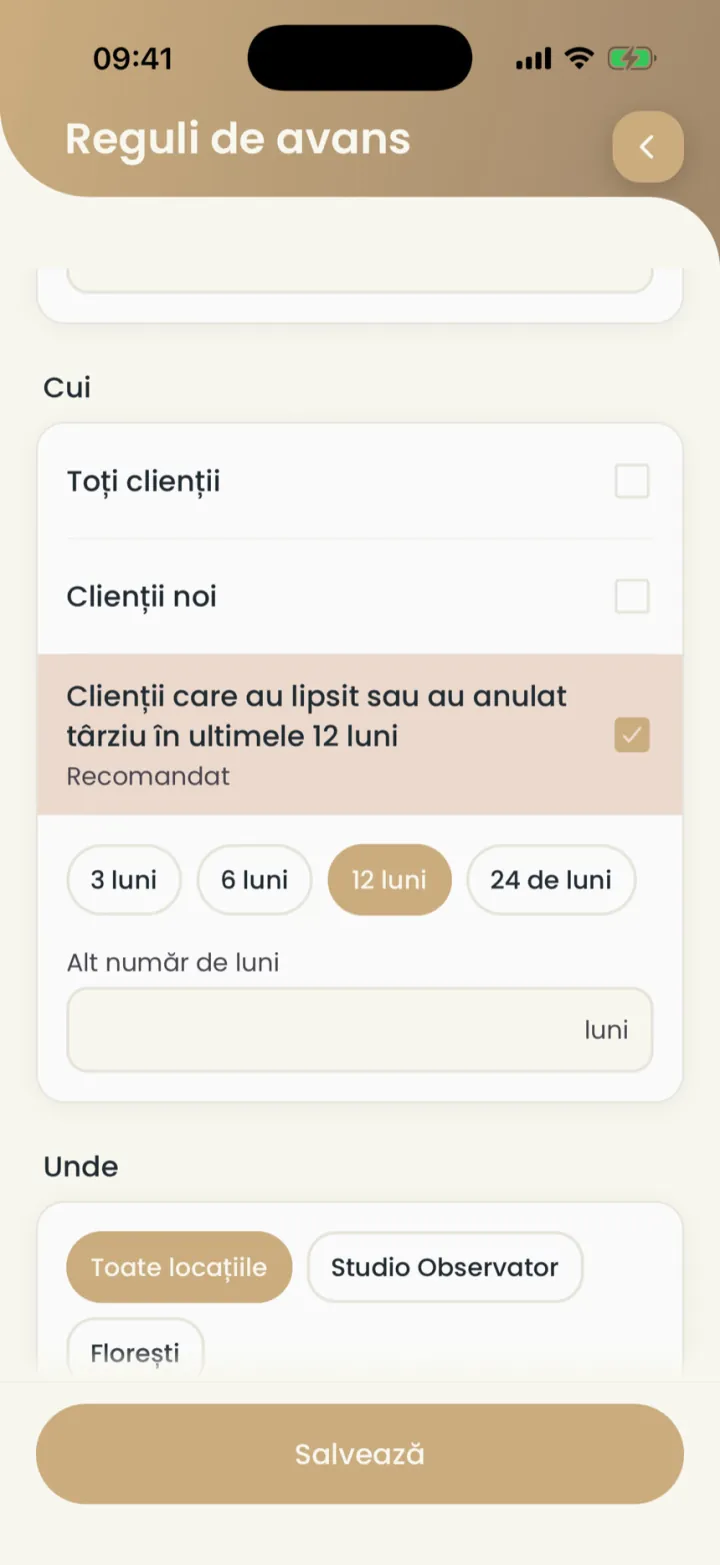
You ask a deposit from everyone, only from new clients or only from those who missed, at some locations, days and hours.
Where to find it:Settings (Setări)Payments through Nuvio (Plăți prin Nuvio)Deposit rules (Reguli de avans)
- Who
- All clients (Toți clienții), New clients (Clienți noi), or those who missed or cancelled late in the last 12 months, recommended.
- Where
- All locations (Toate locațiile) or only some.
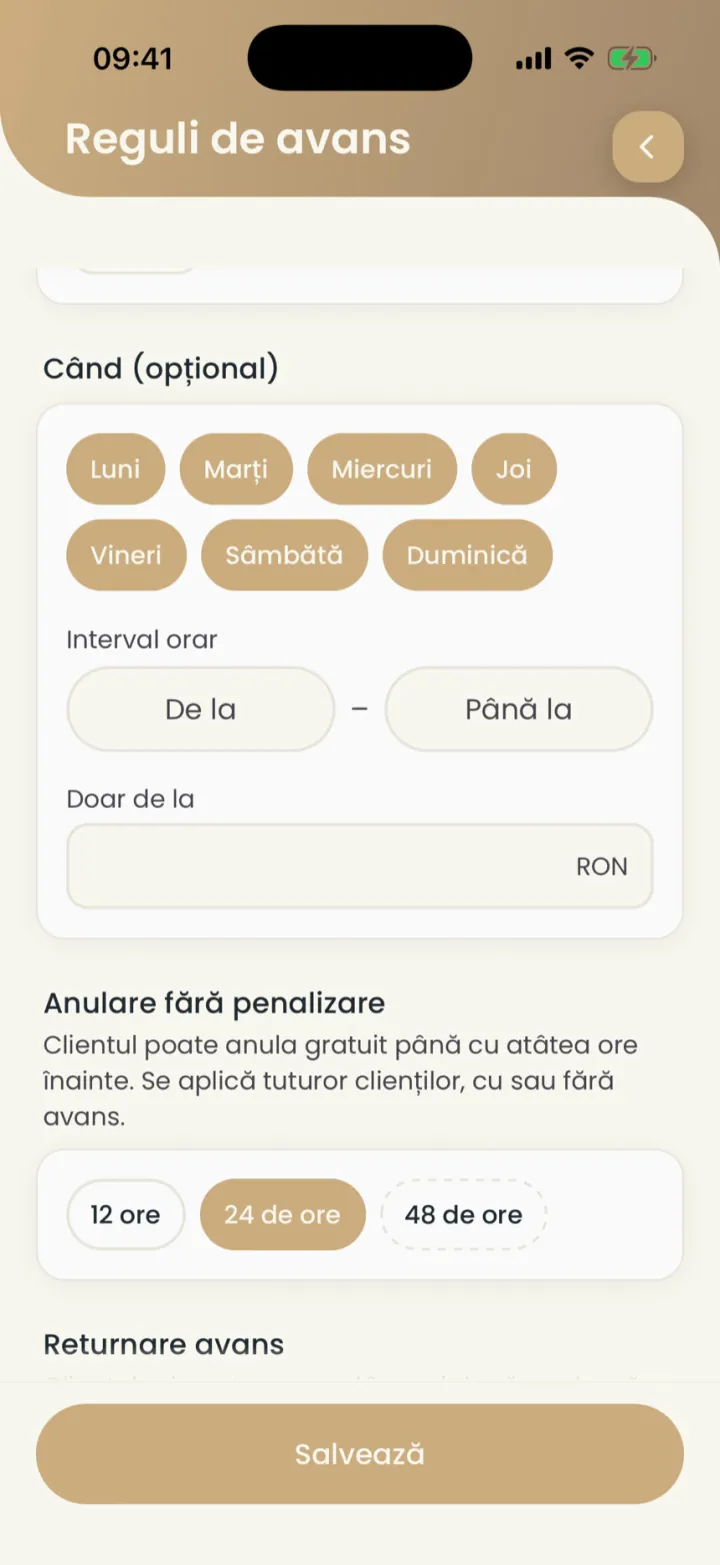
- When (optional) (Când (opțional))
- Only on some days, hours or from a certain amount.
- Subscriptions
- Clients with an active subscription never pay a deposit.
Money back
The client gets the deposit back if they cancel in time.
- Cancels in time
- Gets all the money back automatically. You set the limit at free cancellation.
- Cancels late or does not come
- The deposit is not refunded.
- You cancel
- The client gets all the money back automatically.
From the details of a payment you can also refund money yourself, with Refund everything (Returnează tot).
Invoices
Nuvio issues the invoice in your name and sends it to e-Factura.
The client gets the invoice on the booking page. You see every invoice in the payments report, under Invoices (Facturi).
Paying at the location with a QR code
You show a QR code, and the client pays from their own phone.
- Open the client's appointment.
- Pick payment by QR code and show the client the code.
- The client scans the code and pays by card on their phone.
A QR code payment has no invoice.
Ask for a deposit with a link
For an appointment you make yourself, you send the client a link to pay the deposit.
- In the new appointment you find the deposit request, with the amount from your rules.
- Save the appointment, and the client gets the payment link.
If the client does not pay in time, you get a notification and choose whether to cancel the appointment or keep it without a deposit.
What it costs
1 RON per collected payment, VAT included, plus the Stripe card fee.
- The Nuvio fee
- 1 RON (VAT included) per collected payment. It is refunded if you cancel the paid appointment.
- The Stripe fee
- Stripe invoices you its fees, and your accountant records them with reverse charge.
Your payments
You see payments, invoices and what needs you.
Where to find it:Settings (Setări)Payments through Nuvio (Plăți prin Nuvio)
- Report (Raportează)
- The amounts collected, refunded and the fees, for the chosen period.
- Payments (Plăți)
- Each payment, with the client, the amount and its status.
- Invoices (Facturi)
- The invoices issued and their e-Factura status.
- Needs action (De rezolvat)
- Disputes, failed refunds or unpaid payment links.
Disputes
When a client disputes a payment with their bank, you get a notification and a ready file.
- Open the notification about the dispute.
- See the deadline and download the PDF file with the evidence.
- Answer in Stripe, from the list of disputes on pro.nuvio.ro.
The Stripe dispute fee is yours.
Reporting income to ANAF
Nuvio reports to ANAF the income collected through the platform, as the law requires.
You fill in the details needed in invoice details.
Updated on
Help
If the answer is not here, write to us on WhatsApp or by e-mail.