
Locations
The locations where you work, the address, online booking and the minimum notice before a booking.
The app screens shown here are in Romanian; each button's Romanian name follows it in brackets.
Add a location
You can have up to 3 locations, each with its address and hours.
Where to find it:Settings (Setări)Locations (Locații)New location (Locație nouă)
- Open Settings and tap Locations (Locații).
- Tap New location (Locație nouă).
- Type the Location name (Numele locației) and the address.
- Pick the Location type (Tipul locației): Fixed address (Adresă fixă) or Online.
- Tap Save location (Salvează locația).
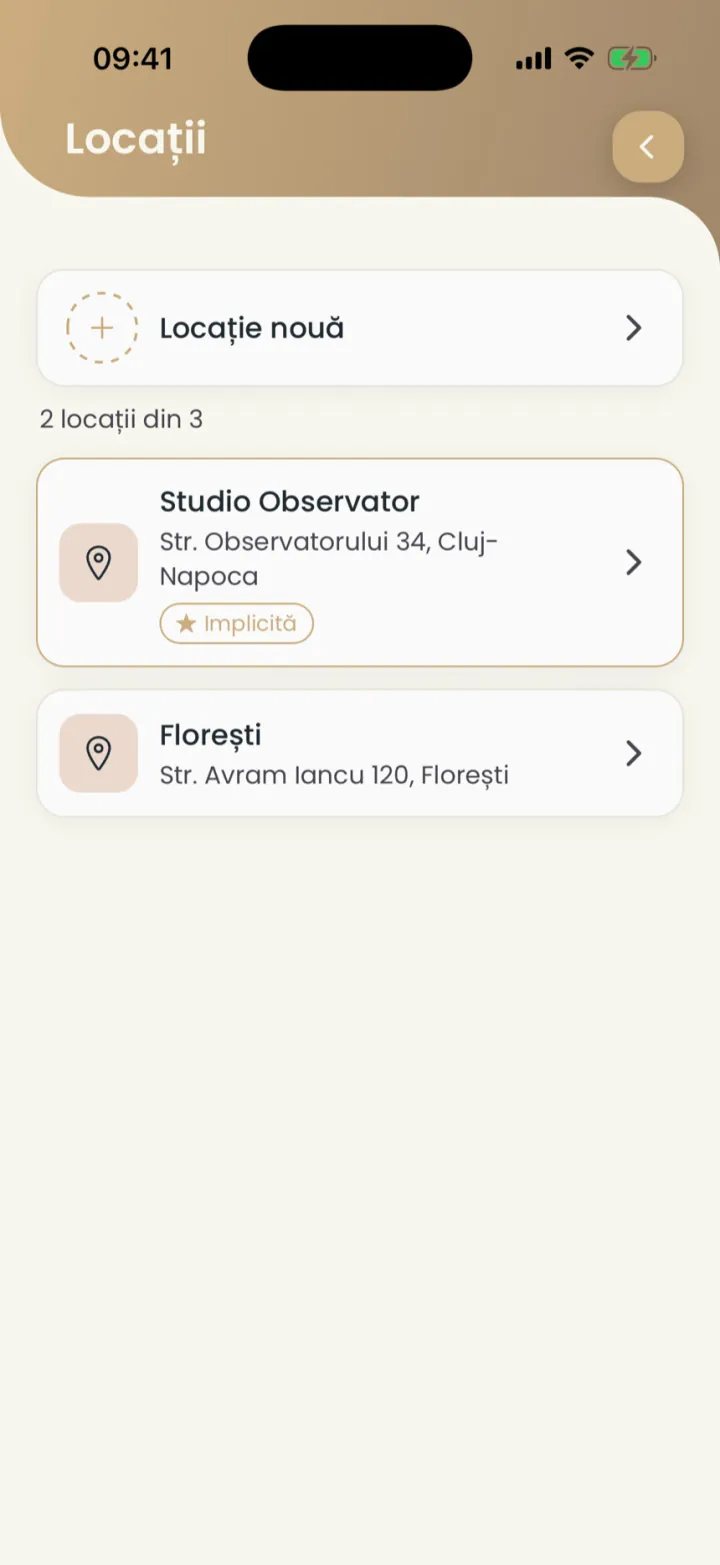
After you add the location, set its hours in Work schedule.
The address
You pick the address from the list, so clients find it easily on the map.
Where to find it:Settings (Setări)Locations (Locații)Details (Detalii)
- Open the location.
- At Address (Adresa) type the street and the city.
- Pick the right address from the list.
- Tap Save location (Salvează locația).
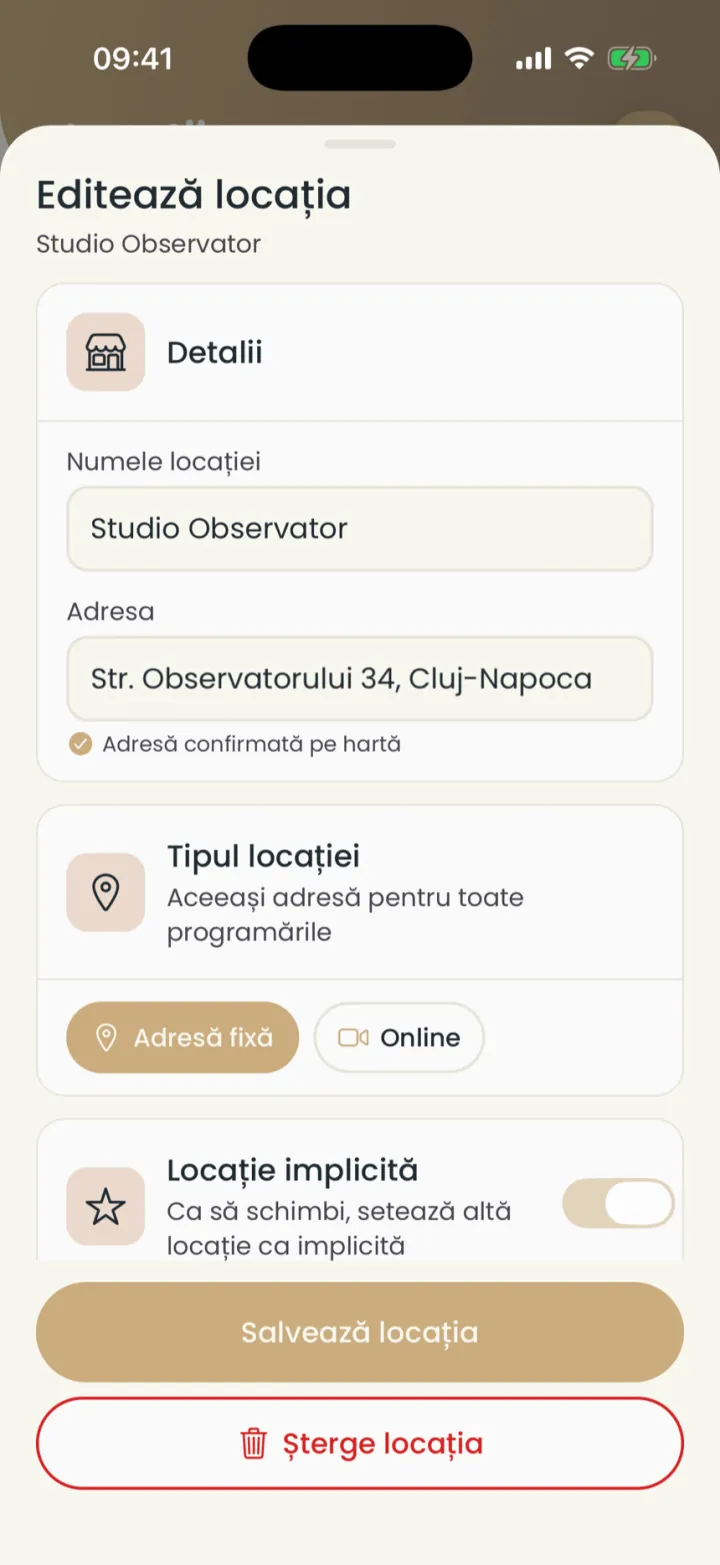
The online location
For video sessions, the client gets the meeting link automatically.
Where to find it:Settings (Setări)Locations (Locații)Location type (Tipul locației)
- Open the location or make a new one.
- At Location type (Tipul locației) pick Online.
- Add your Zoom, Meet or Teams link, or pick Google Meet.
- Tap Save location (Salvează locația).
The client gets the link in the booking confirmation.
Minimum notice before a booking
How close to the time an online booking can still be made.
Where to find it:Settings (Setări)Locations (Locații)Minimum notice before an appointment (Timp minim înainte de programare)
- Open the location.
- Tap Minimum notice before an appointment (Timp minim înainte de programare) and pick the time.
- Tap Save location (Salvează locația).
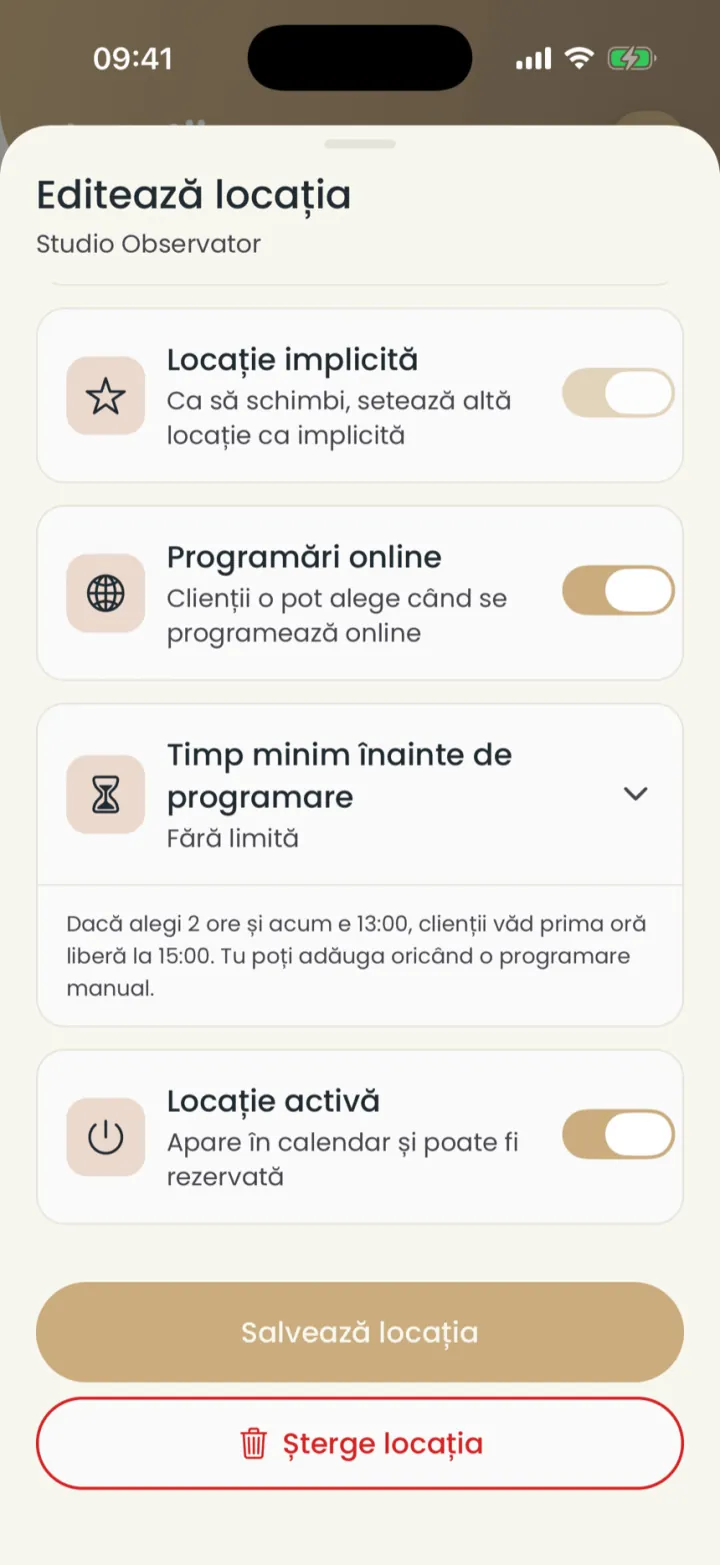
For example, with 2 hours, if it is 13:00 now, clients see 15:00 as the first free time. You can add an appointment any time.
Default, online and enabled
Three switches decide how each location is used.
Where to find it:Settings (Setări)Locations (Locații)
- Default location (Locație implicită)
- The location picked by itself for a new appointment. To change it, make another location the default.
- Online bookings (Programări online)
- Clients can pick it when they book online. Off, only you use it.
- Location enabled (Locație activă)
- It shows in the calendar and can be booked. Off, the location is hidden everywhere.
Delete a location
You delete a location you do not need.
Where to find it:Settings (Setări)Locations (Locații)Delete location (Șterge locația)
- Open the location.
- Tap Delete location (Șterge locația) and confirm.
If you only want a pause, turn off Location enabled (Locație activă) instead of deleting it.
Updated on
Help
If the answer is not here, write to us on WhatsApp or by e-mail.