
Sales, reports and your accountant
The list of sales, the report by service and product, day closes and the monthly export for your accountant.
The app screens shown here are in Romanian; each button's Romanian name follows it in brackets.
Sales
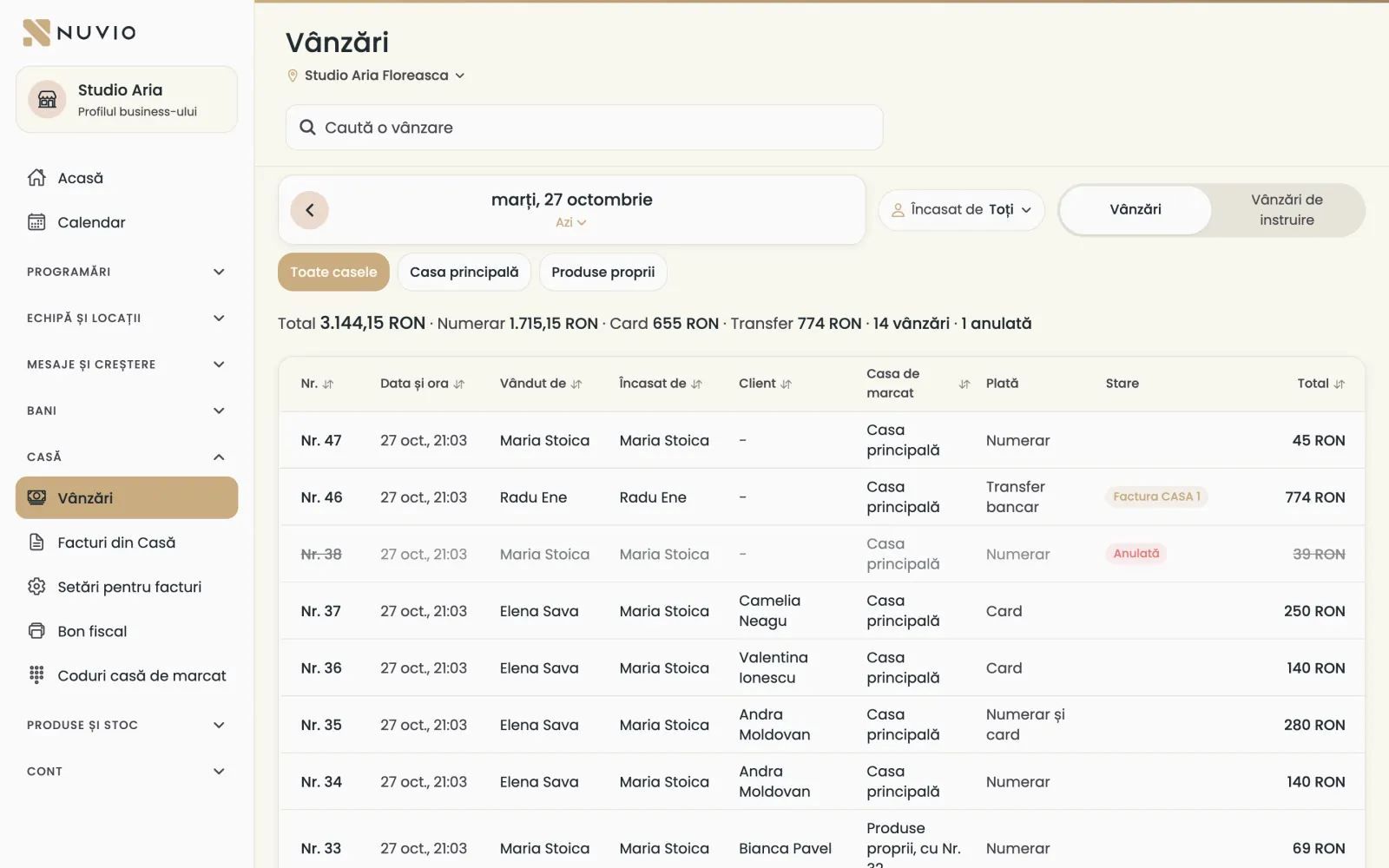
Every sale from the till, with who sold, who charged, the client, the payment and the status.
Where to find it:Till (Casă)Sales (Vânzări)
- Open Sales (Vânzări) and choose the location and the day.
- Filter by Charged by (Încasat de) (optional).
- Tap a sale to see the receipt, the invoice or to cancel it.
- Cancelled (Anulată)
- The sale was cancelled; the products went back into stock.
- Training (Instruire)
- A training-mode sale; it shows only under Training sales (Vânzări de instruire).
The sales report
How much each service and product sold, with the discounts, for the chosen period.
Where to find it:Money (Bani)Reports (Rapoarte)Sales (Vânzări)
- Open Reports (Rapoarte) and then Sales (Vânzări).
- Choose the period and the location.
- See the totals for services, products and discounts, then each service and product.
Choose the period
Reports show by day, by week, by month or for a period you choose.
- Tap the period at the top.
- Choose the month or the start and end days.
Export the report
Download the report as a file, to open in Excel.
Where to find it:Money (Bani)Reports (Rapoarte)Export (Exportă)
- In the report, tap Export (Exportă).
- Open the downloaded file.
The export for your accountant
The month's stock documents, in a file for Saga or for Excel.
Where to find it:Products and stock (Produse și stoc)Documents (Documente)Export for the accountant (Export pentru contabil)
- Open Documents (Documente) and tap Export for the accountant (Export pentru contabil).
- Choose the month and the location.
- Tap Download for Saga (Descarcă pentru Saga) or Download CSV (Descarcă CSV).
- Send the file to your accountant.
You set the Saga accounts and stock codes on pro.nuvio.ro, under Nuvio POS, in Settings for the accountant (Setări pentru contabil).
A goods receipt without the supplier's tax ID isn't in the Saga file; you find it in the CSV file.
Day closes
Each day close stays saved, with Nuvio's totals and the Z report's.
- Open Close the day (Închide ziua) from the till.
- Go to earlier days with Previous day (Ziua anterioară).
The closing steps are in Close the day.
Updated on
Help
If the answer is not here, write to us on WhatsApp or by e-mail.