Diplomas
You add your diplomas, Nuvio checks them and clients see them on your page.
The app screens shown here are in Romanian; each button's Romanian name follows it in brackets.
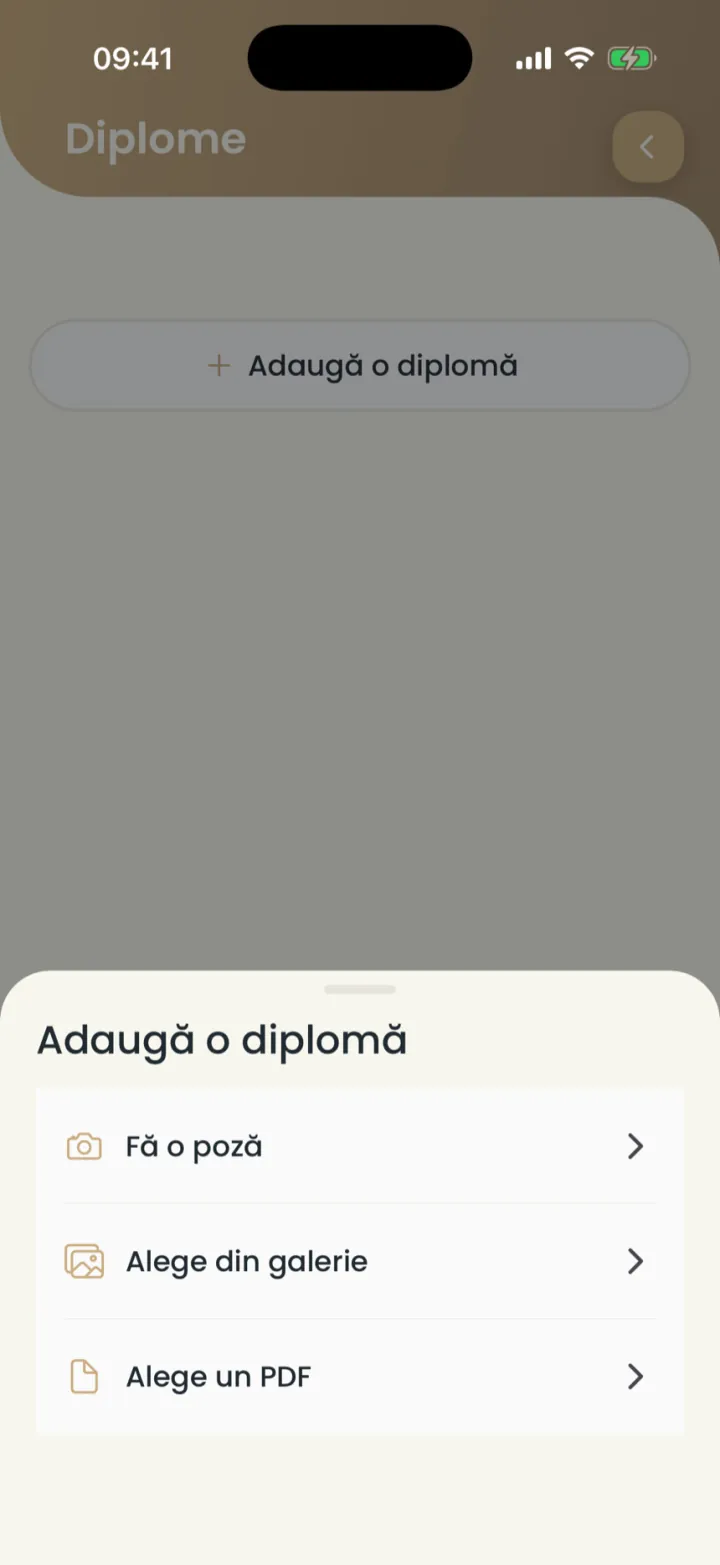
Add a diploma
You take a photo of the diploma or pick a PDF, and we check it.
Where to find it:Settings (Setări)Diplomas (Diplome)Add a diploma (Adaugă o diplomă)
- Open Settings and tap Diplomas (Diplome).
- Tap Add a diploma (Adaugă o diplomă).
- Pick Take a photo (Fă o poză), Choose from gallery (Alege din galerie) or Choose a PDF (Alege un PDF).
- If the diploma has several pages, tap Add another page (Adaugă încă o pagină).
- Check the details read from the diploma and tap Continue (Continuă).
The check
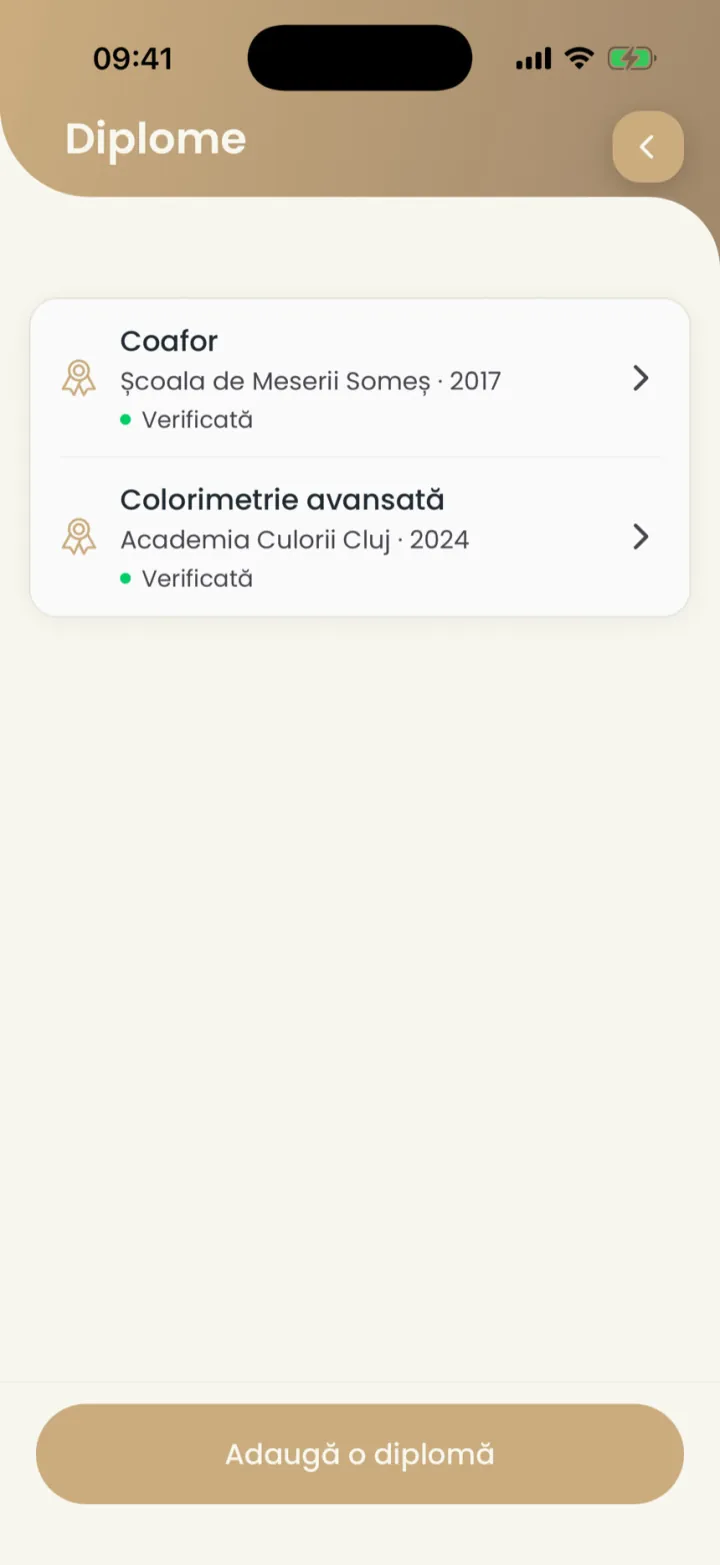
The diploma goes through a check, and you see its status in the list.
Where to find it:Settings (Setări)Diplomas (Diplome)
- Being checked (Se verifică)
- The diploma was just sent.
- We're checking it (O verificăm noi)
- Someone from the Nuvio team checks it.
- Verified (Verificată)
- It shows on your page.
- Rejected (Respinsă)
- It could not be verified. See the reason in the diploma.
What clients see
Clients only see the name of the diploma, who issued it and the year.
The photo of the diploma and your personal details on it are never shown.
A rejected diploma
If the diploma is rejected, you see why and can send it again.
- Hard to read
- Take a clearer photo, with the whole diploma in the frame.
- The name does not match
- The name on the diploma must be the same as the name on your account.
- Looks edited
- Upload the original, not a photo of a screen.
- Already used
- The diploma is on another Nuvio account.
Updated on
Help
If the answer is not here, write to us on WhatsApp or by e-mail.