
Business: the team calendar and bookings
The team calendar, bookings for colleagues, confirmations, the shift plan, absences and bookings with several specialists.
The app screens shown here are in Romanian; each button's Romanian name follows it in brackets.
The team calendar
See every colleague's bookings, one column per person.
Where to find it:Calendar
- Open Calendar.
- Choose the location at the top, or All locations (Toate locațiile).
- Choose the view: Day (Zi), 3 days (3 zile) or 7 days (7 zile).
- With Only who is working (Doar cine lucrează) you hide colleagues who are off that day.
On a computer, at app.nuvio.ro, you see the whole team across the screen.
On a phone, in the Day (Zi) view, turn the phone sideways to see more colleagues at once.
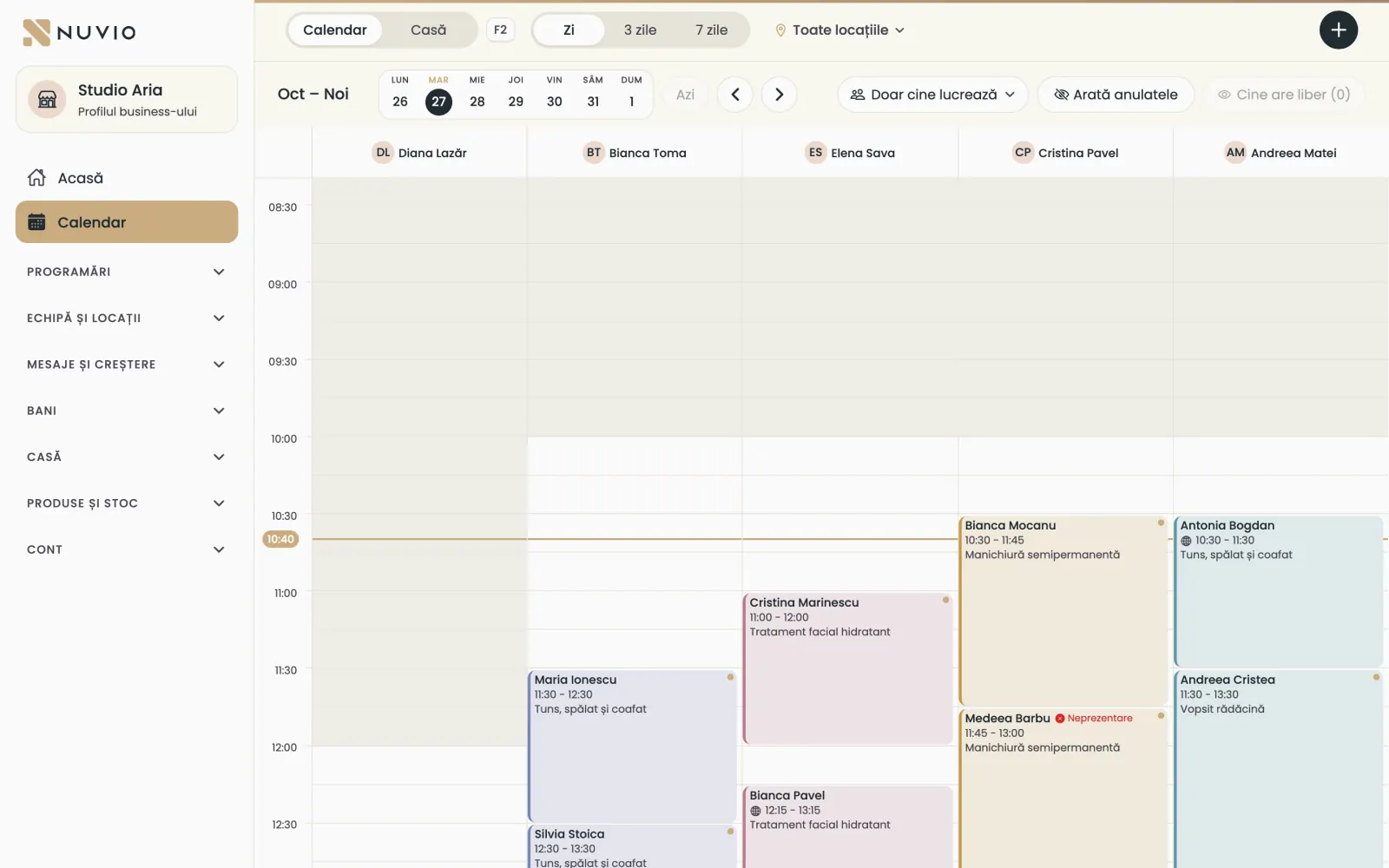
- Calendar or Till, the view and the location
- A colleague's bookings
Book for a colleague
The front desk, managers and owner can book clients with anyone in the team.
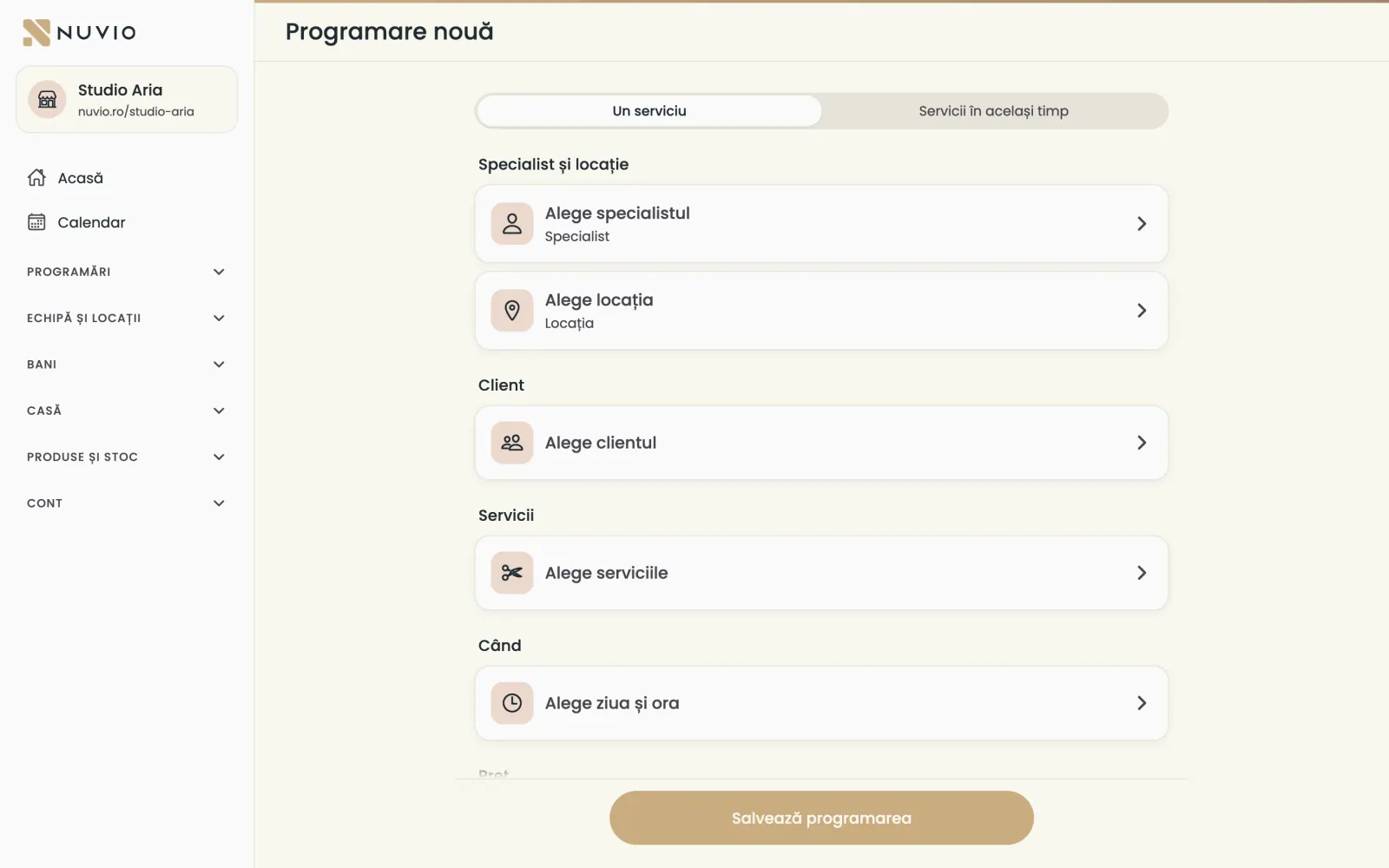
Where to find it:CalendarNew appointment (Programare nouă)
- Tap a free time in the colleague's column, or New appointment (Programare nouă).
- Check the specialist and the location.
- Tap Choose the client (Alege clientul) and find the client, or add a new one.
- Tap Choose the services (Alege serviciile) and pick the services.
- Check the day and time, then tap Save booking (Salvează programarea).
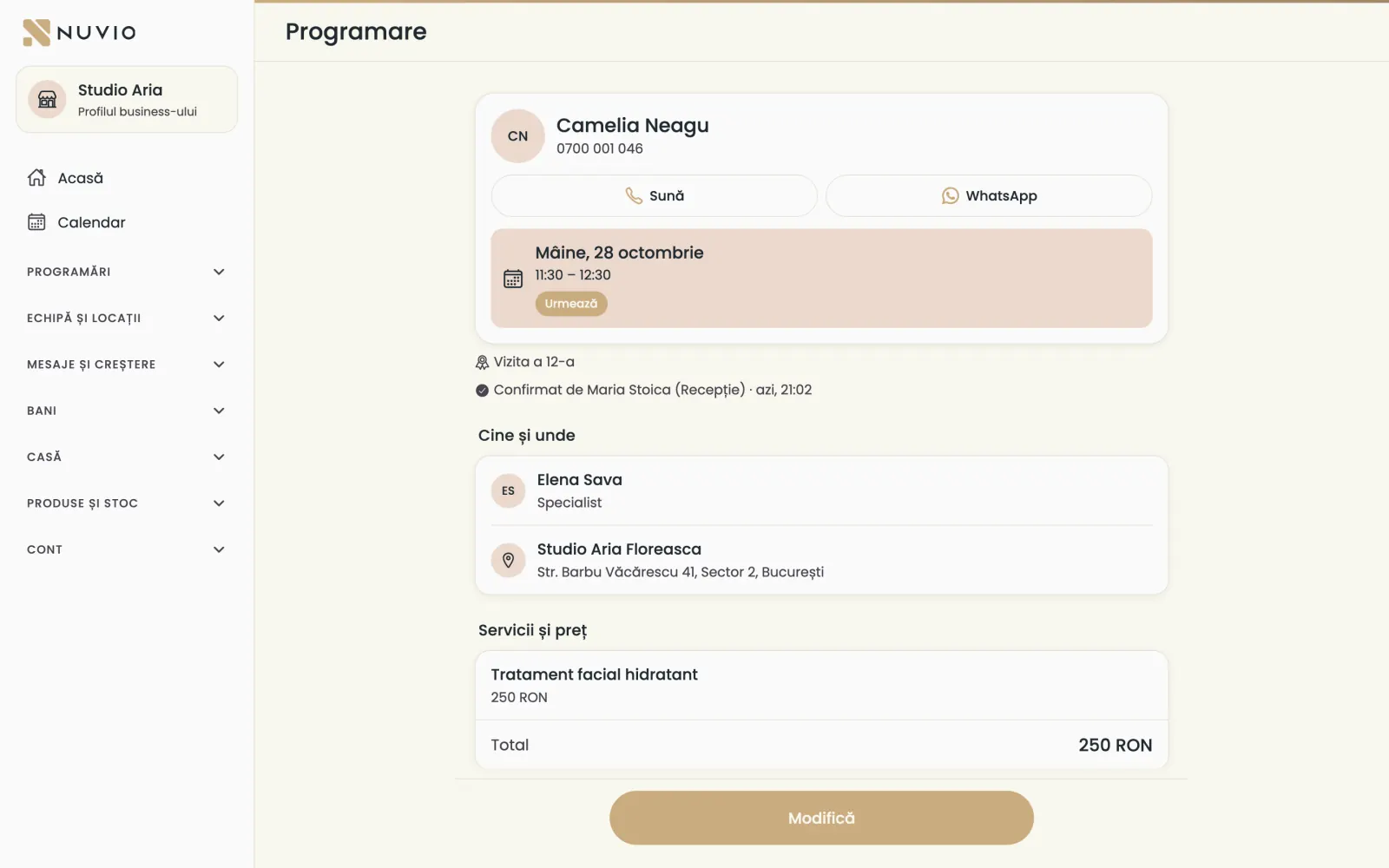
In the booking you see who added it and when, under Activity (Activitate).
Move a booking to another colleague
Give the booking to a colleague who is free at the same time, without changing the client's time.
Where to find it:CalendarMove to another specialist (Mută la alt specialist)
- Open the booking from the calendar.
- Tap Move to another specialist (Mută la alt specialist).
- Choose the colleague who is free at that time.
The client is told about the change.
Who confirms online bookings
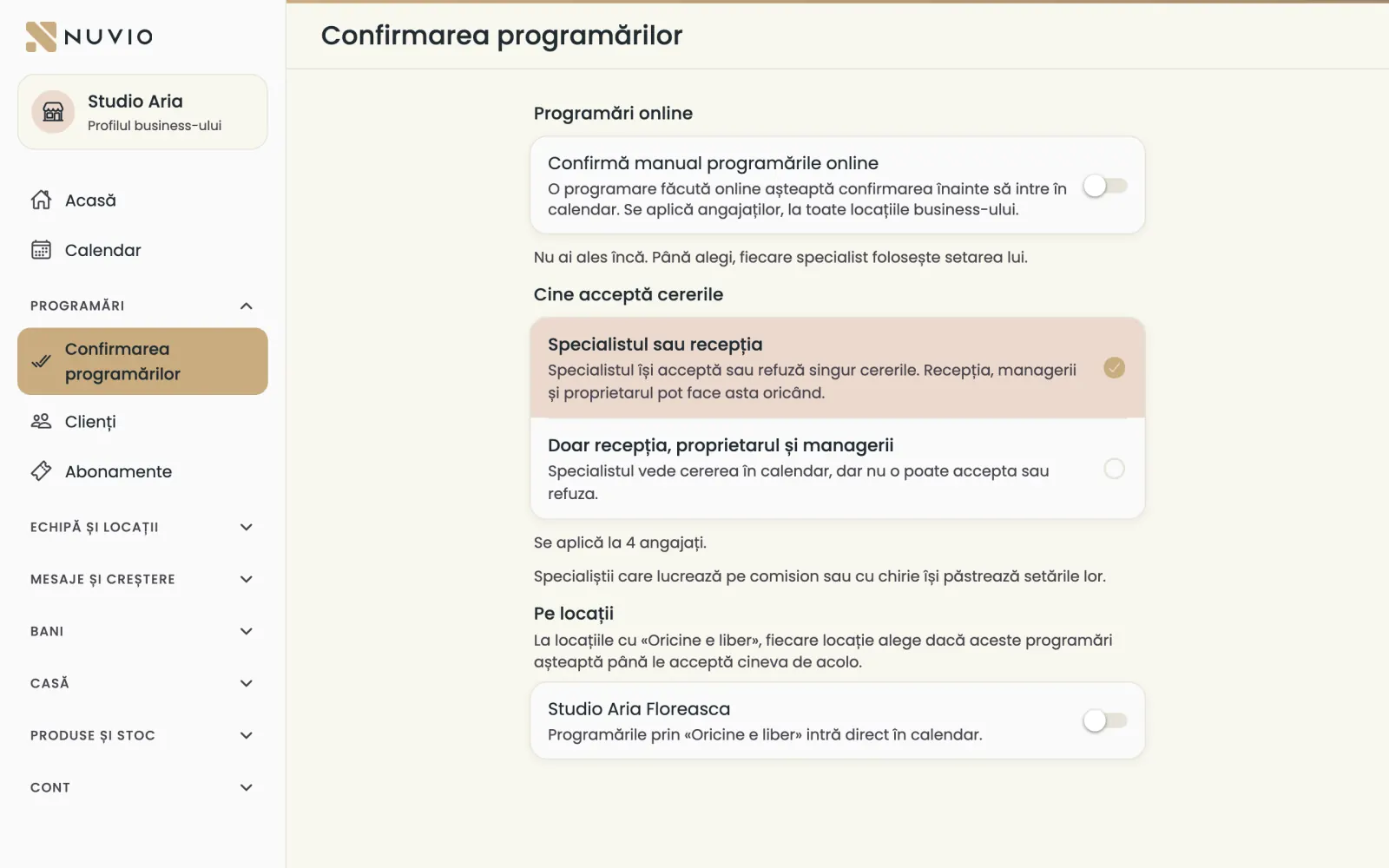
Choose whether online bookings go straight into the calendar or wait for a confirmation, and who gives it.
Where to find it:Bookings (Programări)Booking confirmation (Confirmarea programărilor)
- Open Booking confirmation (Confirmarea programărilor).
- Turn Confirm online bookings manually (Confirmă manual programările online) on or off.
- Under Who accepts requests (Cine acceptă cererile) choose The specialist or the front desk (Specialistul sau recepția) or Only the front desk, the owner and the managers (Doar recepția, proprietarul și managerii).
- For each location with Anyone available (Oricine e liber), choose whether these bookings wait for a confirmation.
The setting applies to employees; commission and chair-rent collaborators keep their own settings.
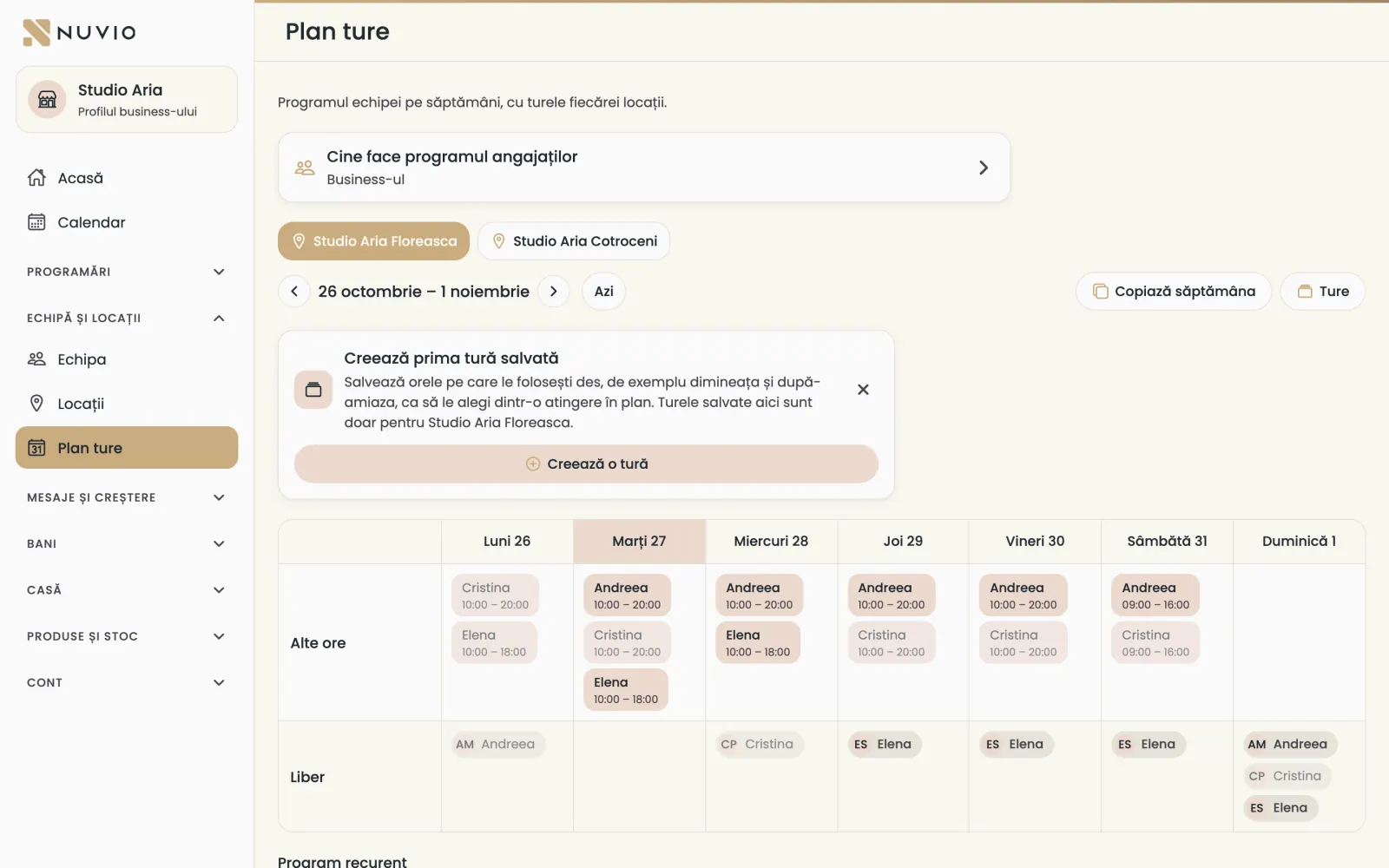
The shift plan
Decide who works each day and at which location, week by week.
Where to find it:Bookings (Programări)Shift plan (Plan ture)
Choose who makes the schedule
- Open Shift plan (Plan ture).
- Under Who makes the employees' schedule (Cine face programul angajaților) choose The business (Business-ul) or Each employee (Fiecare angajat).
Plan a week
- Choose the location and the week.
- Tap a person's day and pick a saved shift, Other hours (Alte ore) or Off (Liber).
- With Copy the week (Copiază săptămâna) you put the same shifts in the next week too.
Save a shift you use often
- Tap Create a shift (Creează o tură).
- Type the name and the hours, for example mornings from 9 to 15.
- Save; the shift is then ready to pick in the plan.
Tap a person's name to open their recurring schedule.
Common problems
Why can't an employee change their hours?
When the business makes the employees' schedule, only the owner and managers change it.
The employee sees it with the label Set by the business (Setat de business).
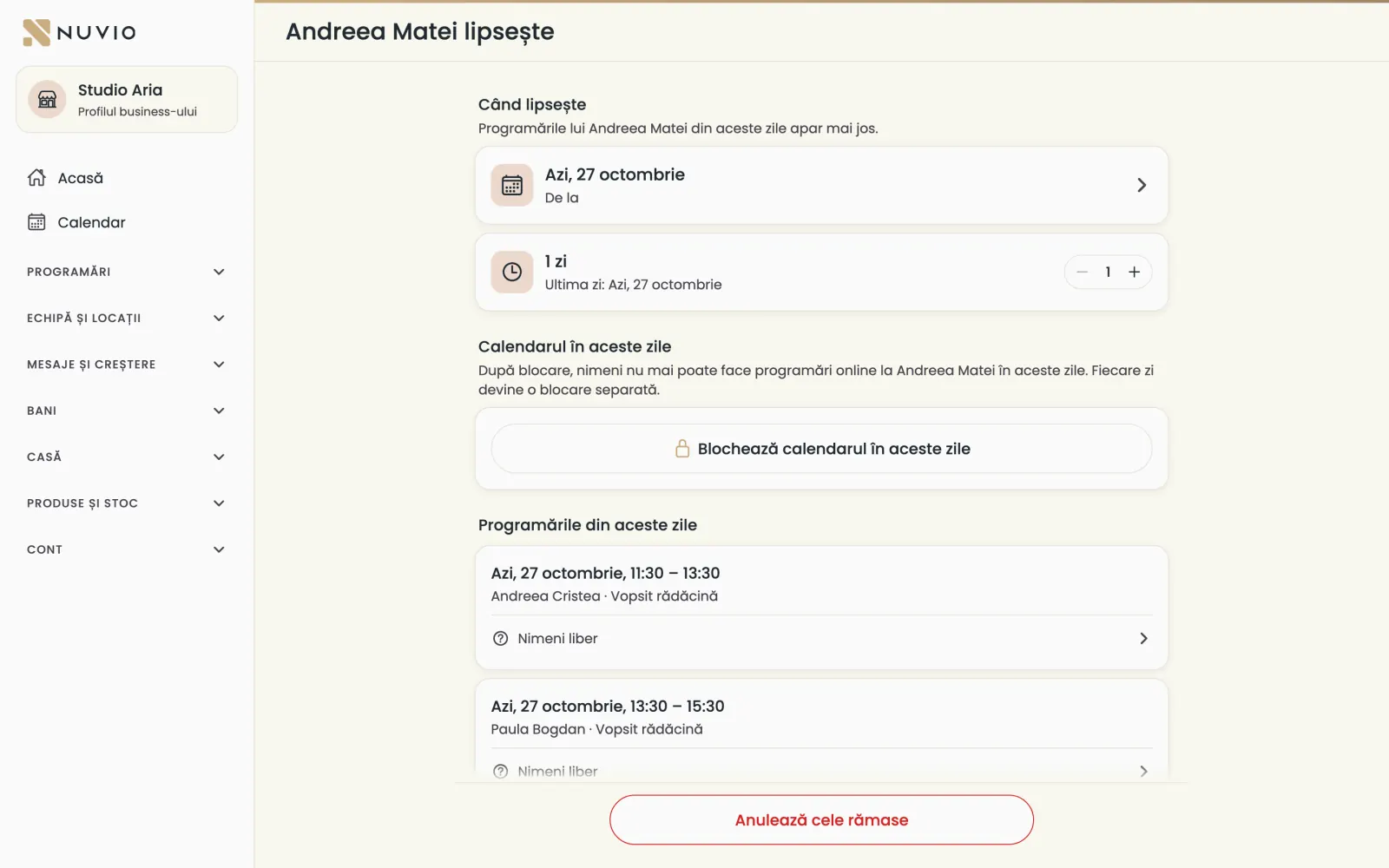
A colleague is away
When someone is away for one or more days, you move or cancel their bookings and block their calendar.
Where to find it:Team (Echipa)Away (Lipsește)
- Open the colleague's card and tap Away (Lipsește).
- Choose the first day and how many days they are away.
- Move each booking to a free colleague, or cancel them with Cancel the rest (Anulează cele rămase).
- Tap Block the calendar on these days (Blochează calendarul în aceste zile).
Once blocked, nobody can book online with them on those days.
Anyone available
The client picks the service and the time, and Nuvio books them with a free specialist at the location.
Where to find it:Team and locations (Echipă și locații)Locations (Locații)Who picks the specialist (Cine alege specialistul)
- Open the location from Locations (Locații).
- Under Who picks the specialist (Cine alege specialistul) choose the option with Anyone available (Oricine e liber).
- Check under Location services (Serviciile locației) who does each service.
Every specialist gets the same services, at the same prices, from the location's menu.
Only employees are part of Anyone available.
Services at the same time
Two specialists work on the same client at the same time, for example colour and a facial.
Where to find it:CalendarNew appointment (Programare nouă)Services at the same time (Servicii în același timp)
- Tap New appointment (Programare nouă) and choose Services at the same time (Servicii în același timp).
- Choose the client, then the service and the specialist for each part.
- Choose the time and tap Save booking (Salvează programarea).
You set the service combinations on the location, in the Services at the same time (Servicii în același timp) row; they work only with Anyone available.
Each specialist sees their own part; when cancelling, you choose which part to cancel.
Your location becomes the business's location
When you bring your location into the business, your bookings there move to the business's location.
When you create the business with your current location, it keeps its hours, services and bookings.
Your upcoming bookings then show in the team calendar, at the business's location.
Common problems
What if I can't see a booking after joining the business?
Check the location chosen at the top of the calendar and pick All locations (Toate locațiile).
If it still doesn't show, write to us on WhatsApp and we will check.
Updated on
Help
If the answer is not here, write to us on WhatsApp or by e-mail.