
Subscriptions
Packs of sessions you sell to clients, with a validity and online payment.
The app screens shown here are in Romanian; each button's Romanian name follows it in brackets.
Make a subscription
A subscription is a pack of sessions paid in advance, for example 5 treatments.
Where to find it:Settings (Setări)Subscriptions (Abonamente)New subscription (Abonament nou)
- Open Settings and tap Subscriptions (Abonamente).
- Tap New subscription (Abonament nou).
- Type the name, for example 5 botox treatments.
- Pick the service, or New subscription-only service (Serviciu nou doar pentru abonament).
- Type the price, the number of sessions and the validity, in days or months.
- Tap Save (Salvează).
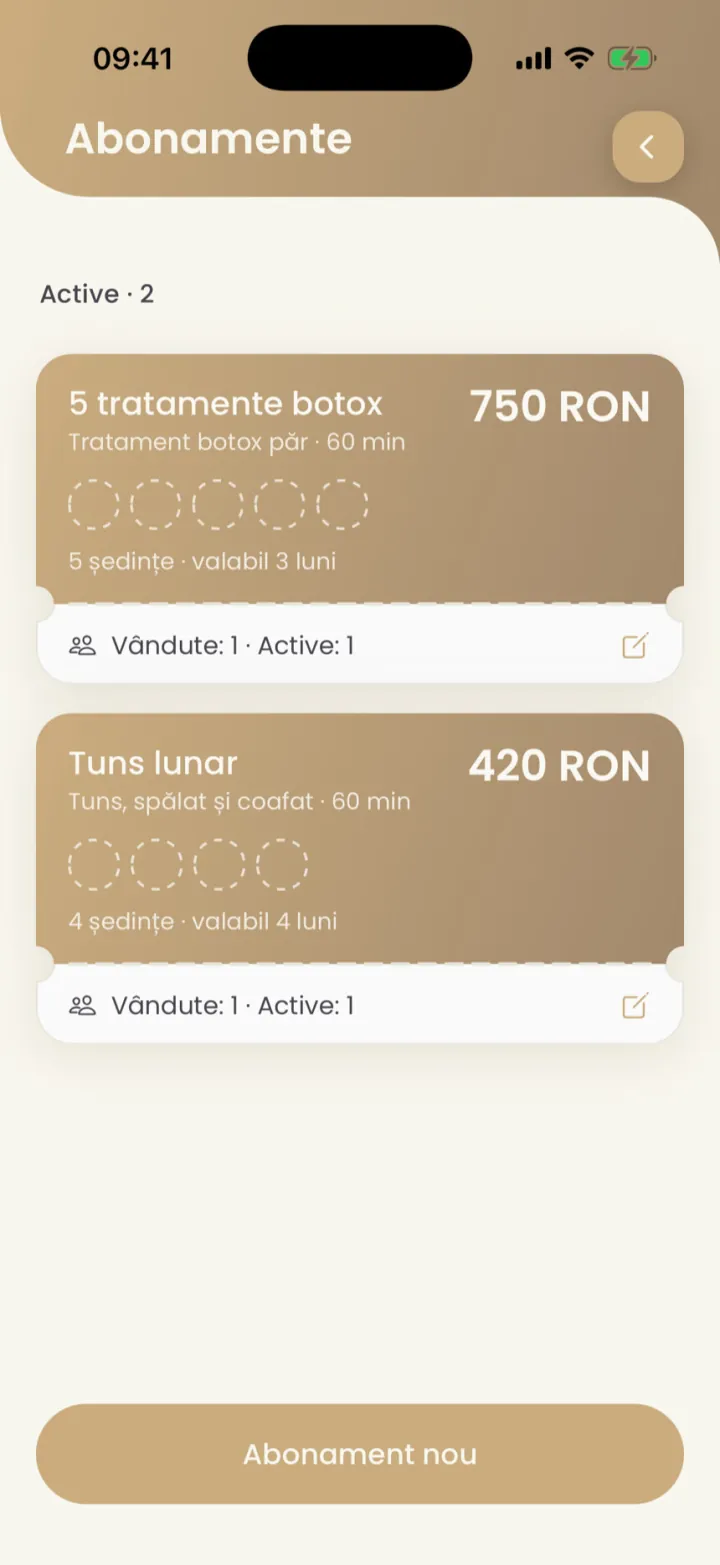
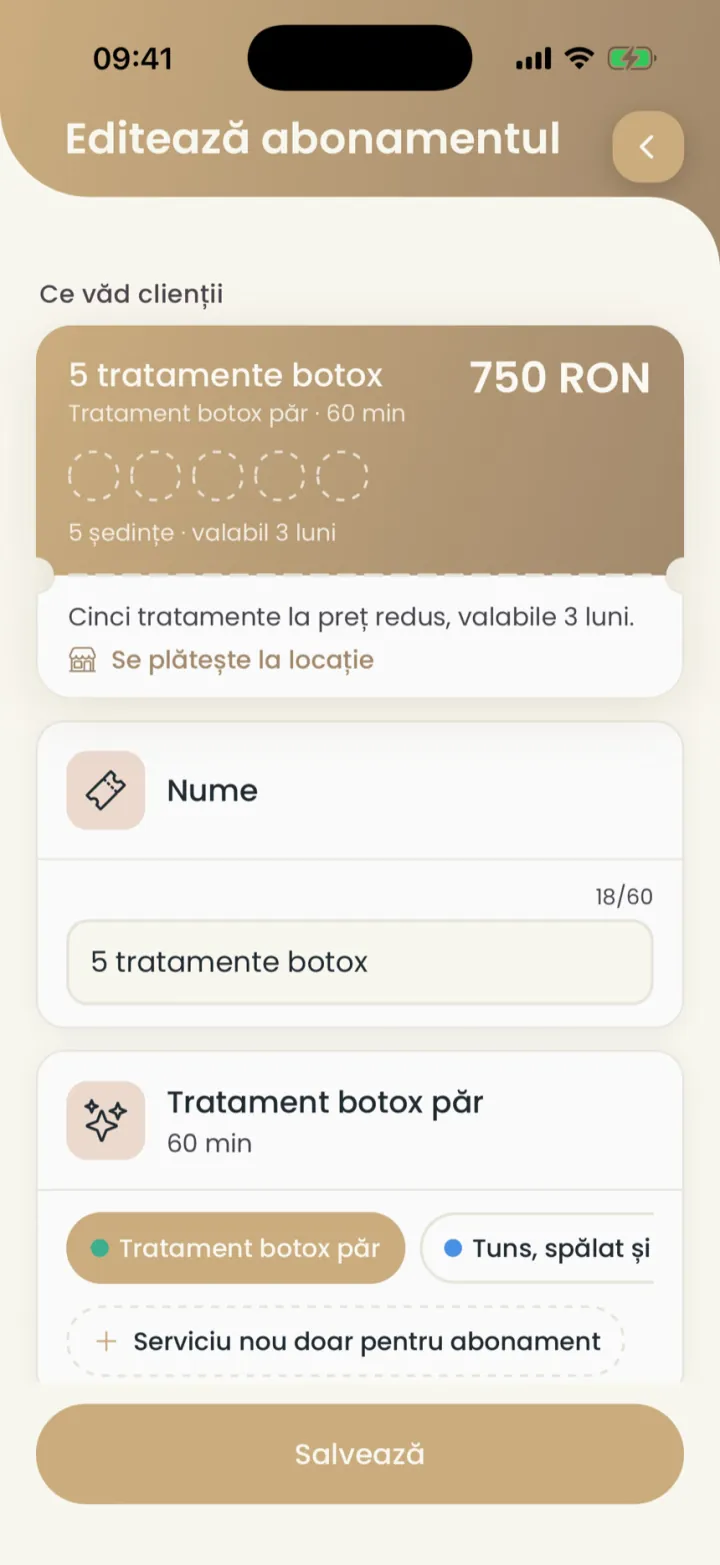
- Visible to clients (Vizibil pentru clienți)
- On, clients see it and ask for it on your page. Off, only you can assign it.
- Archive (Arhivează)
- The subscription leaves sale, but those who hold it keep using it.
Changes apply only to new sales.
Sell a subscription
You assign the subscription to a client from their card.
Where to find it:Settings (Setări)Clients (Clienți)Assign subscription (Atribuie abonament)
- Open the client card.
- Tap Assign subscription (Atribuie abonament).
- Pick the subscription.
- If they paid, tap Paid now (Plătit acum) and pick Cash (Numerar) or Card.
- Tap Assign (Atribuie).
An unpaid subscription covers one session until you mark it as paid.
The client asks for a subscription
The client asks for the subscription on your page, and you accept it.
- You get a notification with the request.
- Open the client card, where the subscription shows as Request pending (Cerere în așteptare).
- Tap Manage (Gestionează) and accept or decline the request.
Sessions
Every appointment on the subscription uses one session.
If the client cancels in time, the session goes back to the subscription.
The client card shows how many sessions were used and how many are booked.
Validity
The validity starts at the first session, and unused sessions expire at the end.
The client card shows until when the subscription is valid.
Extend a subscription
You give the client more time to use their sessions.
Where to find it:Settings (Setări)Clients (Clienți)Manage (Gestionează)Extend (Prelungește)
- Open the client card.
- On the subscription tap Manage (Gestionează).
- Tap Extend (Prelungește) and pick the new end date.
Extend (Prelungește) shows once the subscription has started.
Paying for a subscription online
With Payments through Nuvio, the client can pay for the subscription by card.
Without online payments, your page says Pay at the location (Se plătește la locație). Card payments are turned on in Payments through Nuvio.
Ask for online payment
You send the client a link to pay for the subscription by card.
Where to find it:Settings (Setări)Clients (Clienți)Manage (Gestionează)Ask for online payment (Cere plata online)
- Open the client card.
- On the subscription tap Manage (Gestionează).
- Tap Ask for online payment (Cere plata online) and send the link.
When they pay, the subscription shows as paid.
Updated on
Help
If the answer is not here, write to us on WhatsApp or by e-mail.