
Your profile and page
Your profile, the link of your page, the QR code and what a client sees when they find you.
The app screens shown here are in Romanian; each button's Romanian name follows it in brackets.
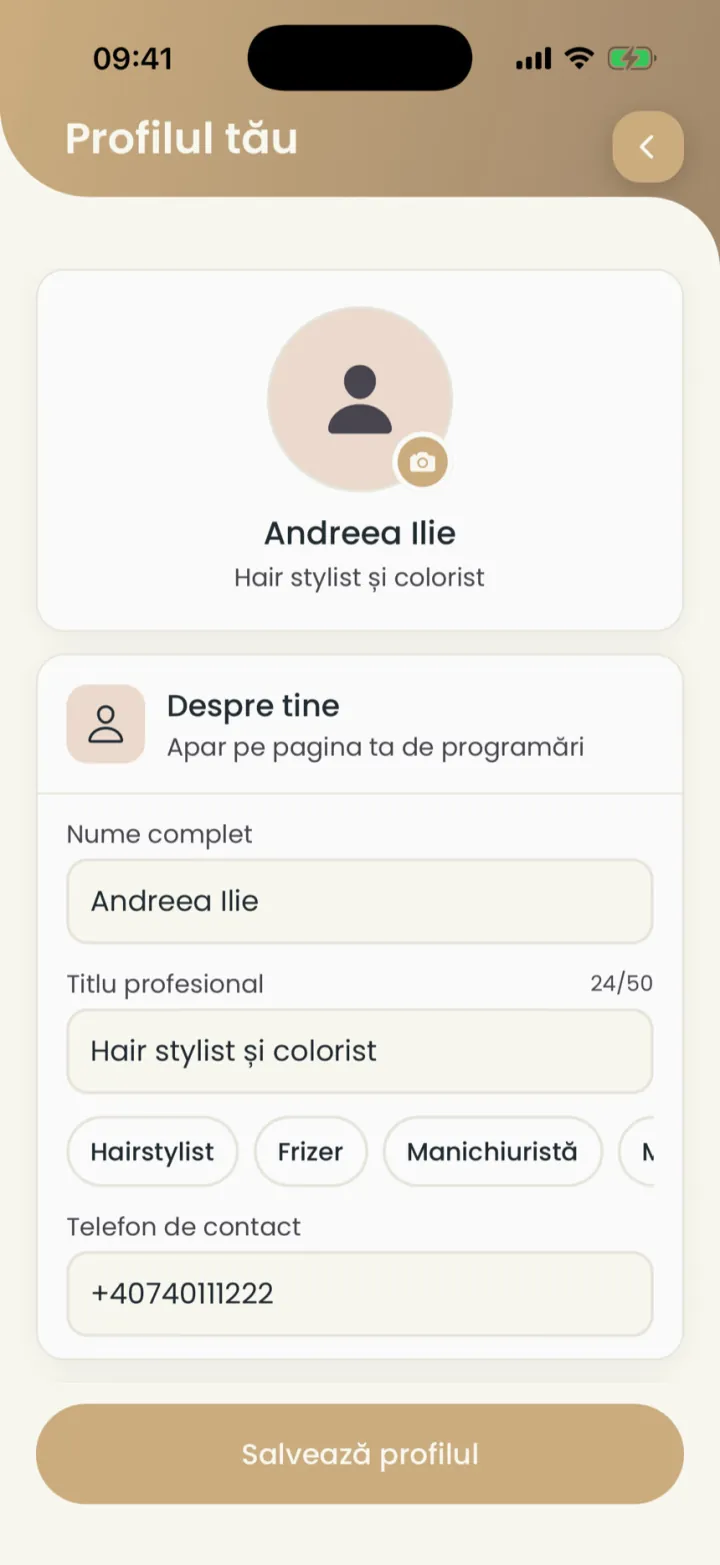
Edit your profile
Your photo, name, title and contact phone show on your booking page.
Where to find it:Settings (Setări)Your profile (Profilul tău)
- Open Settings and tap the pencil next to your name.
- Tap the photo to pick a picture.
- Under About you (Despre tine) fill in Full name (Nume complet), Professional title (Titlu profesional) and Contact phone (Telefon de contact).
- Tap Save profile (Salvează profilul).
The link of your page
The link looks like nuvio.ro/your-name and you send it to anyone who wants to book.
Where to find it:Settings (Setări)QR code (Codul QR)
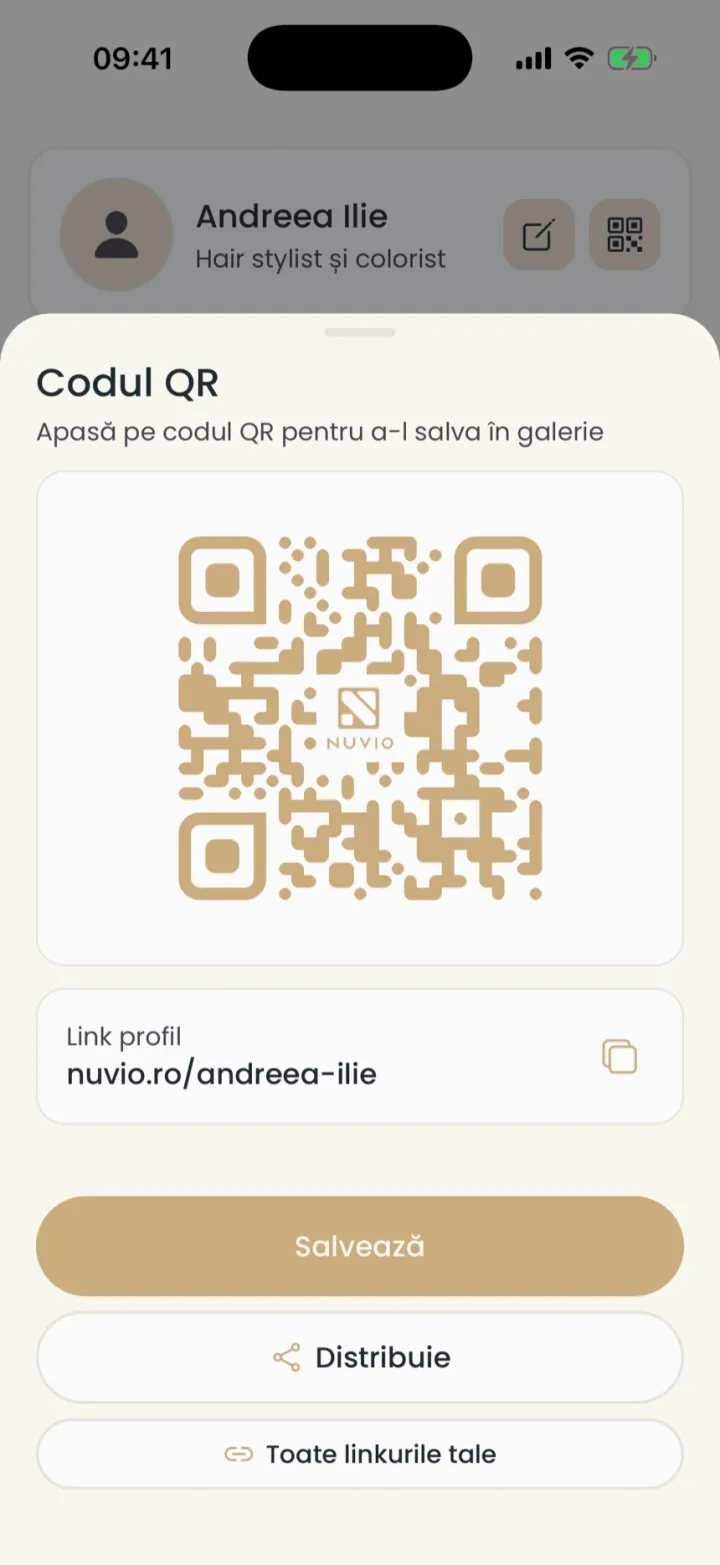
- Open Settings and tap the QR square next to the pencil.
- At Profile link (Link profil) tap the copy icon.
- Paste the link where you want: WhatsApp, Instagram, Facebook or a text message.
The link is made from your name when you sign up.
Common problems
Can I change the link of my page?
The link cannot be changed in the app.
Write to us on WhatsApp at +40 735 034 600 and we help you.
The QR code and the poster
A QR code that opens your page, good for the front desk or the door.
Where to find it:Settings (Setări)QR code (Codul QR)
- Open Settings and tap the QR icon next to the pencil.
- Tap Save (Salvează) to put the code in your photo library.
- Tap Share (Trimite) to send or print it.
A ready-to-print poster with the QR code is in The app for clients.
What a client sees on your page
Your page shows who you are, your services, the prices and your free times.
- At the top
- Photo, name, title, the call and WhatsApp buttons and the booking button.
- Services
- The services that can be booked online, with duration and price.
- Portfolio
- Photos of your work.
- About
- The location, the hours, reviews and verified diplomas.
The client's steps are in How clients book.
Your trades
Under your title you pick your trades, so clients looking for those services find you.
Where to find it:Settings (Setări)Your profile (Profilul tău)
- Open your profile with the pencil in Settings.
- Under Professional title (Titlu profesional) tap the trades that fit you.
- Tap Save profile (Salvează profilul).
Service categories are chosen separately, on each service. See service categories.
Cover images and portfolio
You add up to 6 cover images and 10 photos of your work.
Where to find it:Settings (Setări)Your profile (Profilul tău)
- Open your profile with the pencil in Settings.
- At Cover images (Imagini de copertă) tap the plus and pick the photos.
- At Portfolio (Portofoliu) tap the plus and pick photos of your work.
- Tap Save profile (Salvează profilul).
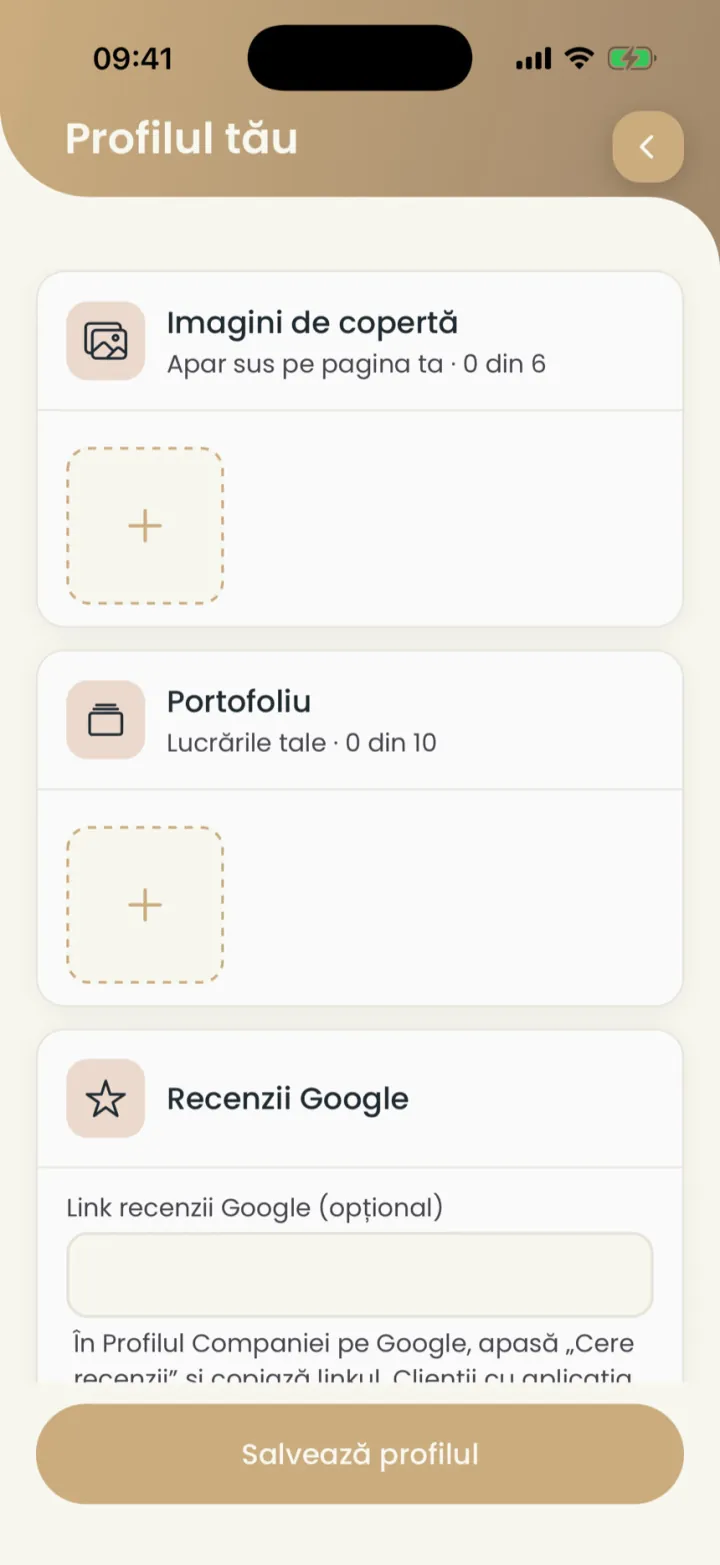
The cover shows at the top of your page, the portfolio has its own tab.
Updated on
Help
If the answer is not here, write to us on WhatsApp or by e-mail.