
Till invoices
Invoices for people and companies, from the till or from the day's sales, sent to e-Factura on their own.
The app screens shown here are in Romanian; each button's Romanian name follows it in brackets.
An invoice for a person
Issue the invoice in the client's name, when charging.
Where to find it:Till (Casă)Till invoices (Facturi din Casă)
- When charging, open the invoice from the cart and choose Private person (Persoană fizică).
- Type the client's name.
- Tap Issue the invoice (Emite factura).
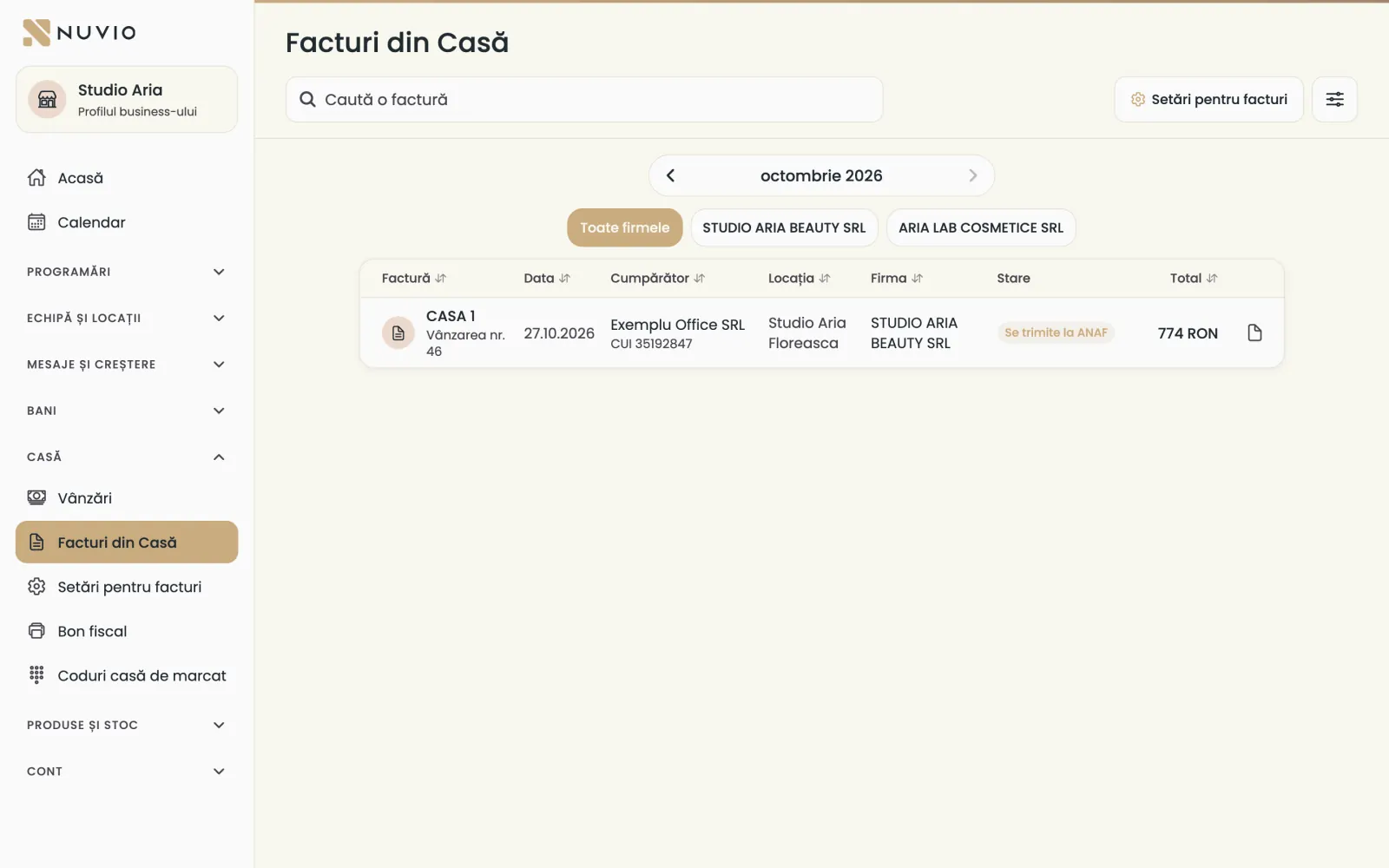
Every issued invoice shows under Till invoices (Facturi din Casă), with its status at ANAF.
An invoice for a company
Look the company up at ANAF by its tax ID, or type its details yourself.
- When charging, choose Company (Firmă).
- Type the tax ID and tap Look it up at ANAF (Caută la ANAF).
- Check the name and address; if ANAF doesn't answer, fill them in yourself.
- Tap Issue the invoice (Emite factura).
A company can pay by bank transfer; then there is no fiscal receipt, only the invoice.
Above the company threshold a company always gets an invoice; below it, you can choose Company without an invoice (Firmă fără factură).
An invoice for today's sale
If the client asks for an invoice after paying, you issue it from Sales, the same day.
Where to find it:Till (Casă)Sales (Vânzări)
- Open Sales (Vânzări) and tap the sale.
- Choose Private person (Persoană fizică) or Company (Firmă) and fill in the details.
- Tap Issue the invoice (Emite factura).
The invoice in e-Factura
e-Factura is ANAF's system that receives invoices; Nuvio sends them on its own, on behalf of your company.
- Sending to ANAF
- The invoice is on its way to ANAF.
- Accepted
- ANAF received the invoice.
- Error
- ANAF refused the invoice; see the reason and tap Try again (Încearcă din nou) after you fix it.
Tap the invoice to open the PDF; if it says The PDF is being generated (PDF-ul se generează), come back in a few seconds.
The credit invoice (storno)
A storno is the minus invoice that cancels an issued invoice; Nuvio makes it on its own when you cancel the sale.
- Open the sale in Sales (Vânzări) and tap Cancel the sale (Anulează vânzarea).
- Type the reason and confirm.
- Nuvio issues the credit invoice and sends it to ANAF.
The credit invoice shows which invoice it cancels.
Invoice settings
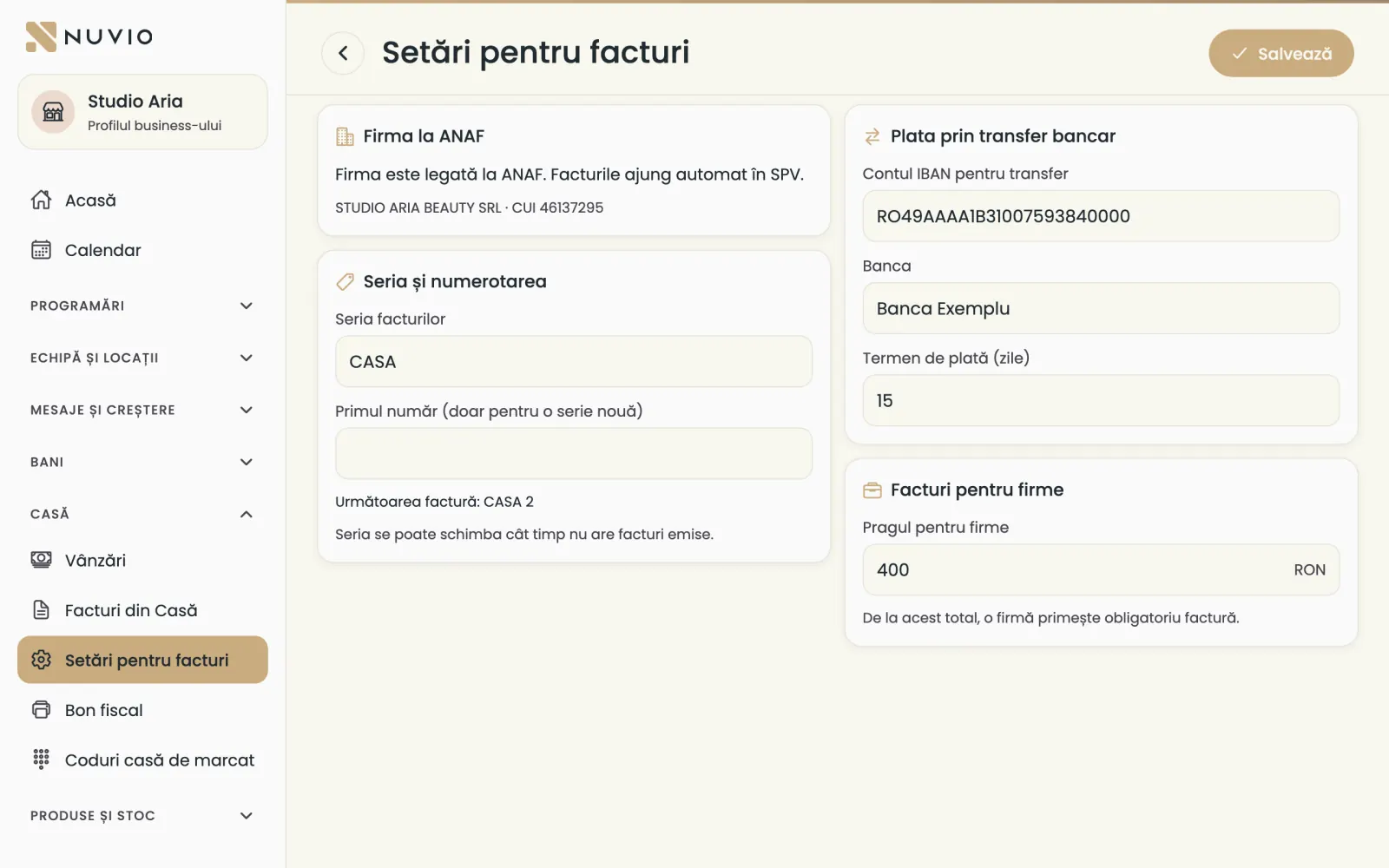
The series, the first number, the bank account, the payment term and the company threshold.
Where to find it:Till (Casă)Invoice settings (Setări pentru facturi)
- Invoice series (Seria facturilor)
- Can change while the series has no issued invoices.
- First number (only for a new series) (Primul număr (doar pentru o serie nouă))
- The number a new series starts from.
- IBAN for transfers (Contul IBAN pentru transfer)
- Shows on the invoice when the company pays by bank transfer.
- Payment term (days) (Termen de plată (zile))
- How many days the company has to pay the invoice by transfer.
- Threshold for companies (Pragul pentru firme)
- From this total, a company always gets an invoice.
The owner or whoever manages the money changes the settings; others see them without changing them.
Connect the company to ANAF
For invoices to reach e-Factura, you connect the company to ANAF once, on pro.nuvio.ro.
Where to find it:pro.nuvio.roCompany at ANAF (Firma la ANAF)
- Sign in on pro.nuvio.ro and open the company page.
- Check the company details and tap the ANAF connection.
- Sign in at ANAF with the company's digital certificate and approve access.
If your accountant holds the certificate, send them the link, with Send the link to the accountant (Trimite linkul contabilului).
The same connection also brings in supplier invoices, from SPV.
Updated on
Help
If the answer is not here, write to us on WhatsApp or by e-mail.