
Online booking rules
You choose how online booking works: confirmation, fixed times, how far ahead, free cancellation and blocked clients.
The app screens shown here are in Romanian; each button's Romanian name follows it in brackets.
Confirm each appointment yourself
Online bookings go straight into your calendar, or wait for you as requests.
Where to find it:Settings (Setări)Online booking (Rezervări online)Confirm each appointment yourself (Confirmă tu fiecare programare)
- Open Settings and tap Online booking (Rezervări online).
- Tick Confirm each appointment yourself (Confirmă tu fiecare programare) if you want to approve each booking.
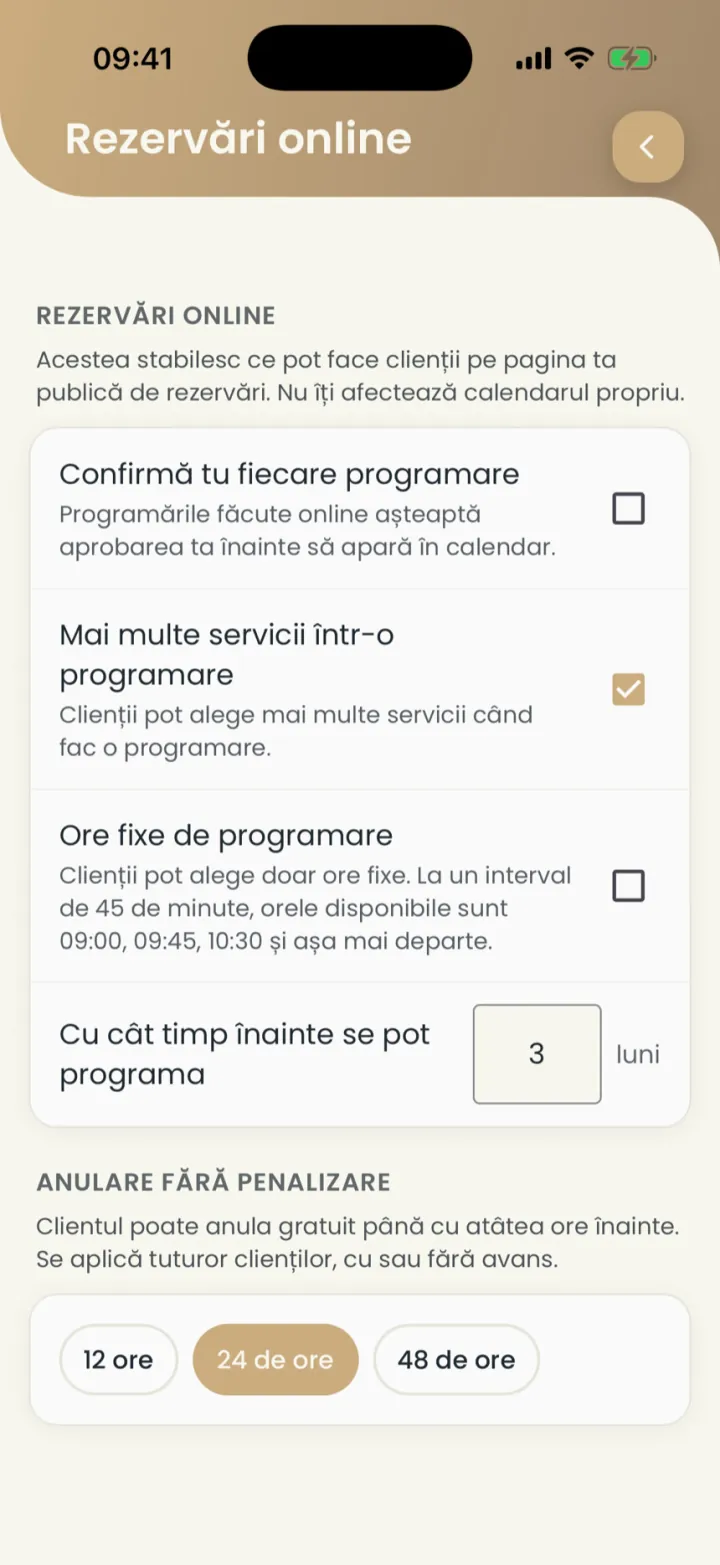
- Unticked (default)
- The booking goes straight into your calendar.
- Ticked
- You get a request and accept or reject it.
These rules only apply on your public page. You can always book anyone yourself.
Several services in one appointment
The client can pick several services at once.
Where to find it:Settings (Setări)Online booking (Rezervări online)Several services in one appointment (Mai multe servicii într-o programare)
Ticked by default. Unticked, the client picks one service per appointment.
Fixed booking times
The client only sees certain times, for example every hour.
Where to find it:Settings (Setări)Online booking (Rezervări online)Fixed booking times (Ore fixe de programare)
- Tick Fixed booking times (Ore fixe de programare).
- At Interval length (Durata unui interval) type the minutes, for example 45.
With 45 minutes, the times are 09:00, 09:45, 10:30 and so on. Unticked, times go in steps of 15 minutes.
How far ahead clients can book
You pick how many months ahead a client can book.
Where to find it:Settings (Setări)Online booking (Rezervări online)How far ahead clients can book (Cu cât timp înainte se pot programa)
Type the number of months at How far ahead clients can book (Cu cât timp înainte se pot programa). The default is 3 months.
Minimum notice before a booking
How late an online booking can be made is set on each location.
Where to find it:Settings (Setări)Locations (Locații)Minimum notice before an appointment (Timp minim înainte de programare)
The details are in Locations.
Free cancellation
Until when a client can cancel for free: 12, 24 or 48 hours before.
Where to find it:Settings (Setări)Online booking (Rezervări online)Free cancellation (Anulare fără penalizare)
- At Free cancellation (Anulare fără penalizare) pick 12 hours (12 ore), 24 hours (24 de ore) or 48 hours (48 de ore).
It applies to every client, with or without a deposit. If a client cancels later, it stays as a late cancellation in their history.
Moves made by the client
A client does not move an appointment themselves: they cancel it and book a new one.
You can move it any time, from the calendar.
Blocked clients
A blocked client cannot book online and gets no offers.
Where to find it:Settings (Setări)Online booking (Rezervări online)Blocked clients (Clienți blocați)
- You block a client from their card, with Block client.
- The list is in Settings, under Online booking (Rezervări online), Blocked clients (Clienți blocați).
- Tap Unblock (Deblochează) to take someone off the list.
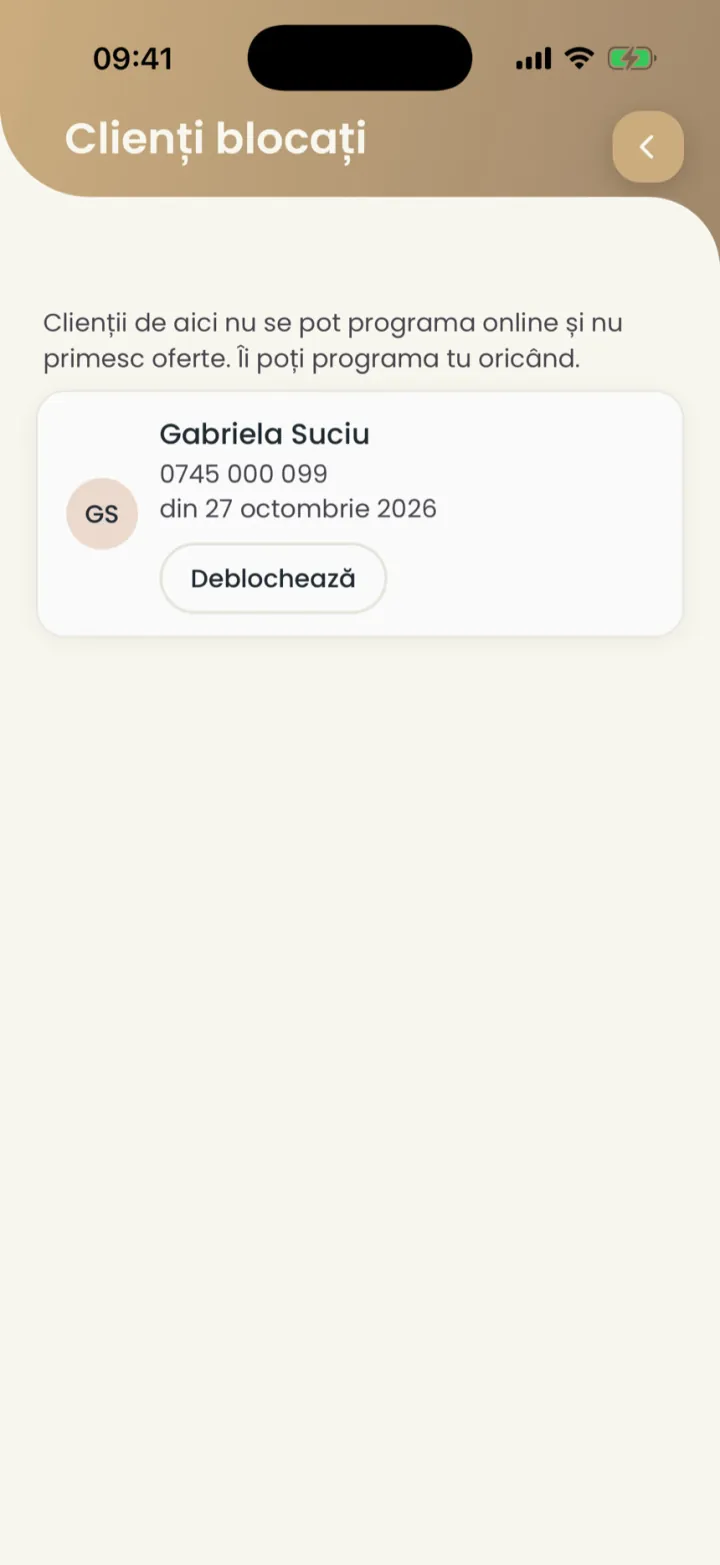
You can still book a blocked client yourself.
The deposit
The client pays part of the price by card when they book.
The deposit is set in Payments through Nuvio.
What we recommend
The settings that work for most specialists.
- Confirmation
- Let bookings go straight into your calendar.
- Free cancellation
- 24 hours before.
- Minimum notice
- 2 hours before, on each location.
- Reminder
- On, 24 hours before.
Updated on
Help
If the answer is not here, write to us on WhatsApp or by e-mail.