
The till: selling at the front desk
Sell services and products at the front desk: the cart, discounts, payment, the receipt, cancelling and closing the day.
The app screens shown here are in Romanian; each button's Romanian name follows it in brackets.
Open the till
The till sits next to the calendar; you switch between them without losing the calendar day or the cart.
Where to find it:CalendarTill (Casă)
- Open Calendar and tap Till (Casă) at the top.
- On a computer, press the F2 key to switch between Calendar and Till (Casă).
- Check the location under the title; tap it to change it.
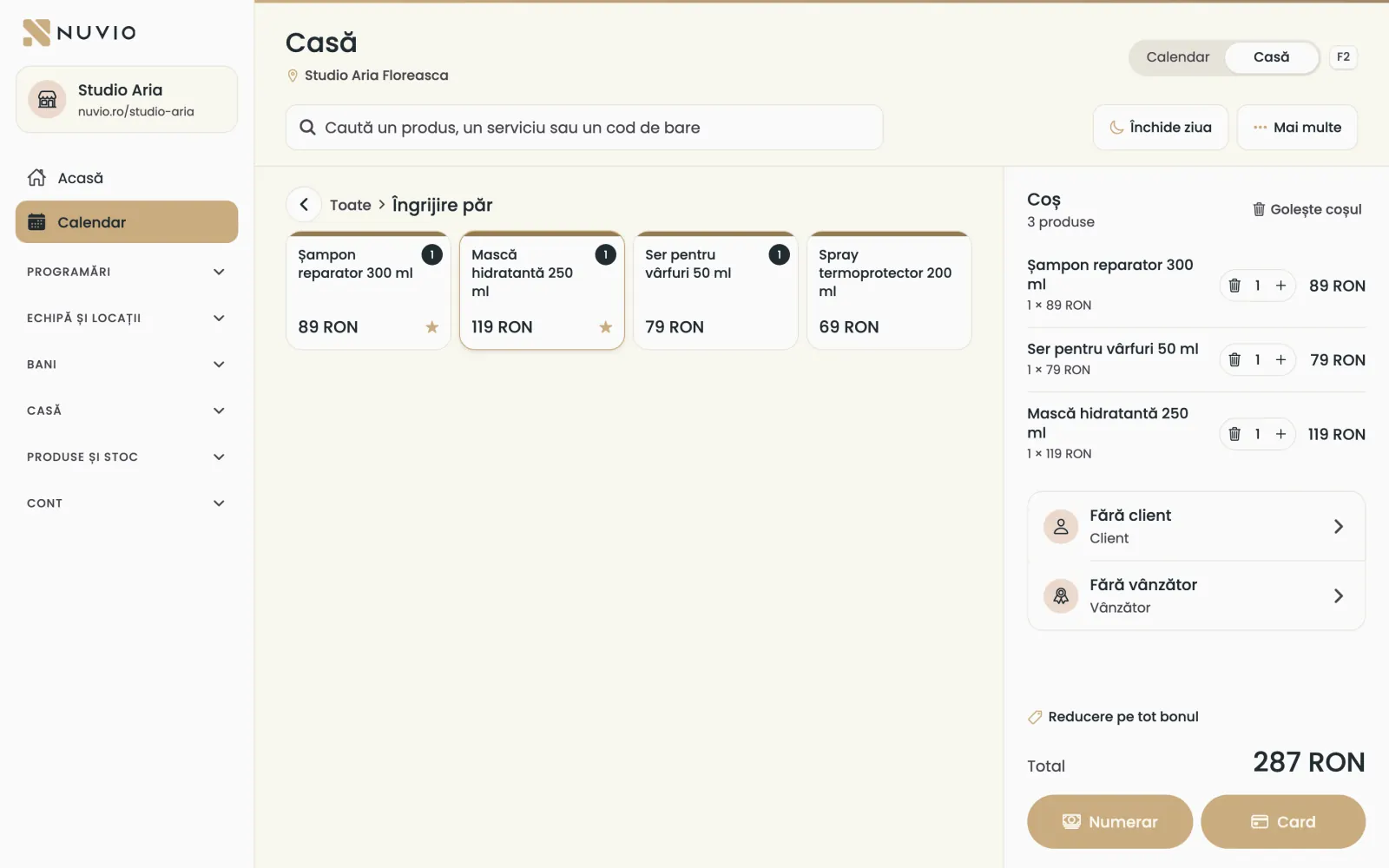
- Search and scan
- Calendar and Till, or F2
- The chosen category's products
- The cart
- Cash (Numerar) or Card
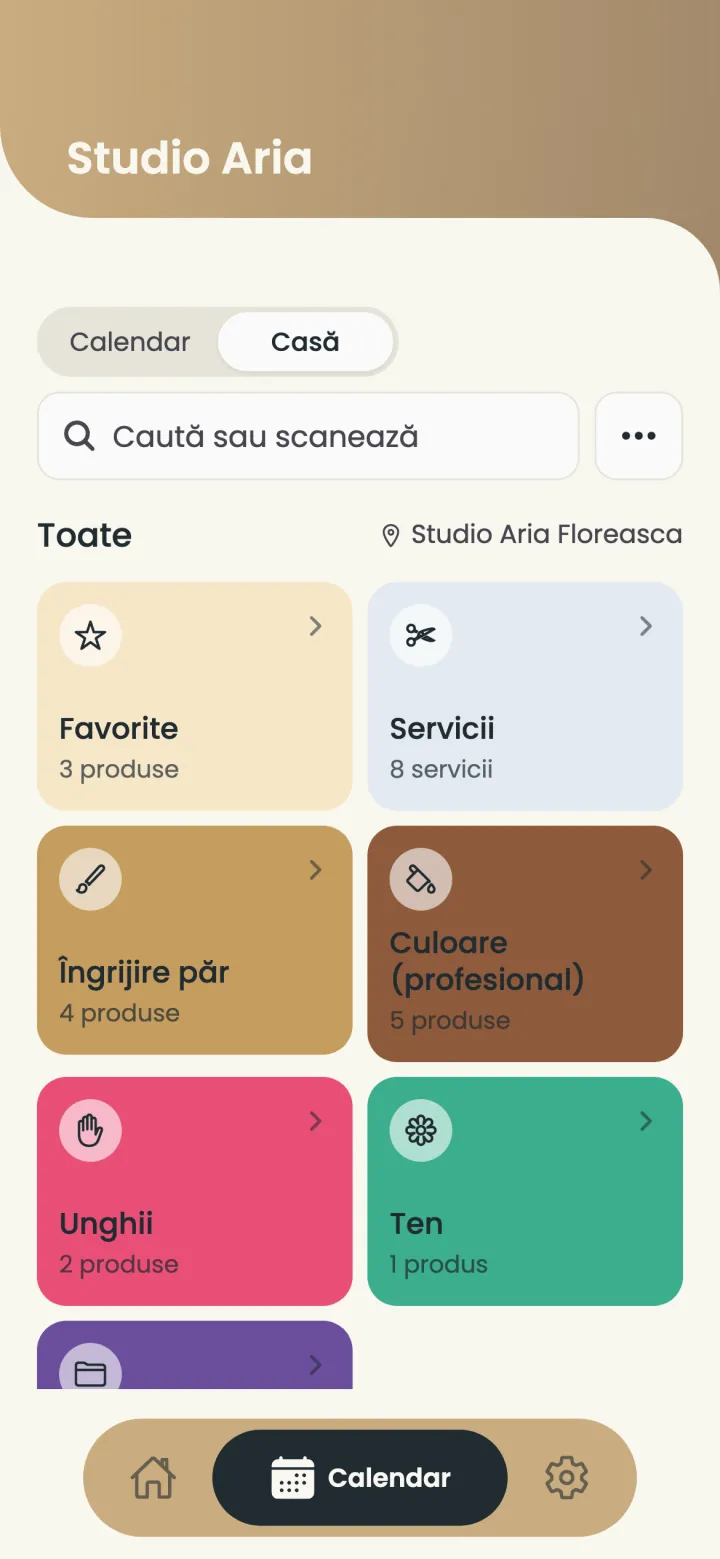
On a phone, the cart opens from the bottom, with See the cart (Vezi coșul).
Find a product or a service
Pick from the categories, from Favourites, or type the name in the search.
- Tap a category, for example Favourites (Favorite) or Services (Servicii).
- Tap the product to add it to the cart.
- Or type a few letters in the search; diacritics don't matter.
Products with no category are under No category (Fără categorie).
The barcode scanner
Scan the barcode and the product goes straight into the cart.
- Connect the scanner to the computer, by USB or Bluetooth.
- With the till open, scan the product's code.
If the product doesn't exist, a manager can create it on the spot, with the code already filled in.
The cart
Change the quantity, a service's price, the client and the seller.
- Tap a line in the cart to change the quantity or the price.
- Under Client choose the client, or leave No client (Fără client).
- Under Seller (Vânzător) choose who sold it.
- With Empty the cart (Golește coșul) you start from scratch.
A service price changed in the cart applies only to this sale.
Discounts
Give a discount as a percentage or in RON, on one line or on the whole receipt, with its reason.
Discount on one line
- Tap the line in the cart and choose Discount.
- Choose Percent (Procent) or RON and type the value.
- Type the reason (optional) and tap Apply the discount (Aplică reducerea).
Discount on the whole receipt
- Tap Discount under the cart, at Discount on the whole receipt (Reducere pe tot bonul).
- Choose the percentage or the amount and tap Apply the discount (Aplică reducerea).
A discount on the whole receipt is spread over the lines, by the value of each.
Payment
Charge in cash, by card, with both, or, for a company, by bank transfer.
- Tap Cash (Numerar) or Card.
- For cash and card together, turn on Split the payment (Împarte plata) and type the card amount.
- Give the receipt on the cash register.
A company can pay by bank transfer: choose Pays by bank transfer (no receipt) (Plătește prin transfer bancar (fără bon)) and issue the invoice.
Not enough stock
If Nuvio sees fewer items than you are selling, it asks you before payment.
- Continue the sale (Continuă vânzarea)
- Stock goes negative until the next goods receipt or stock count.
- Back to the cart (Înapoi la coș)
- Change the quantity or remove the product.
The fiscal receipt
The fiscal receipt is the proof of sale for ANAF, the tax authority, and is given on the location's cash register.
With a cash register connected through FiscalNet, the receipt prints on its own after payment.
With a cash register with keys
- After Cash (Numerar) or Card, Key it on the register (Bate pe casă) opens with the lines to type.
- Key each line on the cash register, with the code and department shown.
- Type the receipt number (optional) and tap Receipt given (Am dat bonul).
Whatever was paid in full online isn't keyed on the register; the screen tells you so.
Details in The cash register and the fiscal receipt.
Cancel a sale
Cancel a wrong sale, with its reason; the products go back into stock.
Where to find it:Till (Casă)Sales (Vânzări)Cancel the sale (Anulează vânzarea)
- Open Sales (Vânzări) and tap the sale.
- Tap Cancel the sale (Anulează vânzarea).
- Type the reason and confirm.
The front desk cancels only their own same-day sales; managers and the owner cancel any sale.
On the cash register, also cancel the receipt, following your register's rules.
Unfinished sale
If the page closed during payment, Nuvio asks whether you gave the receipt.
- Receipt given (Am dat bonul)
- The sale is recorded at the receipt's time.
- No receipt was given (Nu am dat bonul)
- The cart closes with no sale.
An open cart stays even after the page reloads.
Training mode
Practise sales with no fiscal receipt and without touching money or stock.
Where to find it:Till (Casă)Filters and actions (Filtre și acțiuni)Start training mode (Pornește modul de instruire)
- On the till, tap More (Mai multe) and choose Start training mode (Pornește modul de instruire).
- Sell as usual; Training mode: no fiscal receipt (Mod de instruire: fără bon fiscal) shows at the top.
- When you finish, open More (Mai multe) again and turn training mode off.
Training sales show separately, under Training sales (Vânzări de instruire), and don't count in the totals.
Only managers and the owner start training mode.
Arrange the till
Choose the order of categories and products on the till, their colours and what goes where.
Where to find it:Till (Casă)Arrange the till (Aranjează Casa)
- On the till, tap More (Mai multe) and choose Arrange the till (Aranjează Casa).
- Drag a tile where you want it; the order saves at once.
- Tap a tile to change its name, colour or price.
- With Select (Selectează) you pick several tiles and move them to another category.
- Tap Done (Gata).
With Add a category (Adaugă o categorie) and Add a product (Adaugă un produs) you fill the till right from here.
Favourites, Services and No category have fixed places.
Close the day
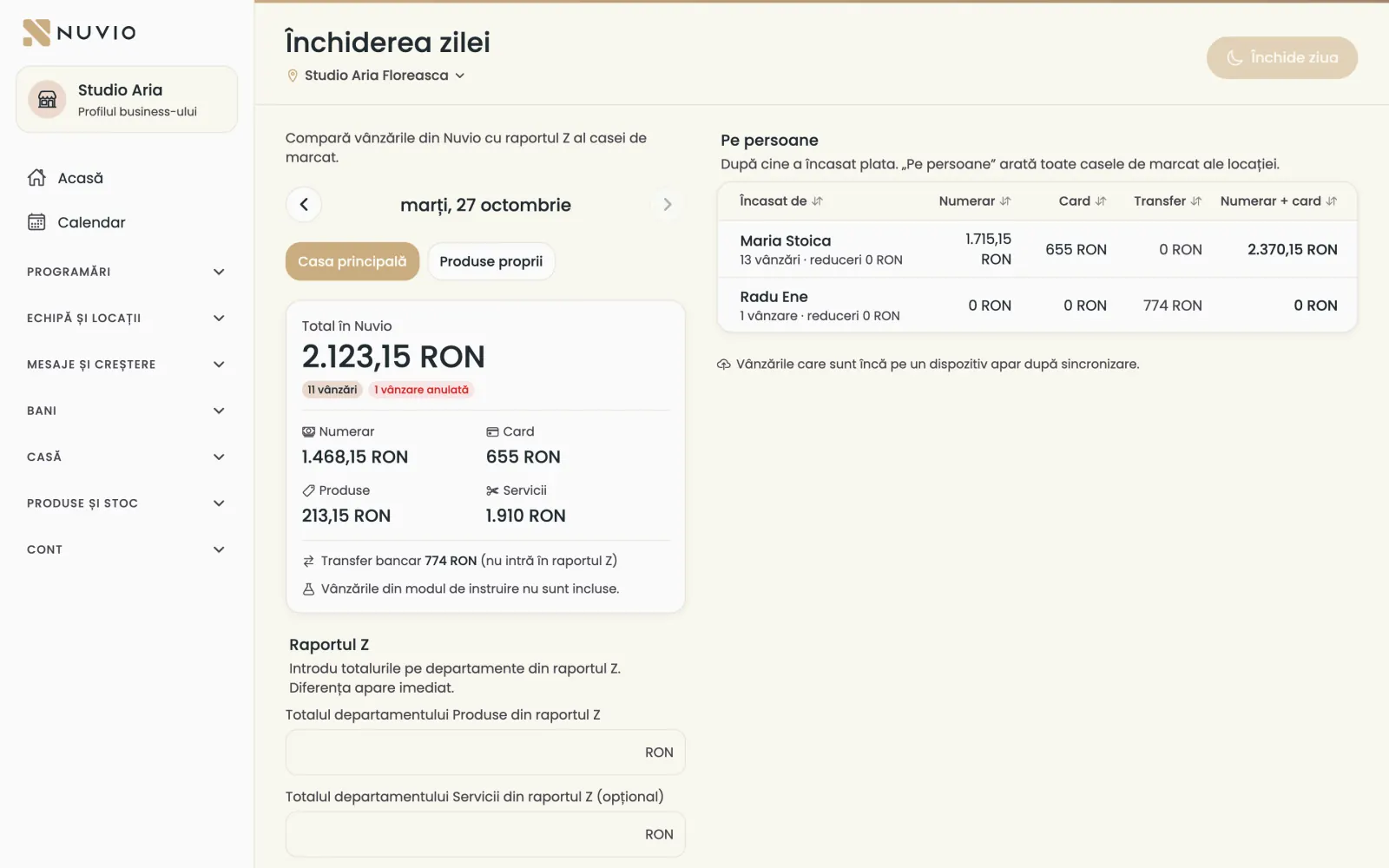
At the end of the day you compare Nuvio's sales with the cash register's Z report.
Where to find it:Till (Casă)Close the day (Închide ziua)
- On the till, tap Close the day (Închide ziua).
- Check the totals: cash, card, products and services.
- Print the Z report on the cash register.
- Type the Products department total from the Z report; the services total (optional).
- The difference shows at once; tap Close the day (Închide ziua).
The Z report is the closing report the cash register prints at the end of the day.
Under By person (Pe persoane) you see how much each person took, in cash, by card and by transfer.
Unsent sales on this device stop the close until they reach Nuvio.
Common problems
Why does Nuvio's total differ from the Z report?
Look for a sale keyed on the register but not in Nuvio, or the other way round.
Bank transfers and training sales are not in the Z report.
Updated on
Help
If the answer is not here, write to us on WhatsApp or by e-mail.