
How the app looks
The tabs, Home, Settings and where you work: on your phone, on app.nuvio.ro and on pro.nuvio.ro.
The app screens shown here are in Romanian; each button's Romanian name follows it in brackets.
The three tabs
The app has three tabs at the bottom: Home, Calendar and Settings.
- Home (Acasă)
- The month's figures, what needs you and the next appointments.
- Calendar
- Your appointments by day. Here you add, move and block time.
- Settings (Setări)
- Everything else: clients, services, hours, money and account.
Features marked PREMIUM are included in the Premium plan.
Home
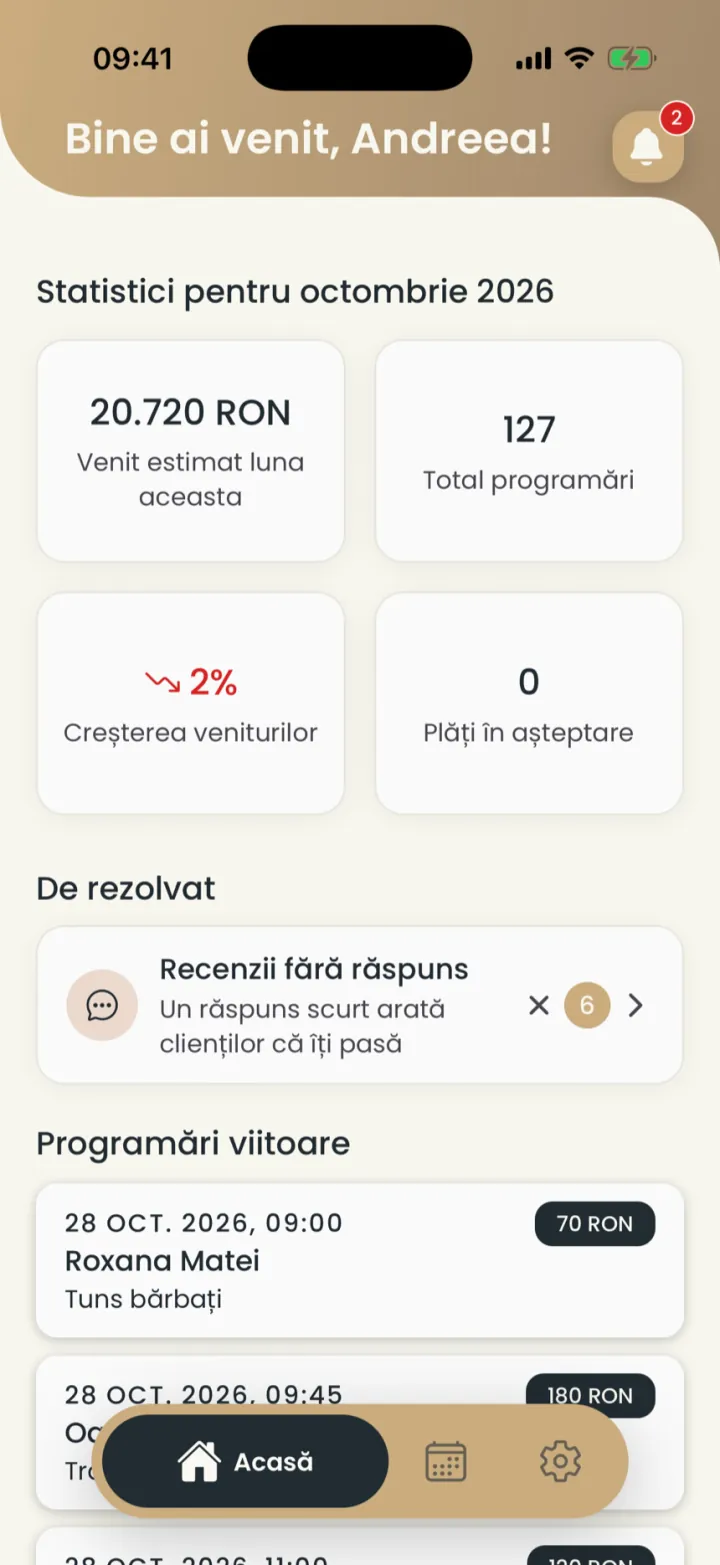
On Home you see the month's figures, what needs you and the next appointments.
Where to find it:Home (Acasă)
- The month's figures
- Estimated revenue, number of appointments, growth against last month and expenses. Tap a figure for details.
- Needs attention (De rezolvat)
- Things waiting for you, for example reviews without a reply.
- Upcoming appointments (Programări viitoare)
- The next appointments, with the time, client, service and price.
- The bell
- Top right. It opens your notifications; the red number shows how many are new.
- Notifications
- The month's figures
- Needs attention (De rezolvat)
Settings
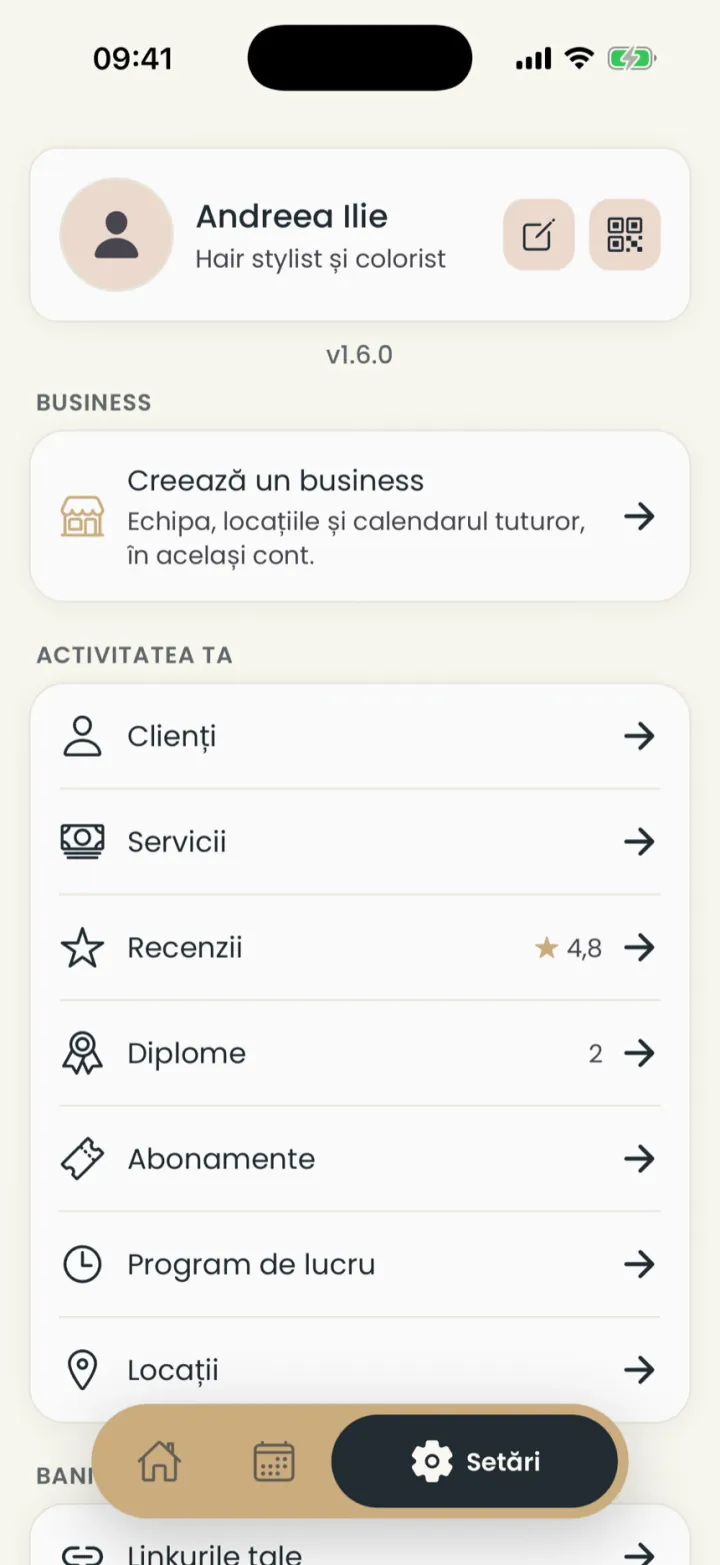
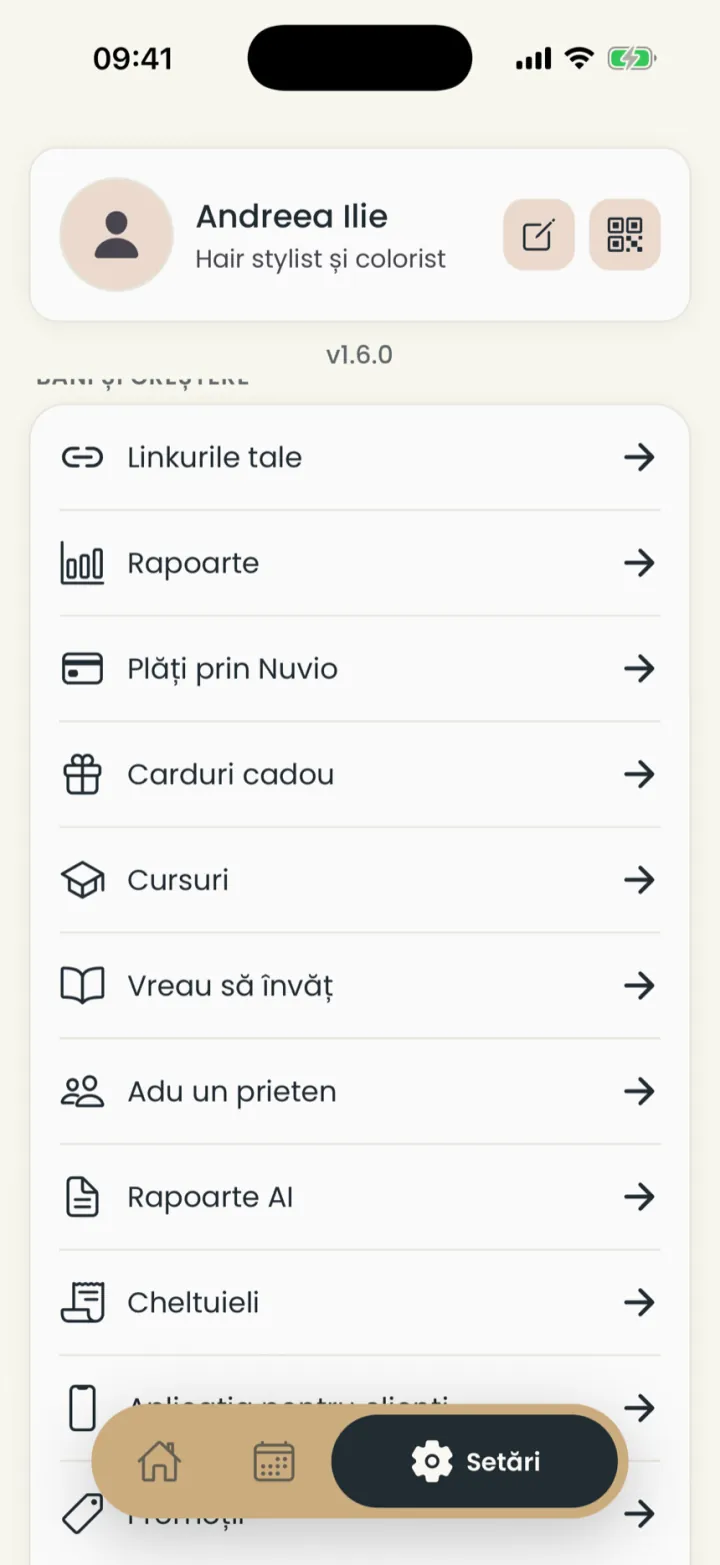
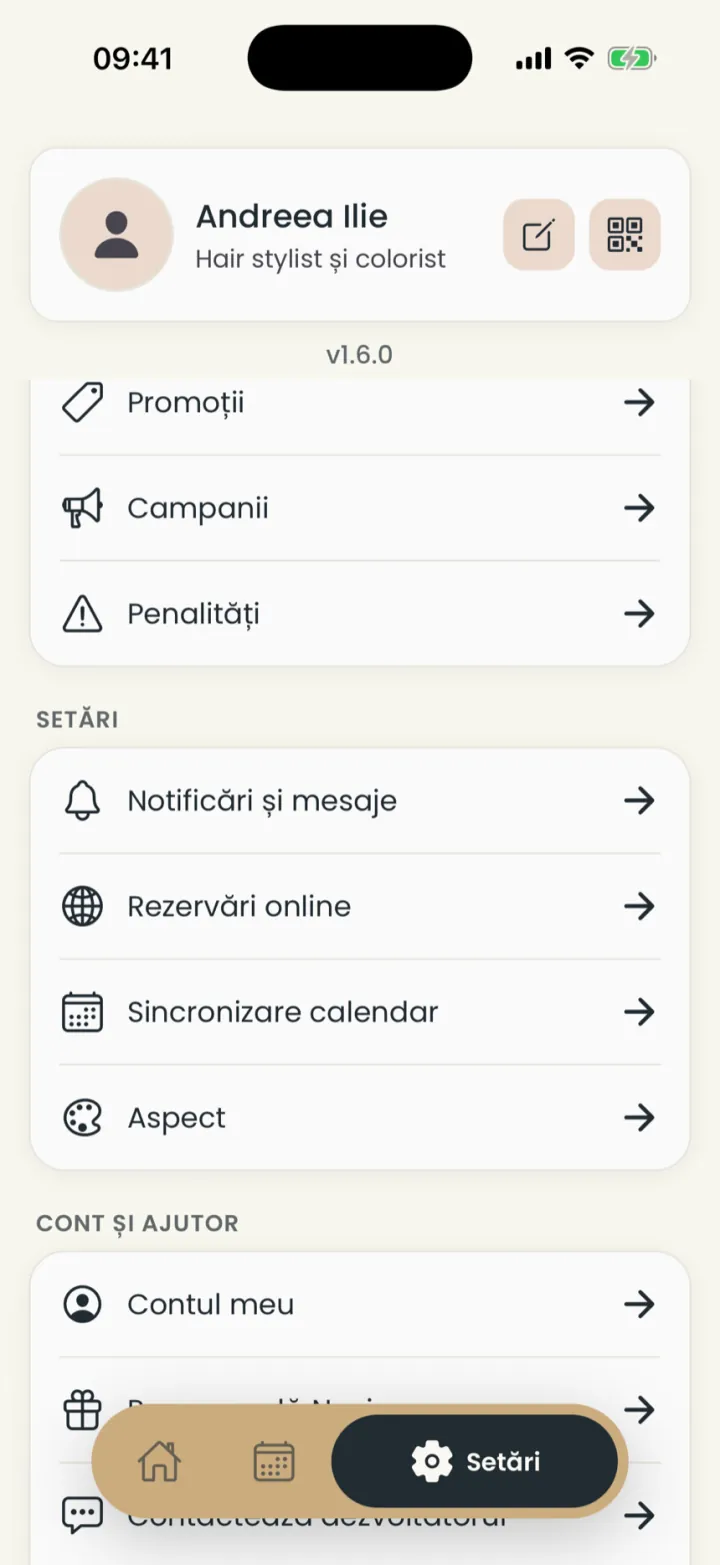
Settings holds every feature, grouped by what you do with it.
Where to find it:Settings (Setări)
- Your profile
- At the top: photo, name, title, the edit pencil and the QR code.
- Your work (Activitatea ta)
- Clients, services, reviews, diplomas, subscriptions, work schedule and locations.
- Money and growth (Bani și creștere)
- Reports, payments, gift cards, courses, referrals, expenses, promotions and campaigns.
- Settings (Setări)
- Notifications and messages, online booking, calendar sync and appearance.
- Account and help (Cont și ajutor)
- Your account, recommending Nuvio and help.
On a computer: app.nuvio.ro
The same app runs in a browser at app.nuvio.ro, with the same account.
- Open app.nuvio.ro in your browser.
- Log in with the same e-mail or Google account as in the app.
- Wide screen
- Pages with a lot of data use the whole width of the screen.
- The calendar
- On a computer you can also pick the 3-day or 7-day view.
- The Esc key
- Closes the open window.
Where you work: the app, app.nuvio.ro, pro.nuvio.ro and your page
Four places, each with its own job.
- The Nuvio Pro app
- On iPhone and Android. You do everything here.
- app.nuvio.ro
- The same app, on a computer.
- pro.nuvio.ro
- Your Nuvio subscription, invoices and the account for card payments.
- nuvio.ro/your-name
- Your public page. Clients book from here.
Notifications
The bell on Home collects requests, new bookings and messages from Nuvio.
Where to find it:Home (Acasă)Notifications (Notificări)
- On Home tap the bell, top right.
- On a booking request tap Accept (Acceptă) or Reject (Respinge).
- Tap a notification to open the appointment.
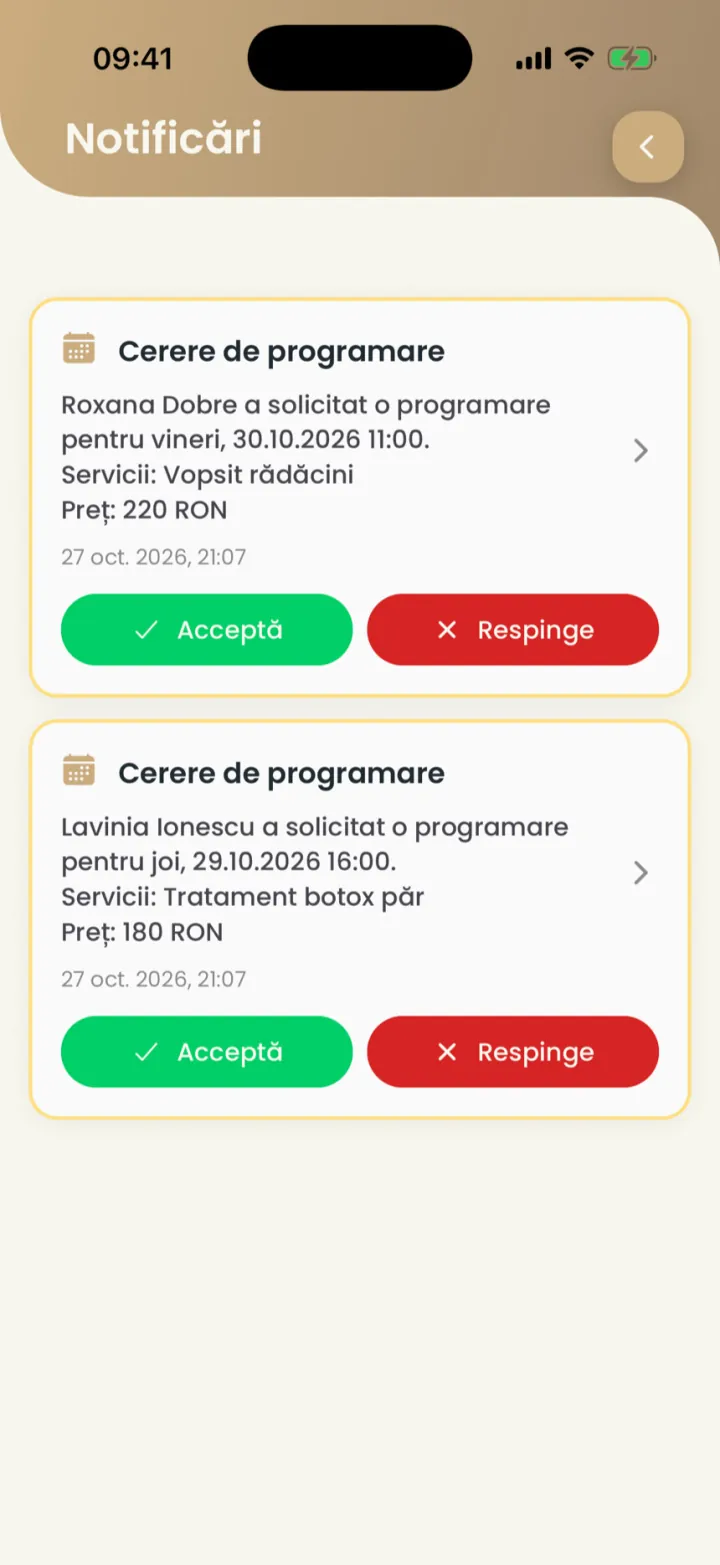
Which notifications reach your phone you choose in Notifications and messages.
Theme and language
You pick a light or dark theme and the language of the app.
Where to find it:Settings (Setări)Appearance (Aspect)
- Open Settings and tap Appearance (Aspect).
- Under Theme (Temă) pick System default (Setările sistemului), Dark (Întunecat) or Light (Luminos).
- Under Language (Limbă) pick Romanian (Română) or English (Engleză).
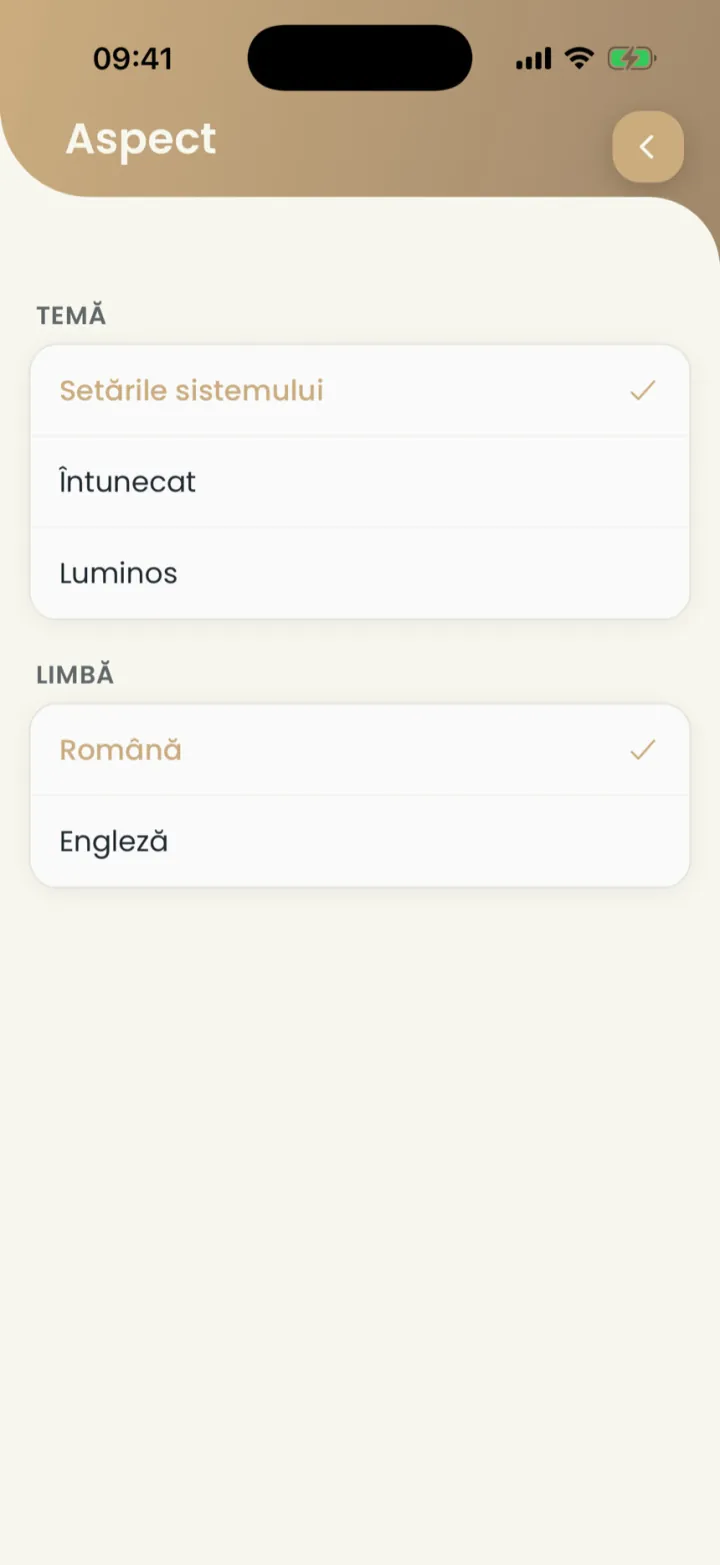
Messages to clients go out in their language, not in the one chosen here.
The home screen widget
You put a Nuvio Pro widget on your home screen and see your next appointments without opening the app.
On iPhone
- Touch and hold an empty spot on the home screen.
- Tap the add button, top left.
- Search for Nuvio Pro and pick the widget size.
- Tap Add Widget.
On Android
- Touch and hold an empty spot on the home screen and pick Widgets.
- Find Nuvio Pro and drag the widget onto the screen.
The widget shows only your own appointments.
Specialist or business
If you also have a business, you switch in Settings between your own bookings and the team's.
Where to find it:Settings (Setări)Business
- Open Settings.
- In the Business group tap Open the business (Deschide business-ul).
- To make a new business, tap Create a business (Creează un business).
Everything about business mode is in Business: what it is and how to start.
Updated on
Help
If the answer is not here, write to us on WhatsApp or by e-mail.