
Business: what it is and how to start
Business mode for a location with a team: creating it, the profile, the locations and the settings the team inherits.
The app screens shown here are in Romanian; each button's Romanian name follows it in brackets.
What Business mode is
One account for your locations, your team and everyone's calendar, separate from your own specialist bookings.
In Business mode you see the team calendar, the locations, the business's clients, the messages and the money.
Each specialist keeps their own Nuvio account and works in your team.
- Business
- The name, link and description that bring all your locations together.
- Location
- The address clients come to, with its logo, cover and booking link.
- Team
- The specialists, managers and front-desk logins.
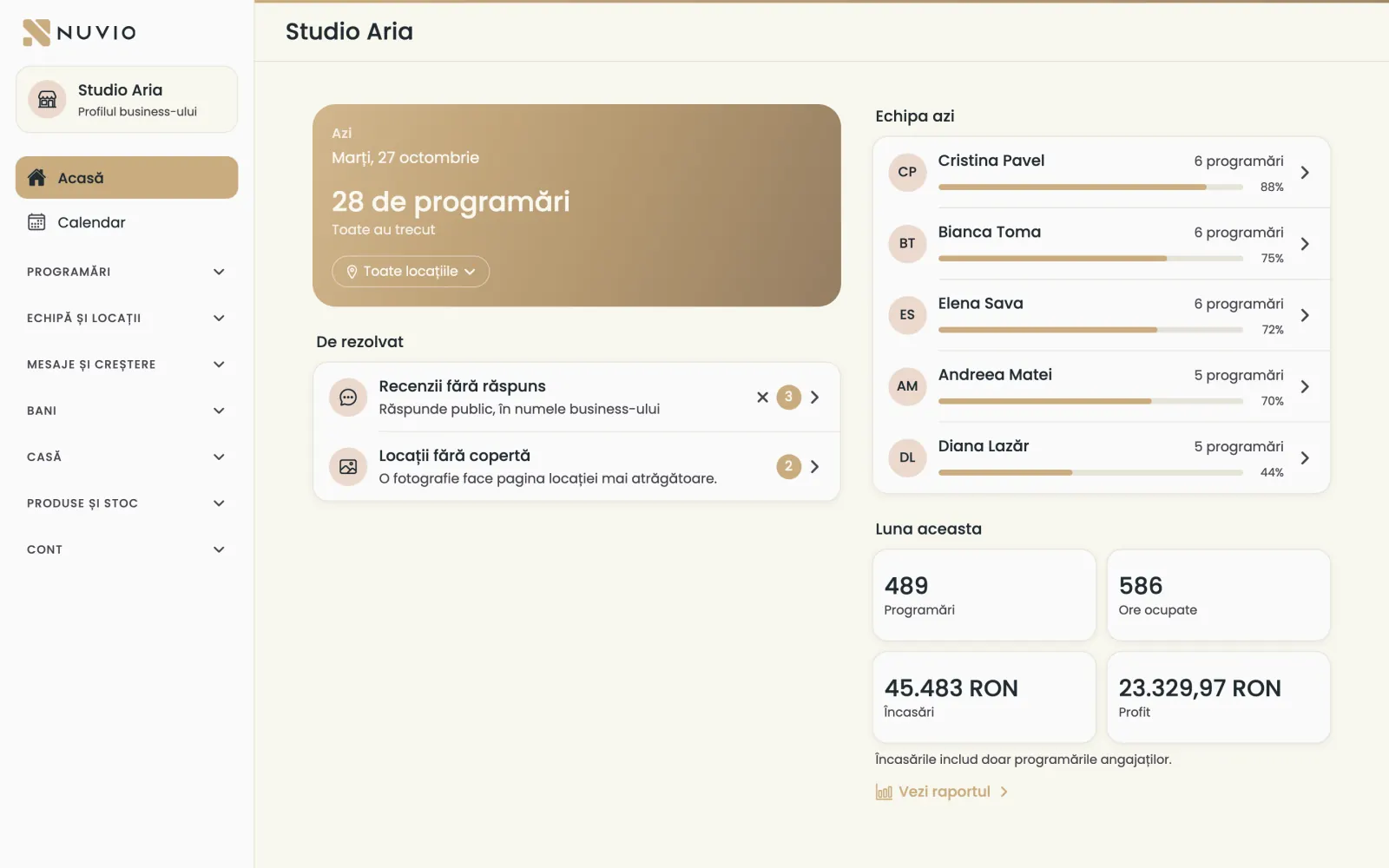
- Today's bookings, across all locations
- What needs attention
- Today's team
- The business menu
Create a business
You start the business from Settings, in three steps.
Where to find it:Settings (Setări)BusinessCreate a business (Creează un business)
- Open Settings (Setări) and tap Create a business (Creează un business).
- Type the Business name (Numele business-ului), check the Business link (Linkul business-ului), then tap Continue (Continuă).
- Choose Your current location (Locația ta de acum) or Another address (Altă adresă) for the first location.
- Say whether you take bookings too: Yes, I work here too (Da, lucrez și eu aici) or No, I only manage (Nu, doar administrez).
- Tap Create the business (Creează business-ul), then Go to the business (Intră în business).
If you pick your current location, it becomes the business's location and keeps its hours, services and bookings.
Common problems
Why can't I create a business?
A specialist can be in only one business.
If you are already in another business's team, leave it first.
A business set up by Nuvio
We can create the business for you, with its locations, team and services, and you just sign in.
- Send us the location details, the team and the list of services.
- We create the business and e-mail you a welcome link.
- Open the link, choose your password and accept the terms.
- Sign in on your phone or at app.nuvio.ro and check what we prepared.
The welcome link is valid for 14 days and works once.
To have your business set up, write to us on WhatsApp at +40 735 034 600 or at office@dotkoda.com.
The business profile
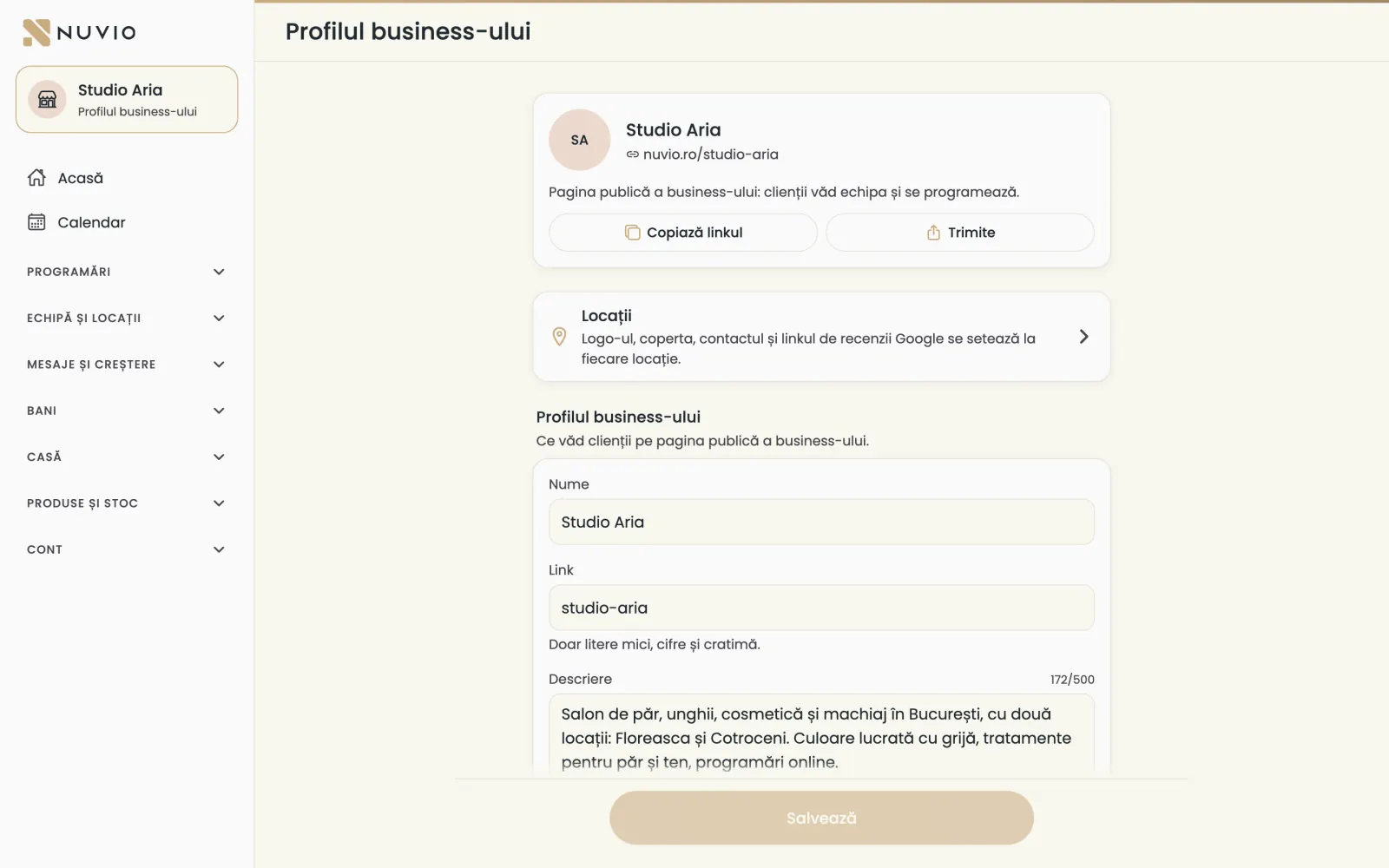
The business's name, link and description, which clients see on its public page.
Where to find it:Business profile (Profilul business-ului)
- Tap the business name at the top of the menu.
- Change the name, the link or the description.
- Tap Save (Salvează).
- Link
- The business page address, like nuvio.ro/your-name. Lowercase letters, digits and hyphens only.
- Copy the link (Copiază linkul)
- Put the link in your bio, on Google, or send it to clients.
- Transfer the business (Transferă business-ul)
- Hand the business to someone in the team; you stay in the team as a manager.
- Archive the business (Arhivează business-ul)
- Closes the business pages; the specialists keep their accounts and history.
The business's locations
Each location has its own address, page, services and the people who work there.
Where to find it:Team and locations (Echipă și locații)Locations (Locații)
Add a location
- Open Locations (Locații) and tap New location (Locație nouă).
- Type the location name and pick the address from the list, so it shows on the map.
- Tap Save (Salvează).
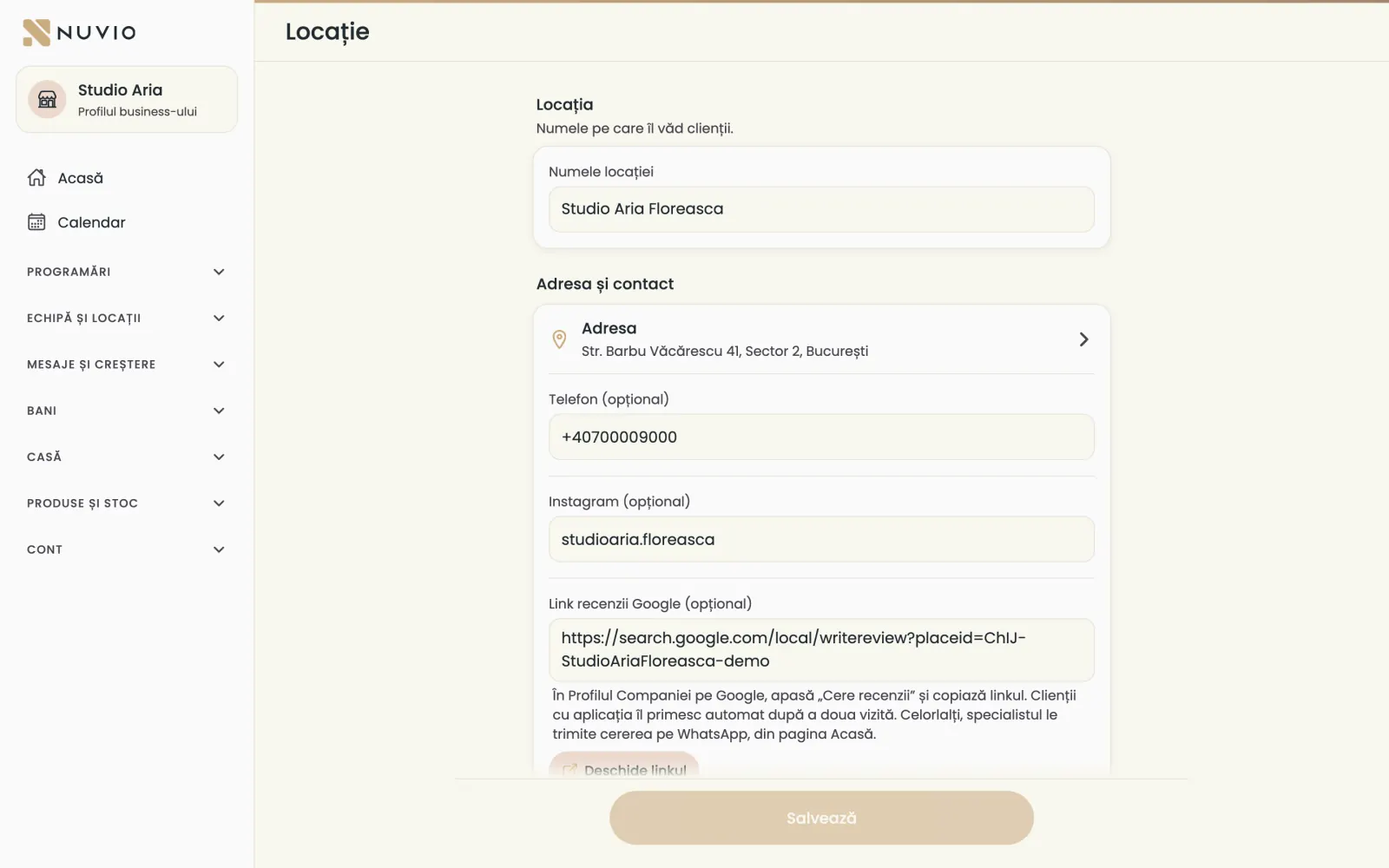
The location page
- Open the location from Locations (Locații).
- Tap Choose a logo (Alege un logo) and Choose a cover (Alege o copertă).
- Check the Page address (Adresa paginii) and open it with Open the page (Deschide pagina).
- With Change the order (Schimbă ordinea) you set the order of the specialists on the page.
- Tap Save (Salvează).
- Online bookings (Programări online)
- Open takes new bookings; closed takes no new ones, and existing bookings stay.
- Minimum notice before an appointment (Timp minim înainte de programare)
- How soon clients can take a free slot, for example 1 hour.
- Who picks the specialist (Cine alege specialistul)
- The client picks the specialist, or can also pick Anyone available.
- Location services (Serviciile locației)
- The location's menu, with prices and who does each service.
- Location deposit (Avansul locației)
- The deposit asked for the location's online bookings, when payments through Nuvio are on.
- Who works here (Cine lucrează aici)
- The team members who take bookings at this location.
Common problems
Why doesn't my location show on the map?
The address has to be picked from the suggestions, not only typed.
Open the location, pick the address from the list again and save.
Where the settings are
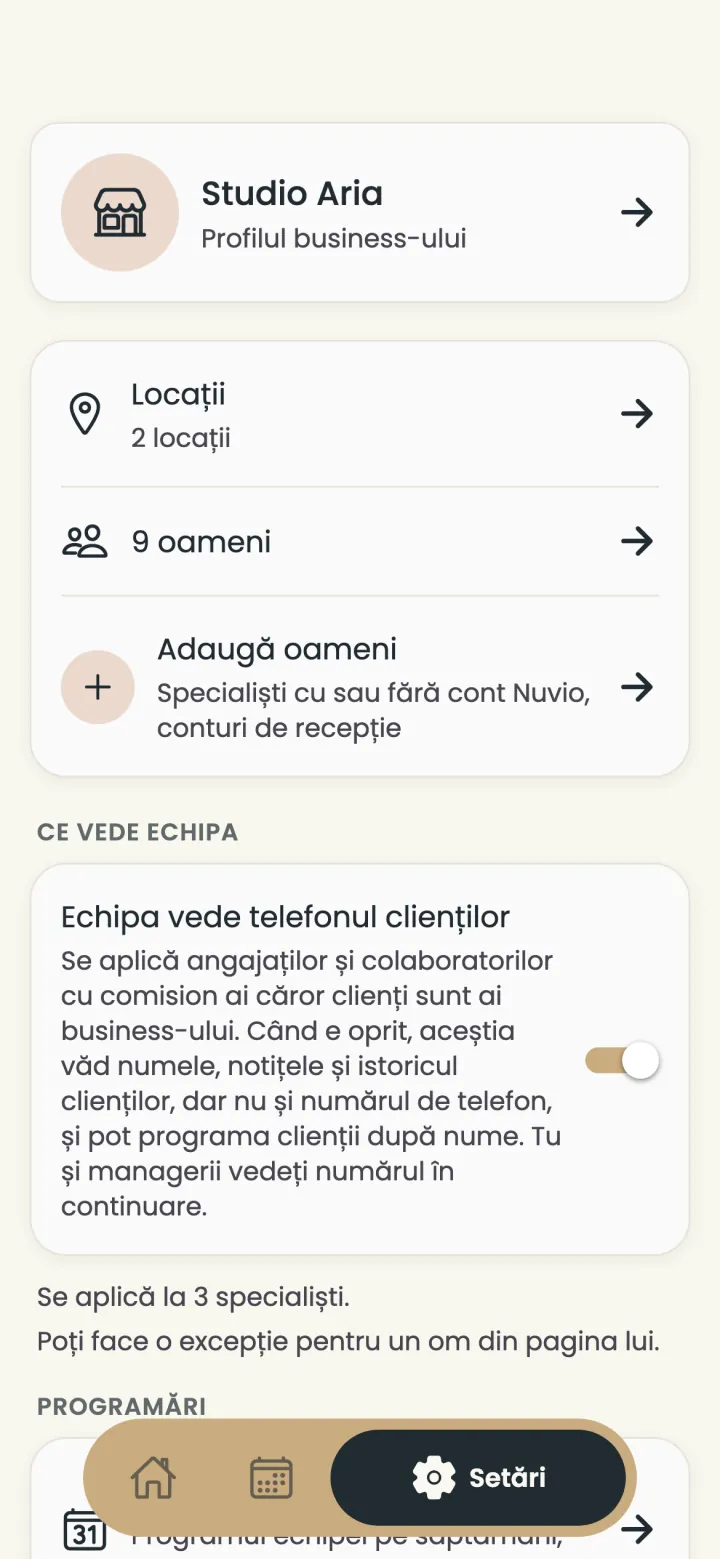
On a computer the settings are in the left menu; on a phone, in the business's Settings tab.
- Bookings (Programări)
- Shift plan, booking confirmation, clients and the locations' subscriptions.
- Team and locations (Echipă și locații)
- The team, the front-desk logins and the locations.
- Messages and growth (Mesaje și creștere)
- Messages to clients, the SMS phone, campaigns, reviews, courses and the location's own app.
- Money (Bani)
- Reports, monthly statements, expenses, payments through Nuvio and paid plans.
- Till (Casă)
- Sales, till invoices and the cash register, when you have Nuvio POS.
- Account (Cont)
- Your notifications, your account, the tour and signing out.
Each person sees only the groups their role allows.
Settings the team inherits
Some settings saved by the business apply to every employee, and they cannot change them.
These are the online booking confirmation, the client reminders and the schedule, when the business makes it.
The employee sees the setting with a lock and the label Set by the business (Setat de business).
Commission and chair-rent specialists keep their own settings.
Switch between Business and Specialist
If you also work with clients, you switch between the business and your own bookings from Settings.
Where to find it:Settings (Setări)BusinessOpen the business (Deschide business-ul)
- In Specialist mode, open Settings (Setări) and tap Open the business (Deschide business-ul).
- To go back, tap Switch to Specialist mode (Treci la modul Specialist) at the bottom of the business menu.
A front-desk login sees only the business and has no Specialist mode.
The Business tour
Five short steps about locations, hours, the team, paid plans and the menus.
Where to find it:Account (Cont)How Business works (Cum funcționează Business)
- Tap How Business works (Cum funcționează Business).
- Go through the steps with Next (Mai departe) and close with Got it (Am înțeles).
Your notifications for new bookings
Choose whether you get a notification for every new booking clients make, and for which locations.
Where to find it:Account (Cont)My notifications (Notificările mele)
- Open My notifications (Notificările mele).
- Turn on A notification for every new client booking (Notificare la fiecare programare nouă de la clienți).
- Tick the locations you want it for.
The setting is yours only; your colleagues choose their own.
Updated on
Help
If the answer is not here, write to us on WhatsApp or by e-mail.