
The calendar
You add, move, edit and cancel appointments, block time and answer requests.
The app screens shown here are in Romanian; each button's Romanian name follows it in brackets.
Day, week and month
On a phone you see one day at a time and pick the day from the week or month at the top.
Where to find it:Calendar
- Open the Calendar tab.
- At the top, tap a day of the week to see it.
- Pull down the bar under the days to see the whole month.
- The arrows next to the month go to the next or previous month.
- Tap Today (Azi) to go back to today.
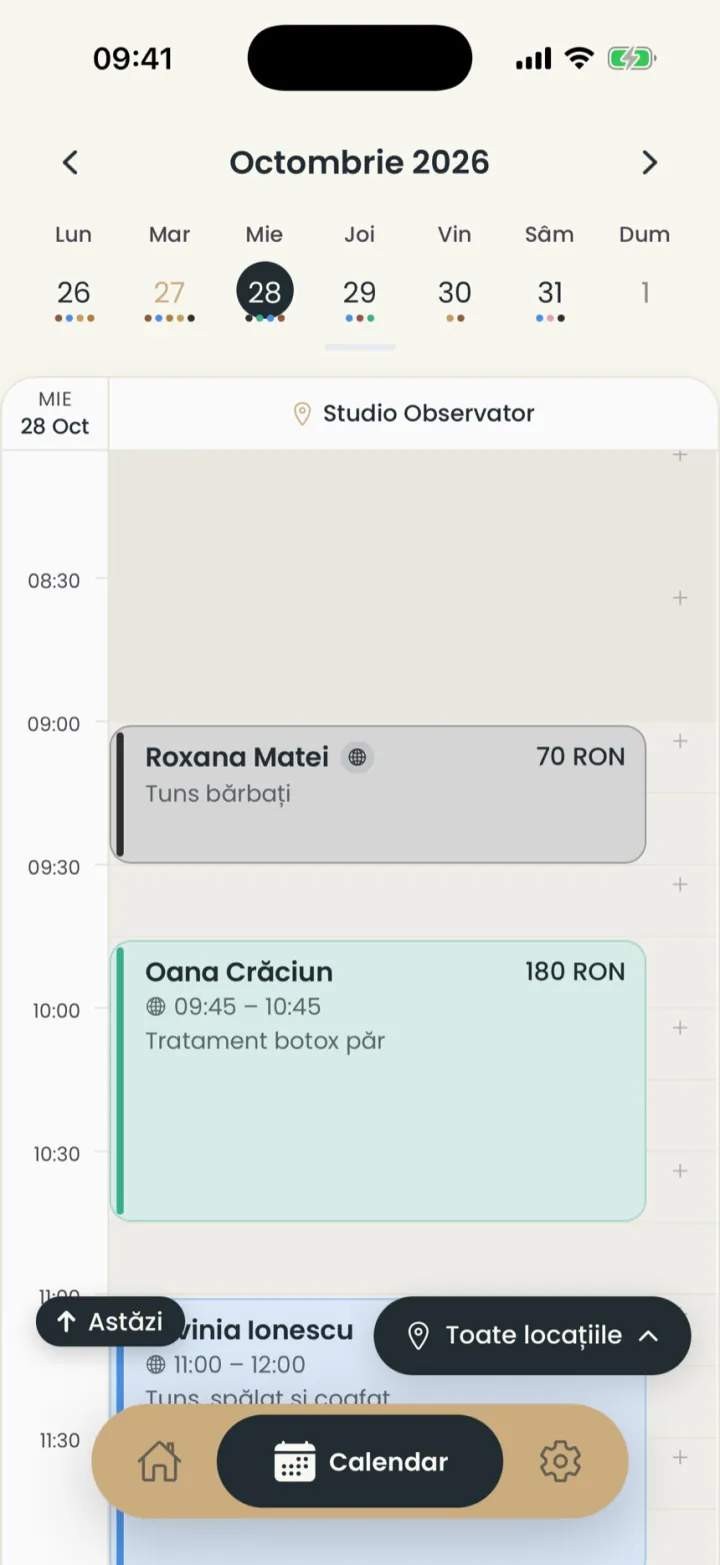
- The chosen day
- An appointment
- The filter
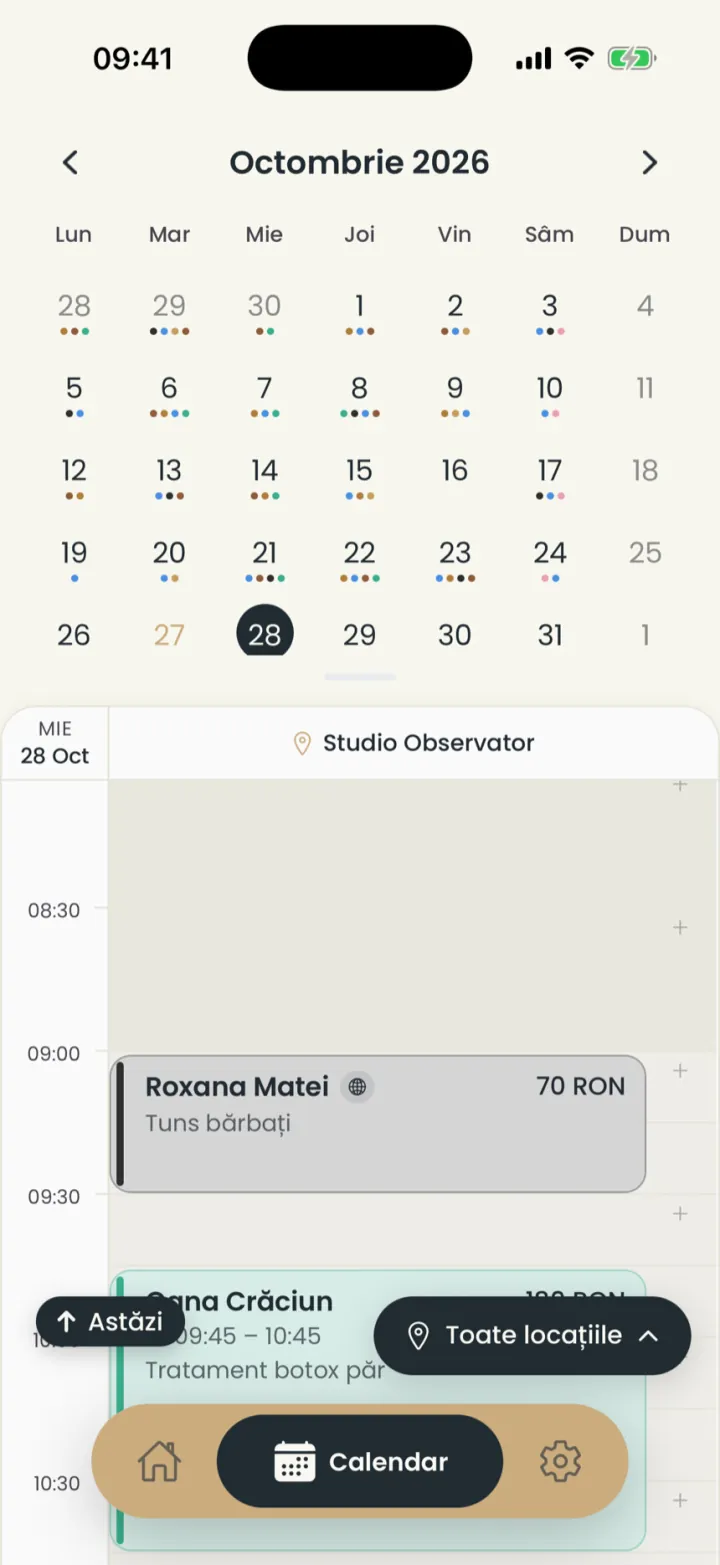
Coloured dots under a day mean you have appointments. On a computer, at app.nuvio.ro, you can also pick 3 days (3 zile) or 7 days (7 zile).
Add an appointment
You tap a free time, pick the client and the services, then save.
Where to find it:CalendarNew appointment (Programare nouă)
- In Calendar tap the time you want.
- Tap Choose the client (Alege clientul) and pick the client from the list.
- Tap Choose the services (Alege serviciile), tick the services and tap Done (Gata).
- Check the day, the time and the price.
- Tap Add appointment (Adaugă programarea).
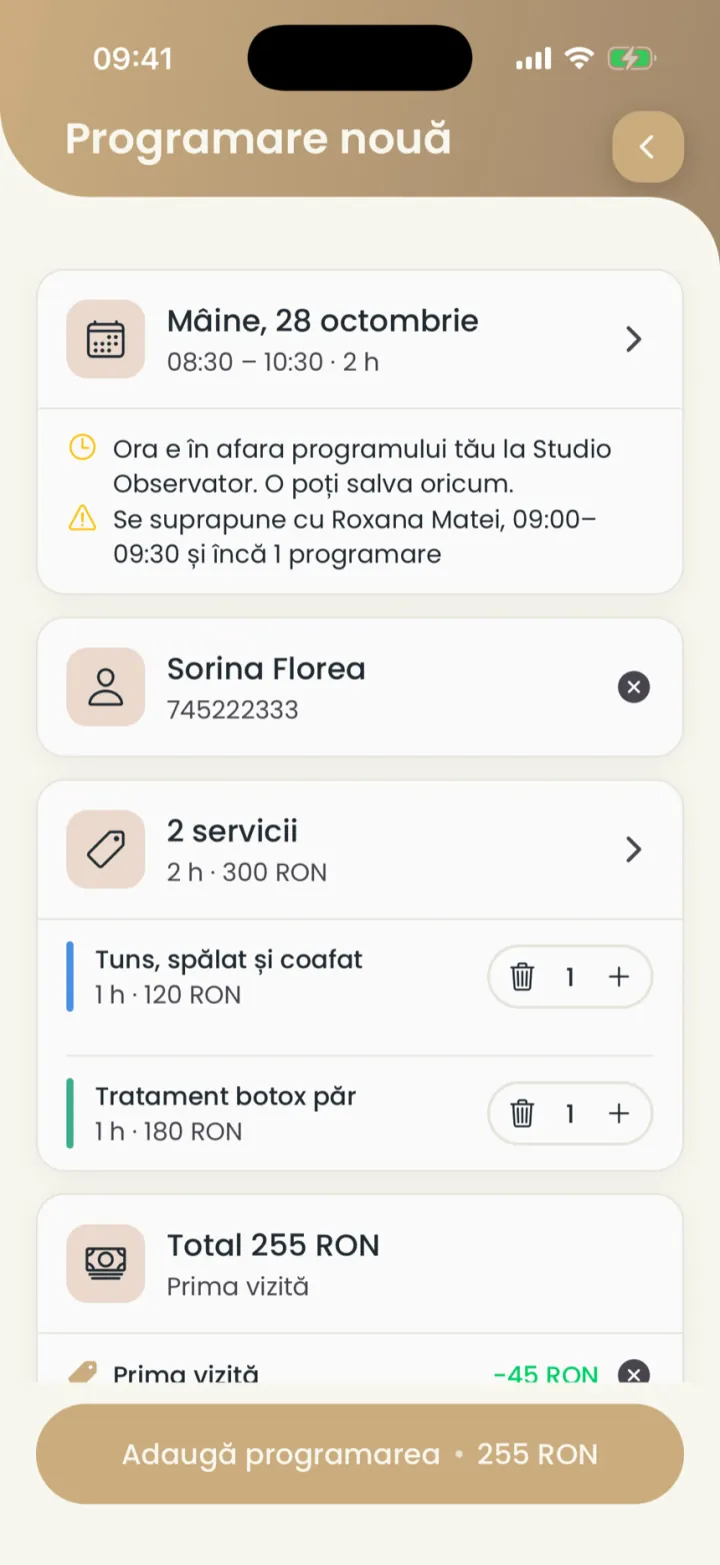
- Warnings: outside your hours or overlapping
- Add appointment (Adaugă programarea)
The app warns you when the time is outside your hours or overlaps another appointment. You can save anyway.
If a promotion applies, the price drops by itself and you see the discount in the total.
Add a new client from the appointment
If the client is not in your list, you add them right from the appointment.
Where to find it:CalendarNew appointment (Programare nouă)Choose the client (Alege clientul)New client (Client nou)
- In the new appointment tap Choose the client (Alege clientul).
- Tap New client (Client nou).
- Type the name and the phone (optional).
- Tap Add and pick (Adaugă și alege).
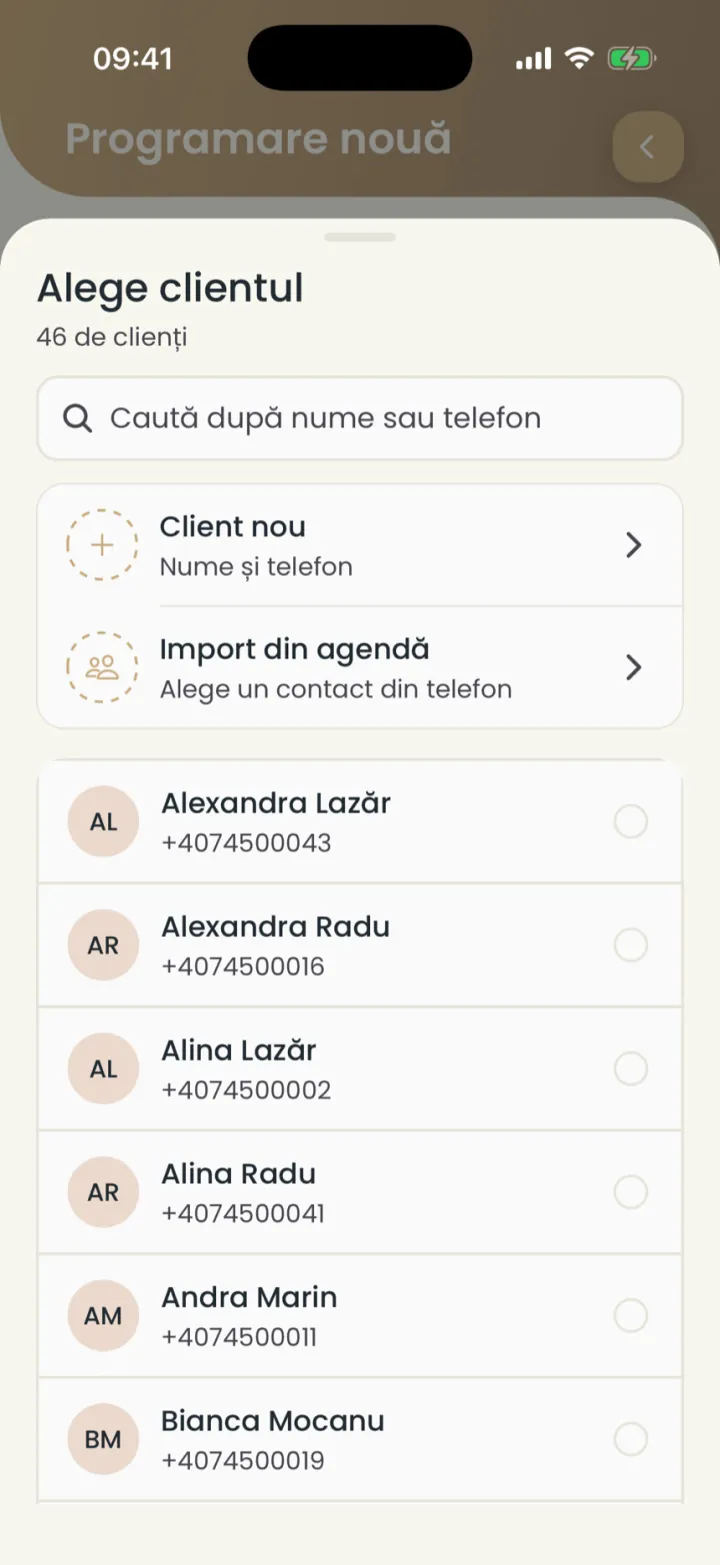
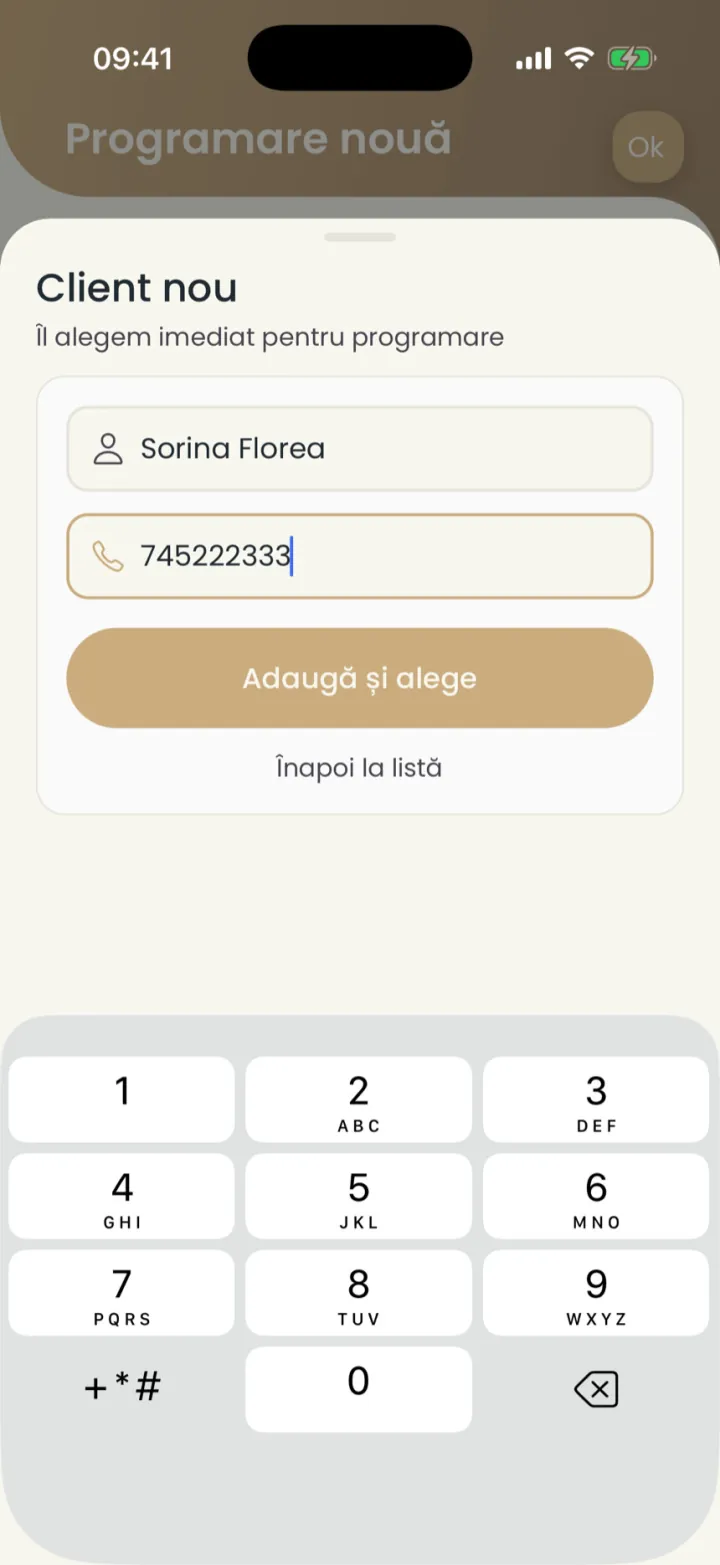
Import from contacts (Import din agendă) takes the client from your phone contacts.
Several services in one appointment
You tick several services, and the duration and price add up.
Where to find it:CalendarNew appointment (Programare nouă)Choose the services (Alege serviciile)
- In the appointment tap Choose the services (Alege serviciile).
- Tick all the client's services.
- Tap Done (Gata).
- Plus and minus change how many times a service is done.
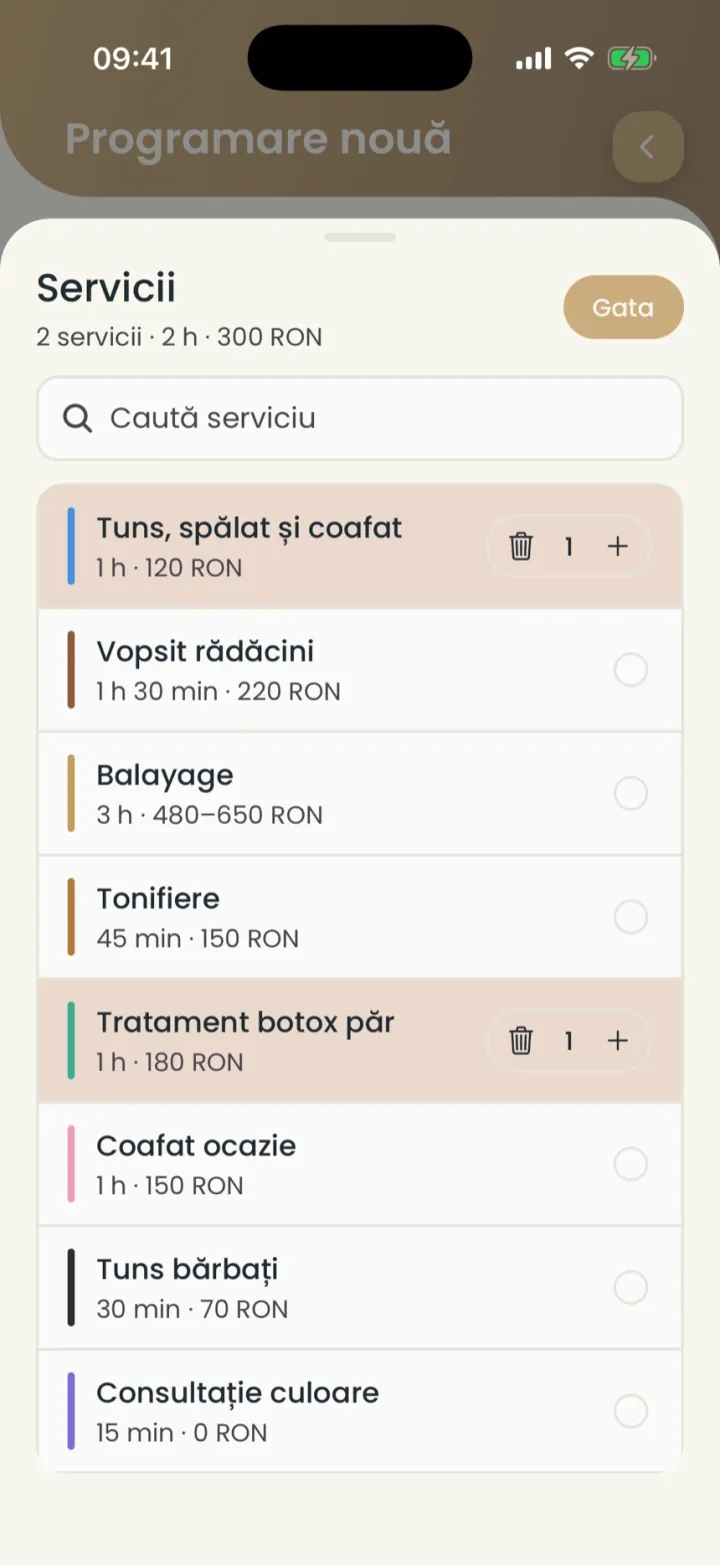
A repeating appointment
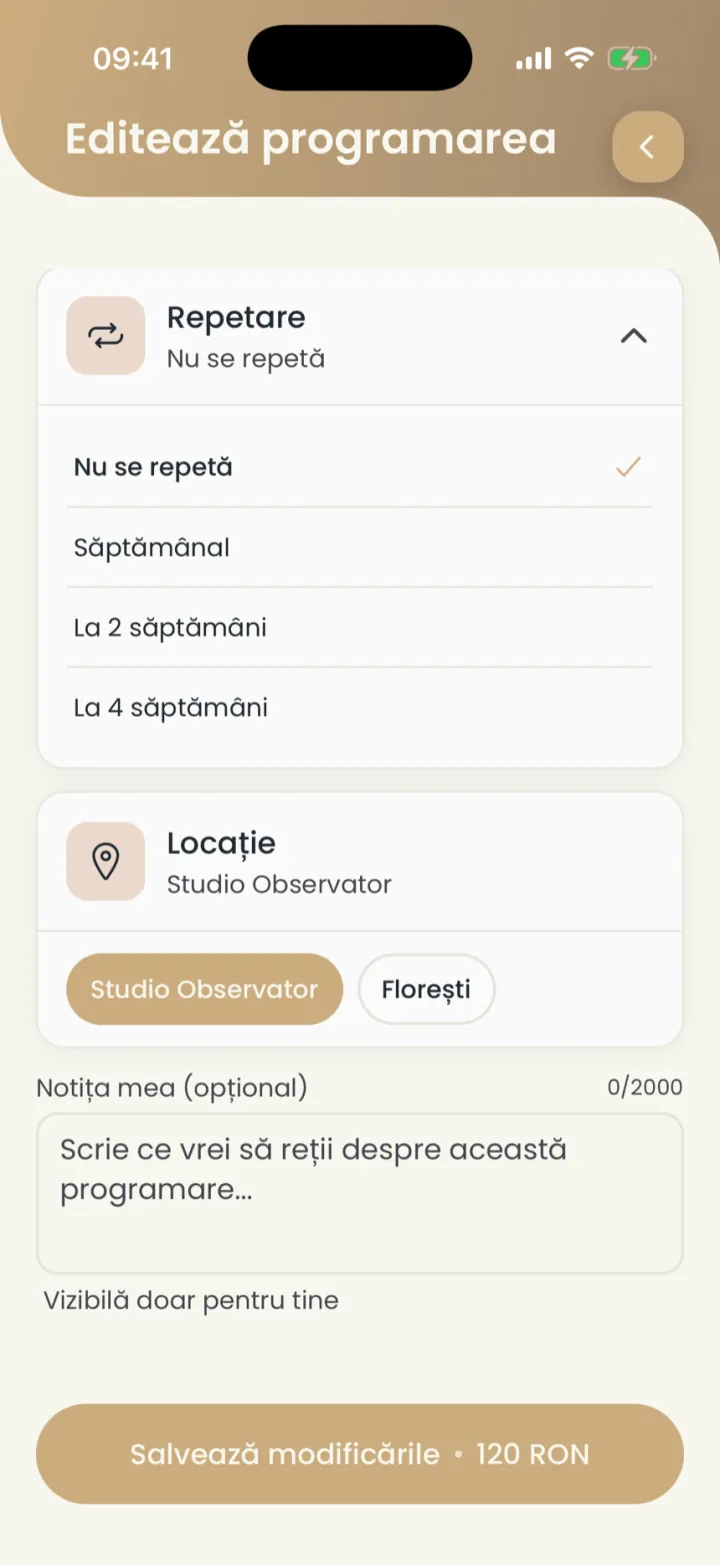
You make an appointment that repeats weekly, every 2 or every 4 weeks.
Where to find it:CalendarNew appointment (Programare nouă)Repeat (Repetare)
- In the appointment tap Repeat (Repetare).
- Pick Weekly (Săptămânal), Every 2 weeks (La 2 săptămâni) or Every 4 weeks (La 4 săptămâni).
- Save the appointment.
Move an appointment
You drag the appointment to another time, or change its date when you edit it.
Where to find it:Calendar
- In Calendar touch and hold the appointment.
- Drag it to the new time and lift your finger.
To another day
- Open the appointment and tap Edit appointment (Editează programarea).
- Tap the date and pick the new day and time.
- Tap Save changes (Salvează modificările).
The client gets a message with the new time, if their notifications are on.
Edit an appointment
You change the client, the services, the price, the discount, the location or the note.
Where to find it:CalendarEdit appointment (Editează programarea)
- Open the appointment in the calendar.
- Tap Edit appointment (Editează programarea).
- Change what you need: the date, the client, the services, the price or the Discount.
- Tap Save changes (Salvează modificările).
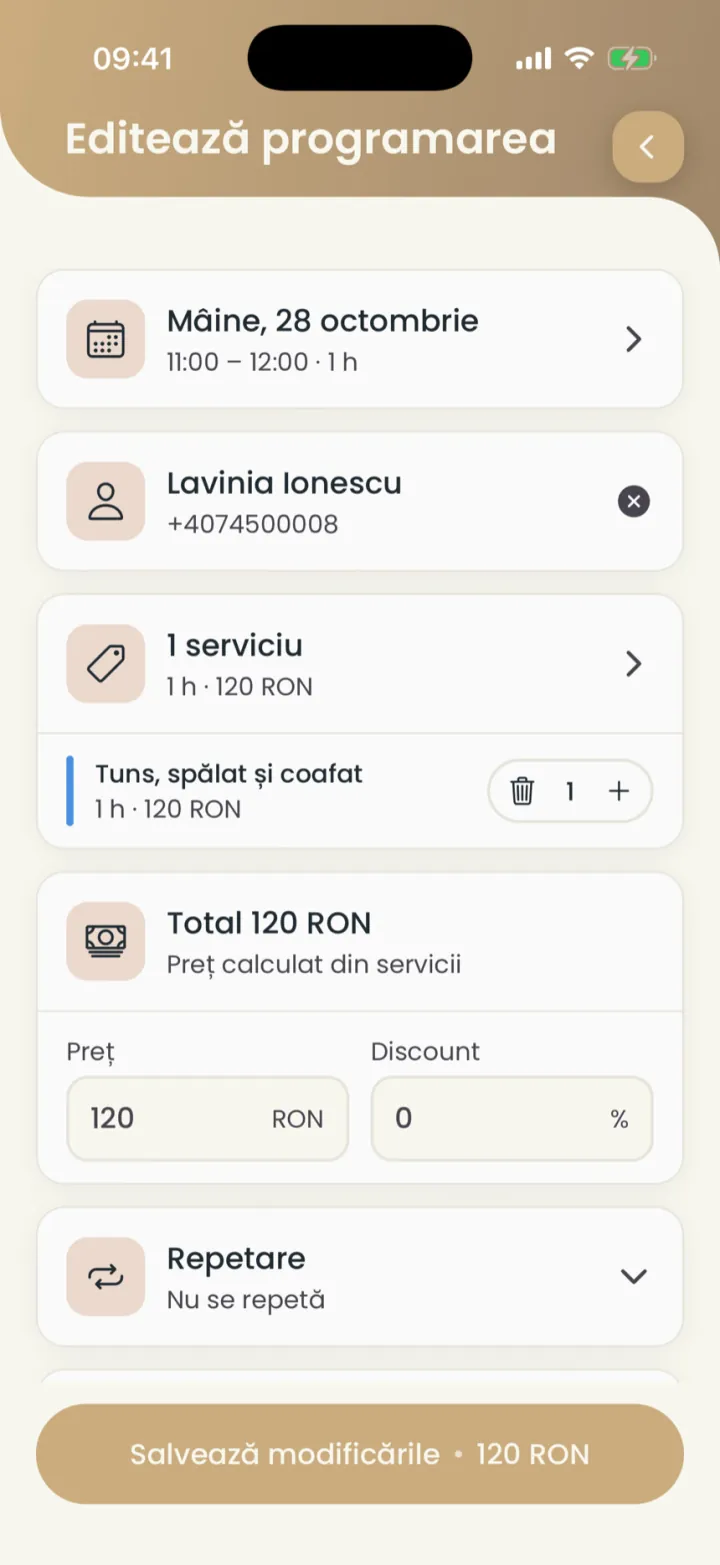
Further down you can change the location and write a note. Only you see the note.
Cancel an appointment
You delete the appointment from the calendar, and the client is told.
Where to find it:CalendarActions (Acțiuni)Delete appointment (Șterge programarea)
- Open the appointment.
- Tap the three dots next to Edit appointment (Editează programarea).
- Tap Delete appointment (Șterge programarea).
- Confirm with Delete appointment (Șterge programarea).
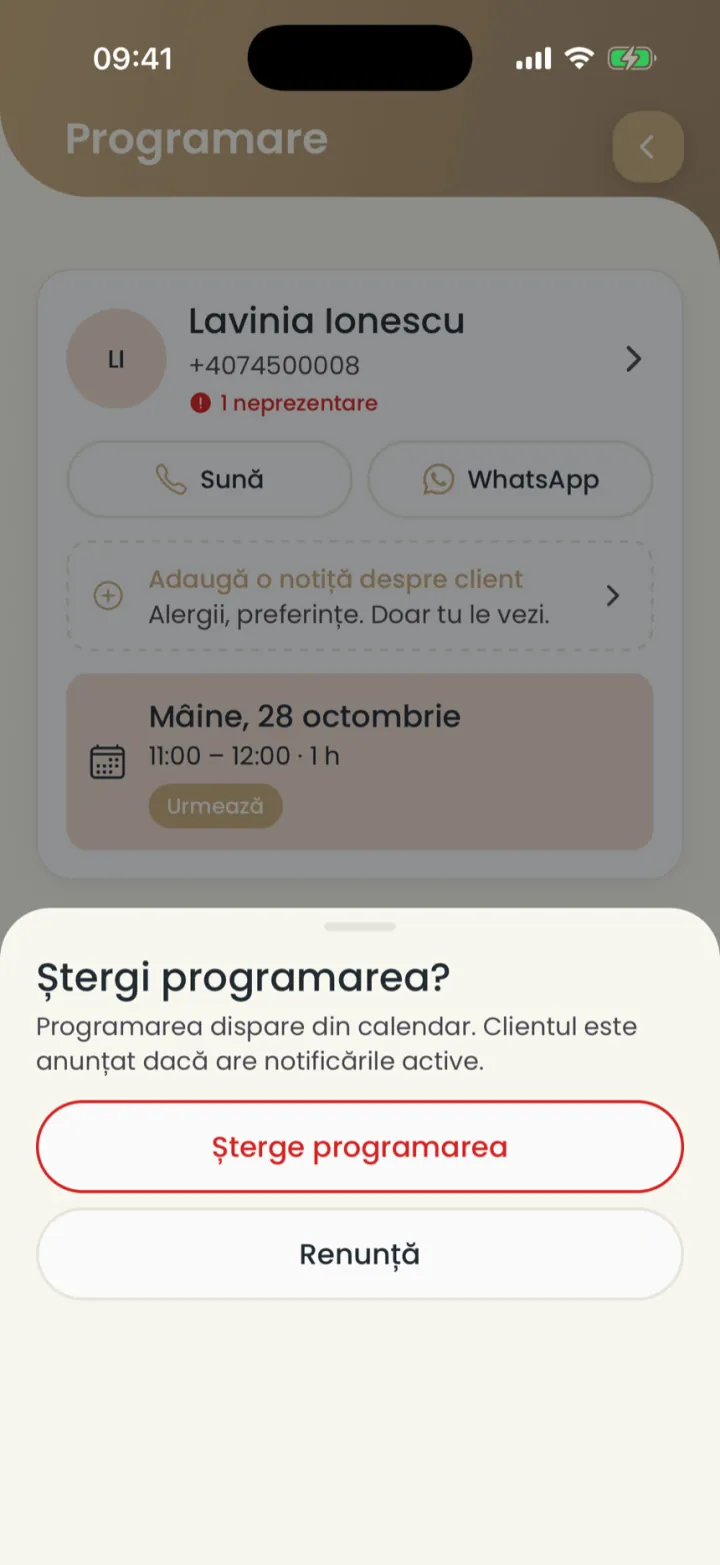
The client is told if their notifications are on.
The client did not come
You mark the no-show, and it stays in the client's history.
Where to find it:CalendarActions (Acțiuni)Mark as no-show (Marchează neprezentare)
- Open the appointment.
- Tap the three dots next to Edit appointment (Editează programarea).
- Tap Mark as no-show (Marchează neprezentare).
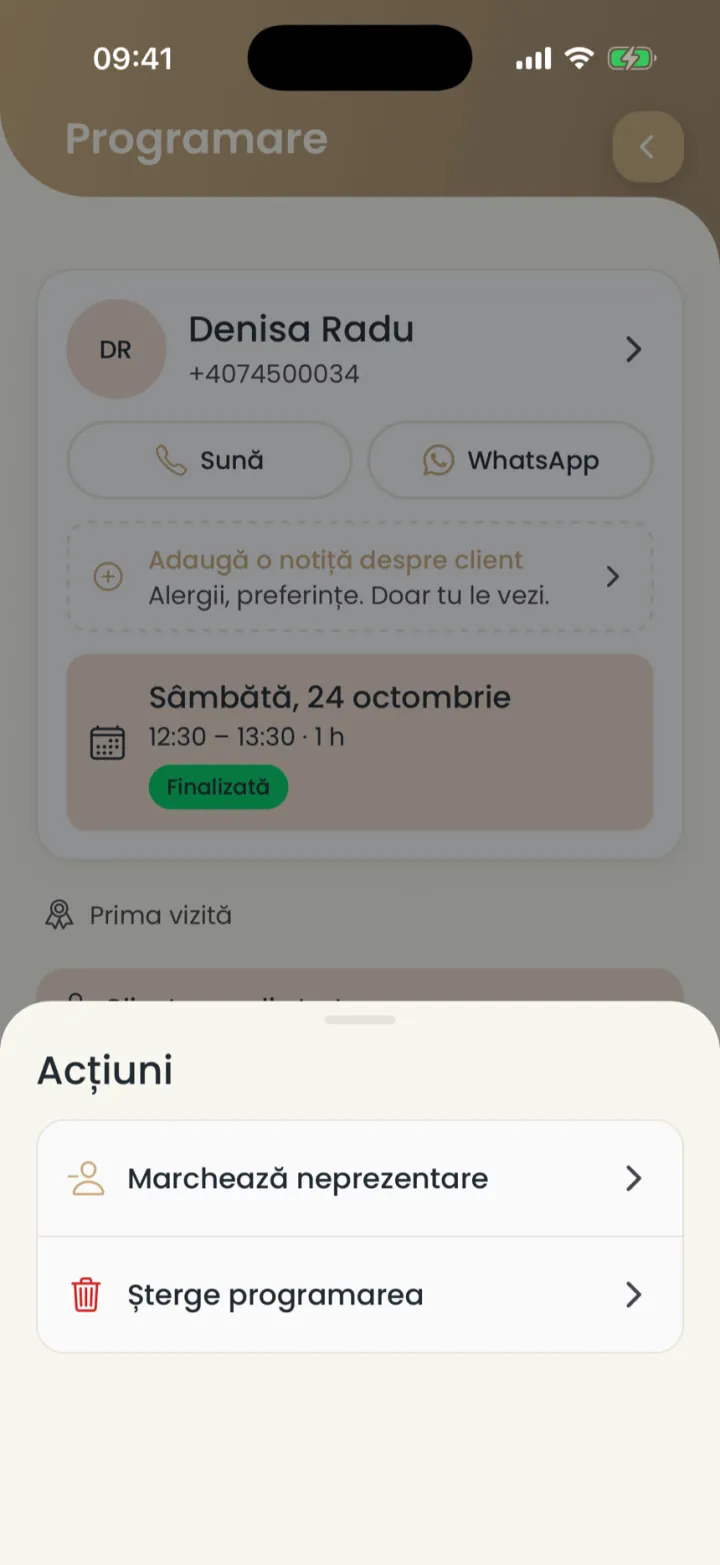
The number of no-shows shows on the client card and under the name, in the appointment.
You can ask a deposit from clients who missed, in Payments through Nuvio, or set a penalty.
Block time
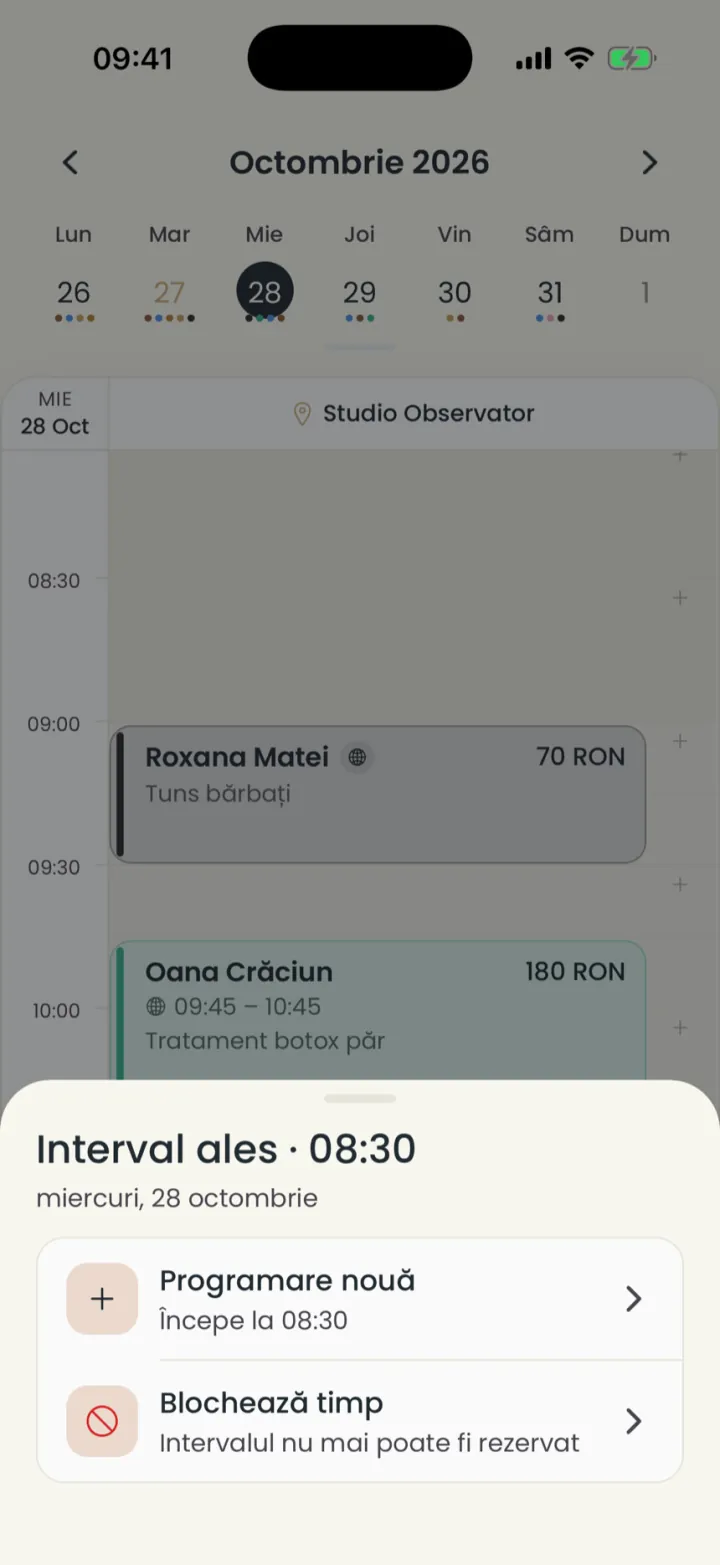
You keep a time free so nobody can book it.
Where to find it:CalendarBlock time (Blochează timp)
- In Calendar touch and hold a free time.
- Pick Block time (Blochează timp).
- Pick the start and end time.
- Write a note (optional), for example lunch break.
- Tap Block (Blochează).
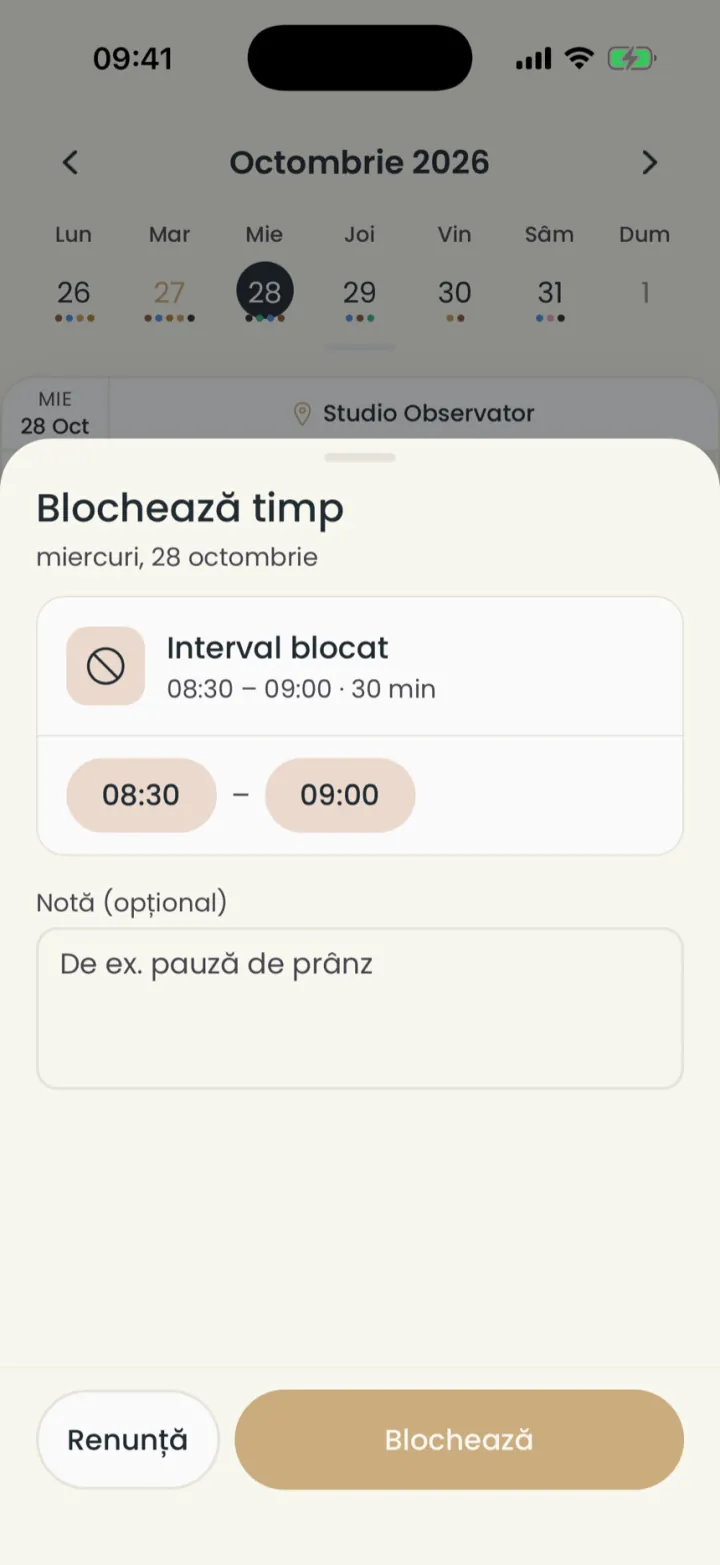
To remove the block, open it from the calendar and tap Delete block (Șterge blocarea).
Booking requests
When you confirm bookings yourself, every online booking waits for you as a request.
Where to find it:Home (Acasă)Booking requests (Cereri de programare)
- You get a notification for every new request.
- Open the request from your notifications.
- Tap Accept (Acceptă) to put it in the calendar, or Reject (Respinge).
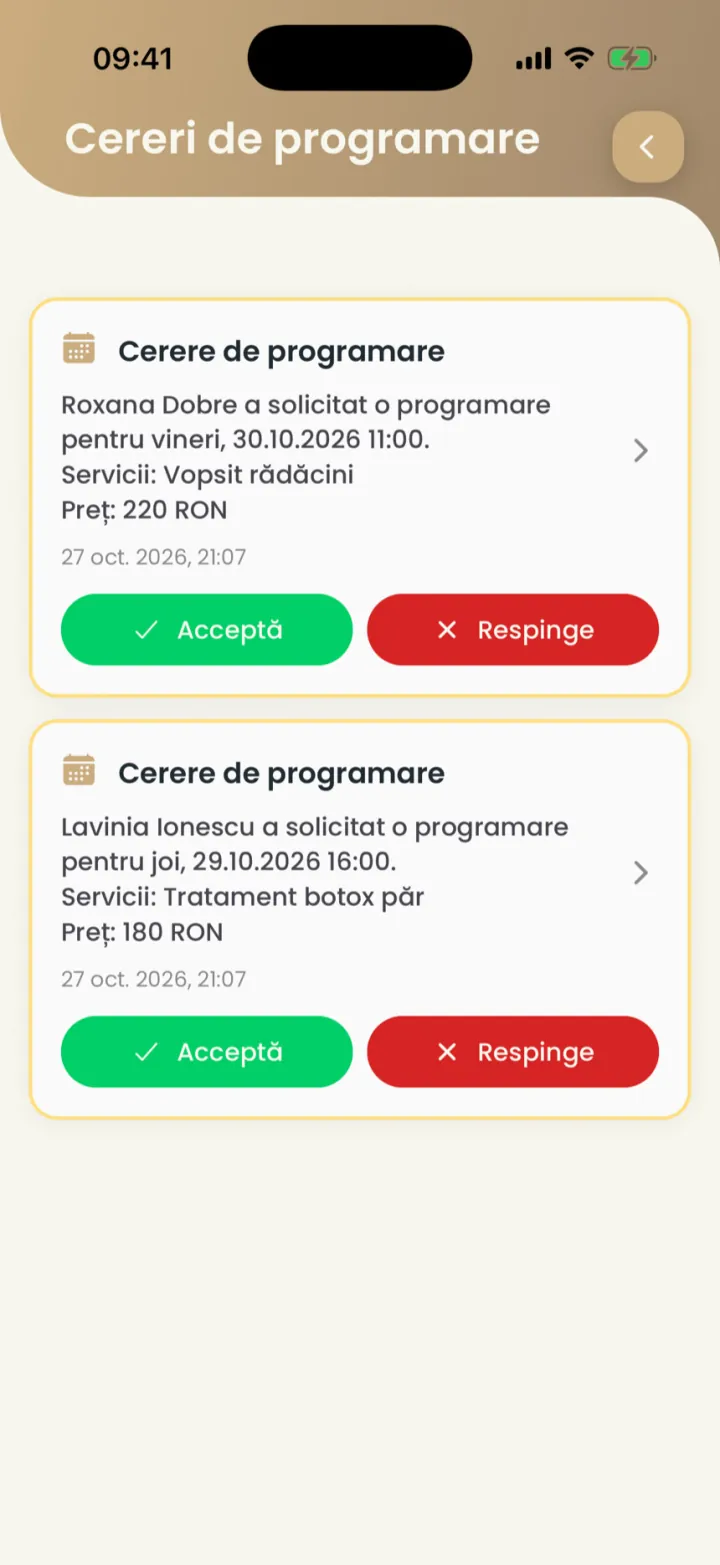
Requests only appear if you turned on Confirm each appointment yourself.
The details of an appointment
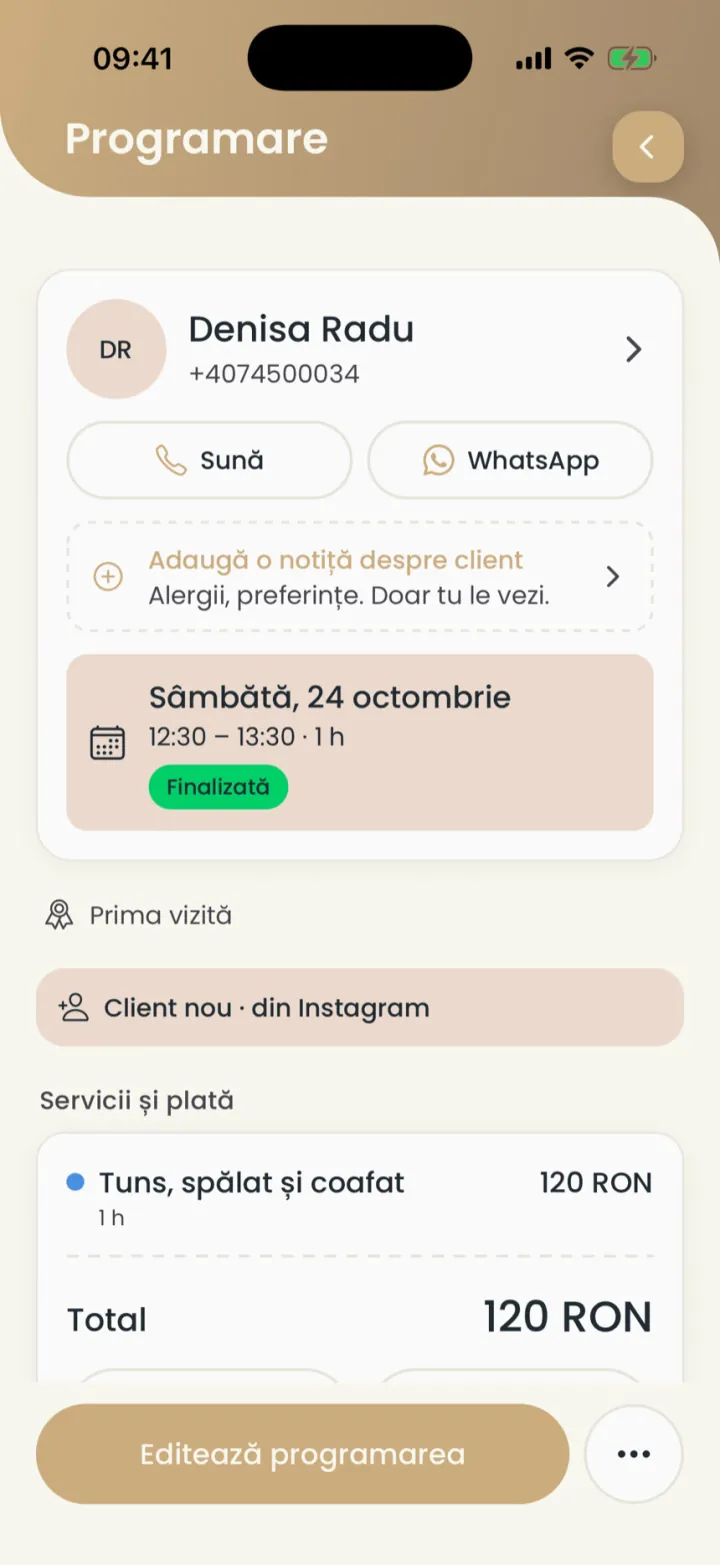
You tap an appointment and see the client, the time, the services, the payment and your notes.
Where to find it:Calendar
- The client
- Name, phone, the Call (Sună) and WhatsApp buttons, and how many no-shows they have.
- Note about the client
- You add it right here. Only you see it.
- Date and status
- The day, the time and whether the appointment is upcoming or done.
- Confirm they are coming (Confirmă că vine)
- Shows whether the client confirmed from the reminder that they are coming.
- Services and payment
- The services, the discounts and the total.
Sync with Google Calendar and Apple Calendar
Your appointments also show in your phone calendar, and busy times from there are blocked in Nuvio.
Where to find it:Settings (Setări)Calendar sync (Sincronizare calendar)
- Open Settings and tap Calendar sync (Sincronizare calendar).
- At Google Calendar or Apple Calendar (Calendar Apple) tap Connect (Conectează).
- Give access to your calendar.
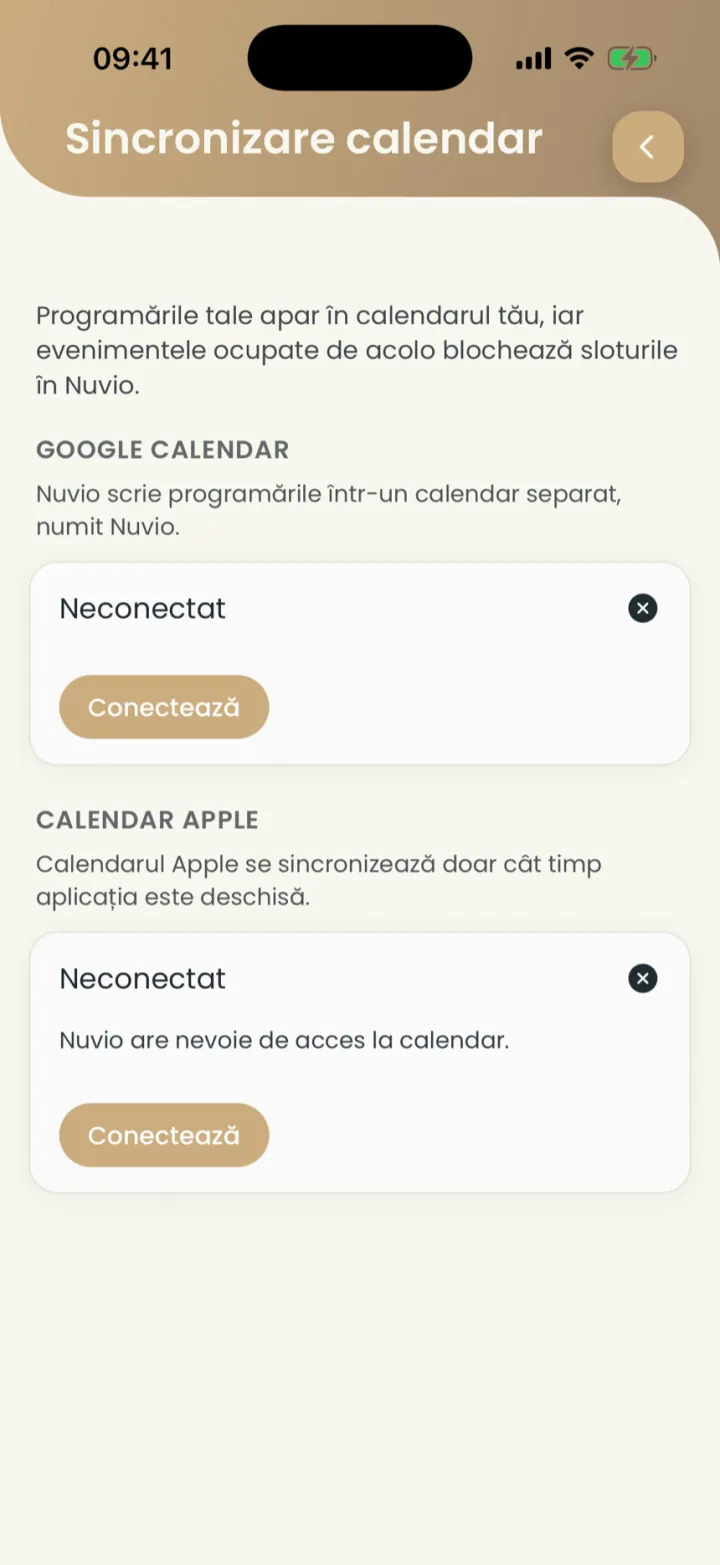
- Google Calendar
- Nuvio writes your appointments into a separate calendar called Nuvio.
- Apple Calendar
- It syncs only while the app is open.
Updated on
Help
If the answer is not here, write to us on WhatsApp or by e-mail.