
Getting started
You create your account, set up your profile and first services, then use the free trial.
The app screens shown here are in Romanian; each button's Romanian name follows it in brackets.
Create your account
You download Nuvio Pro and create your account with e-mail, Google or Apple.
- Download Nuvio Pro from the App Store or Google Play, or open app.nuvio.ro on a computer.
- Tap Create account (Creează cont).
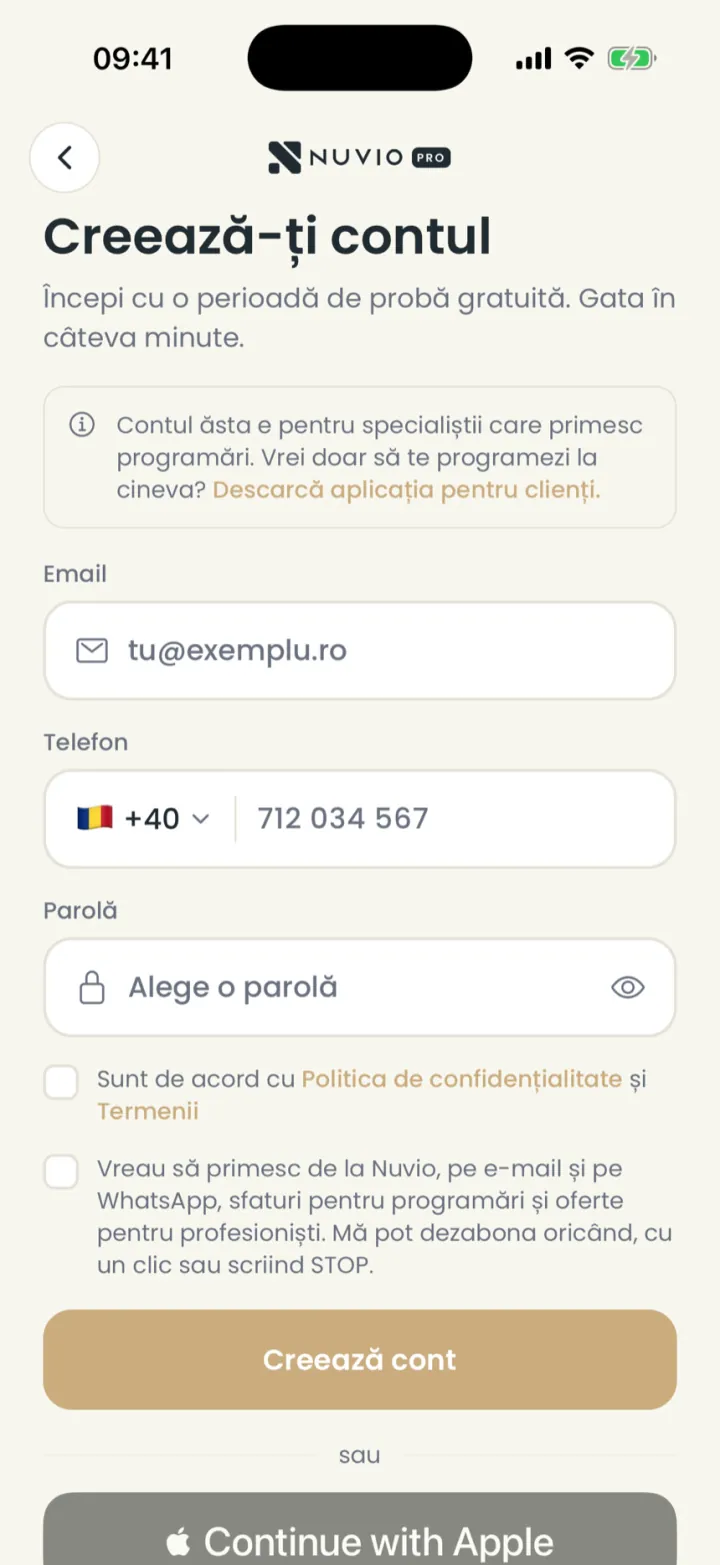
- Type your e-mail, your phone number and a password.
- Tick the terms and tap Create account (Creează cont).
- Type the 6-digit code you got by e-mail.
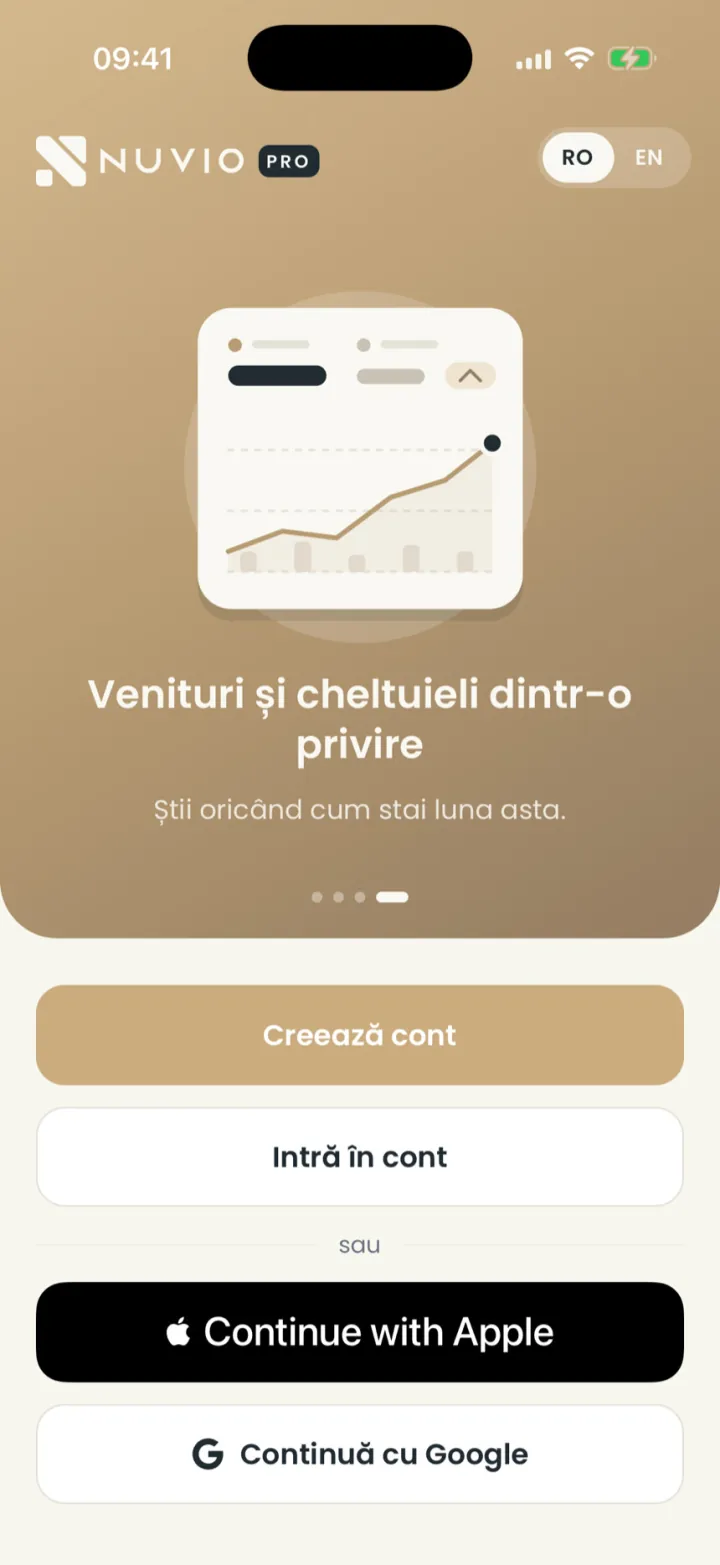
- Create account (Creează cont)
- Continue with Google (Continuă cu Google)
With Google or Apple
- On the first screen tap Continue with Google (Continuă cu Google) or the Apple button.
- Pick the account and confirm.
Common problems
The e-mail code does not arrive. What do I do?
Look in Spam or Promotions too.
Check that you typed the e-mail correctly.
If it still does not come, write to us on WhatsApp at +40 735 034 600.
I only want to book an appointment with someone. Do I need an account here?
No. Nuvio Pro is for specialists.
To book, download the Nuvio app for clients.
Set up your account
After sign-up, the app asks for your name, your trade, where you work and your first service.
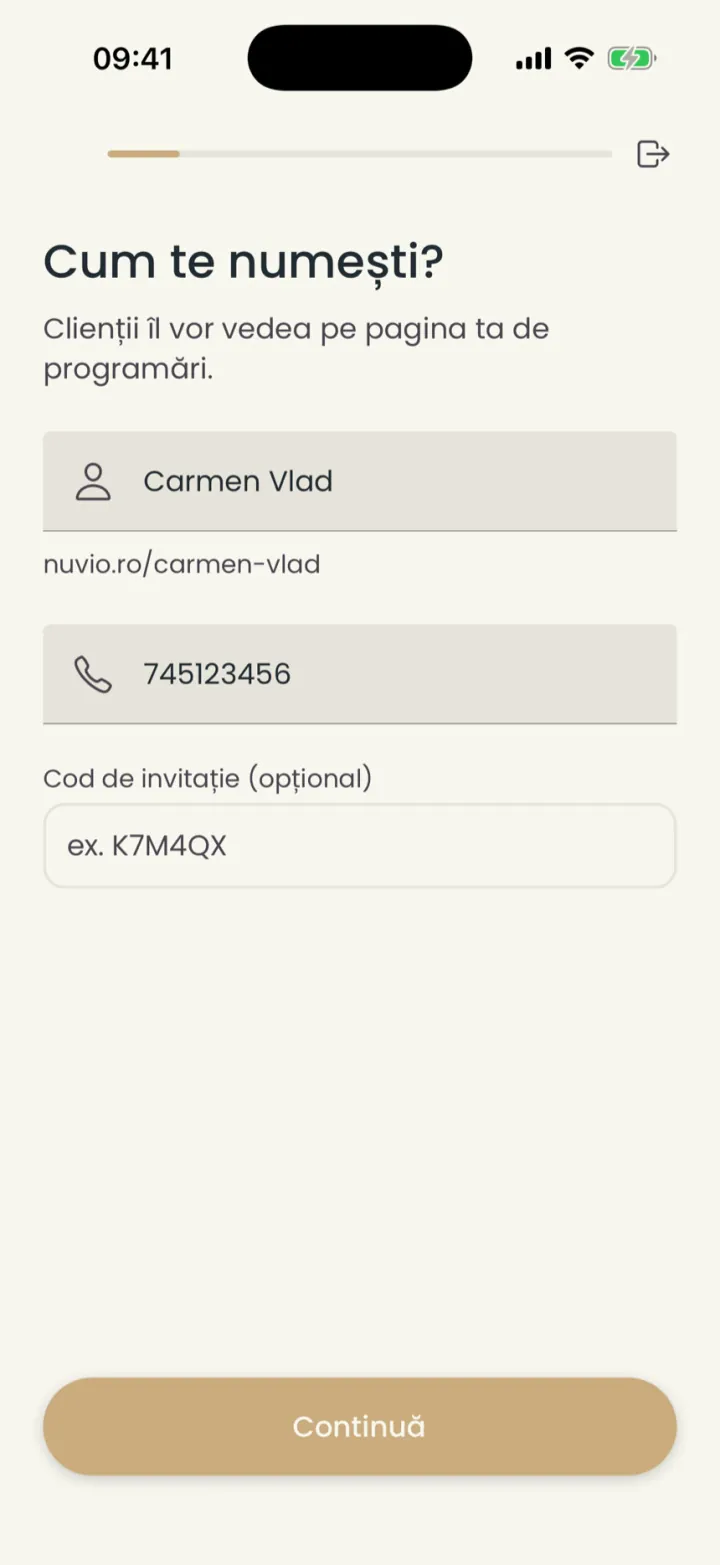
- Type your name and contact phone, then tap Continue (Continuă).
- Under your name you see the address of your page, for example nuvio.ro/carmen-vlad.
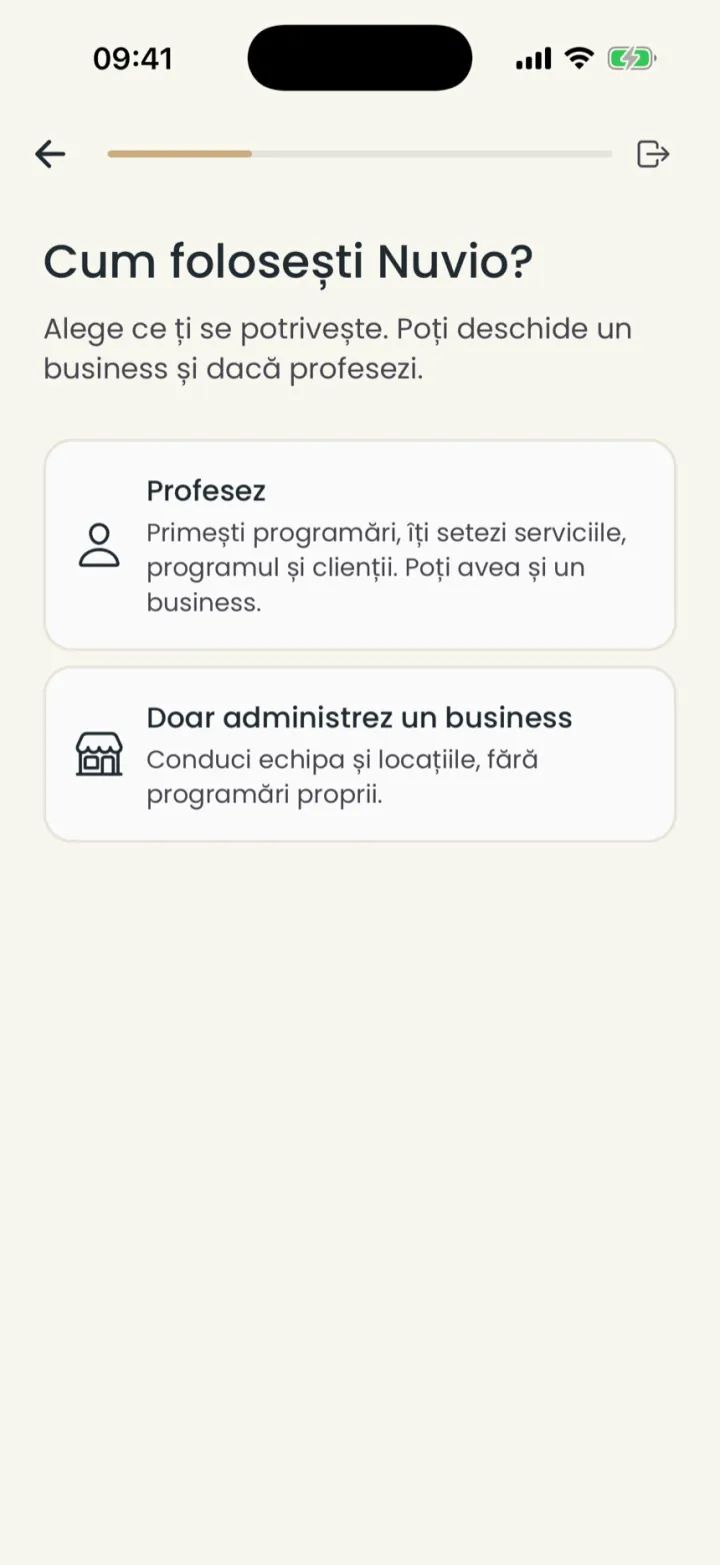
- Pick I practise (Profesez) if you take bookings, or I only run a business (Doar administrez un business) if you only run the team.
- Pick your trade from the list.
- Say how you heard of Nuvio, or tap Skip (Sari peste).
- Pick At my studio or office (La studioul sau cabinetul meu) or Online.
- For a location with an address, type the address and pick it from the list.
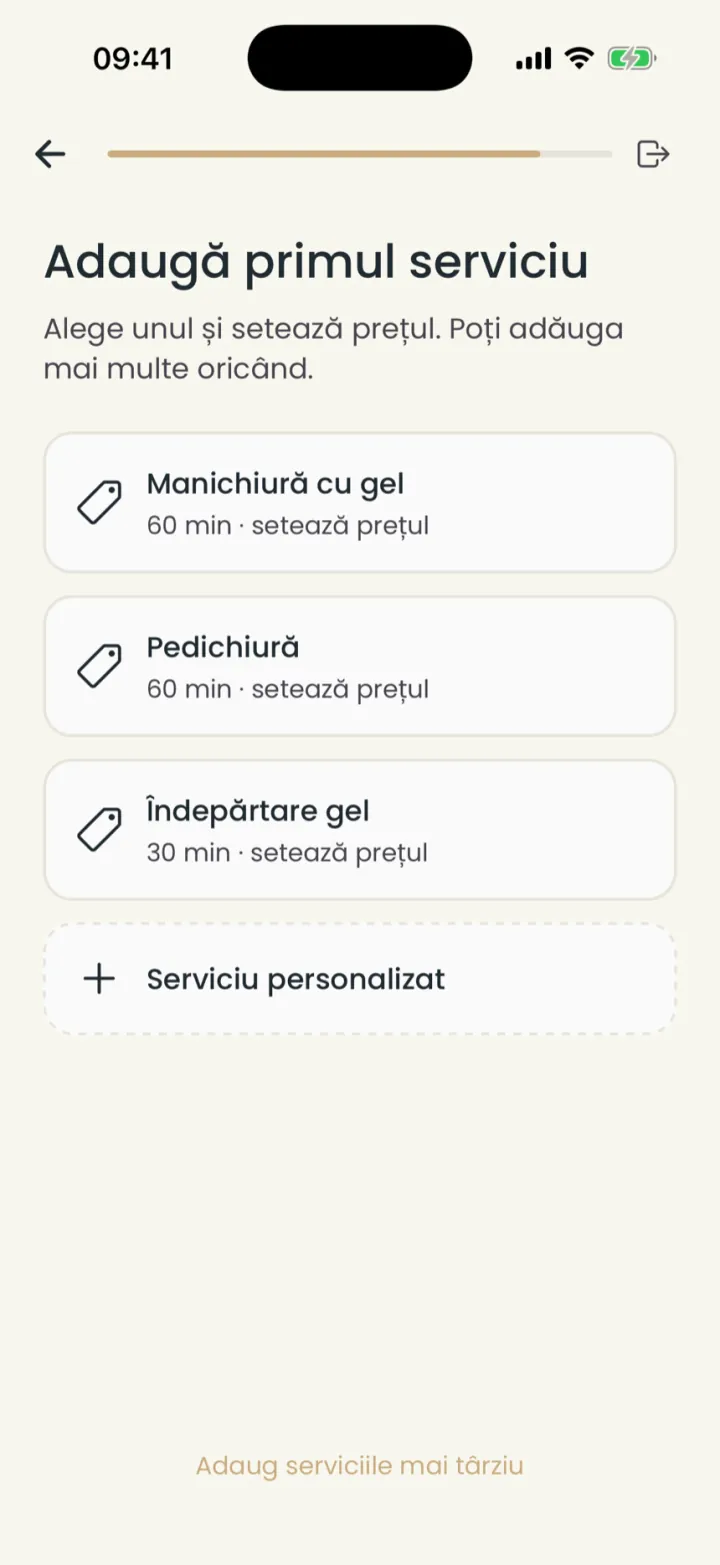
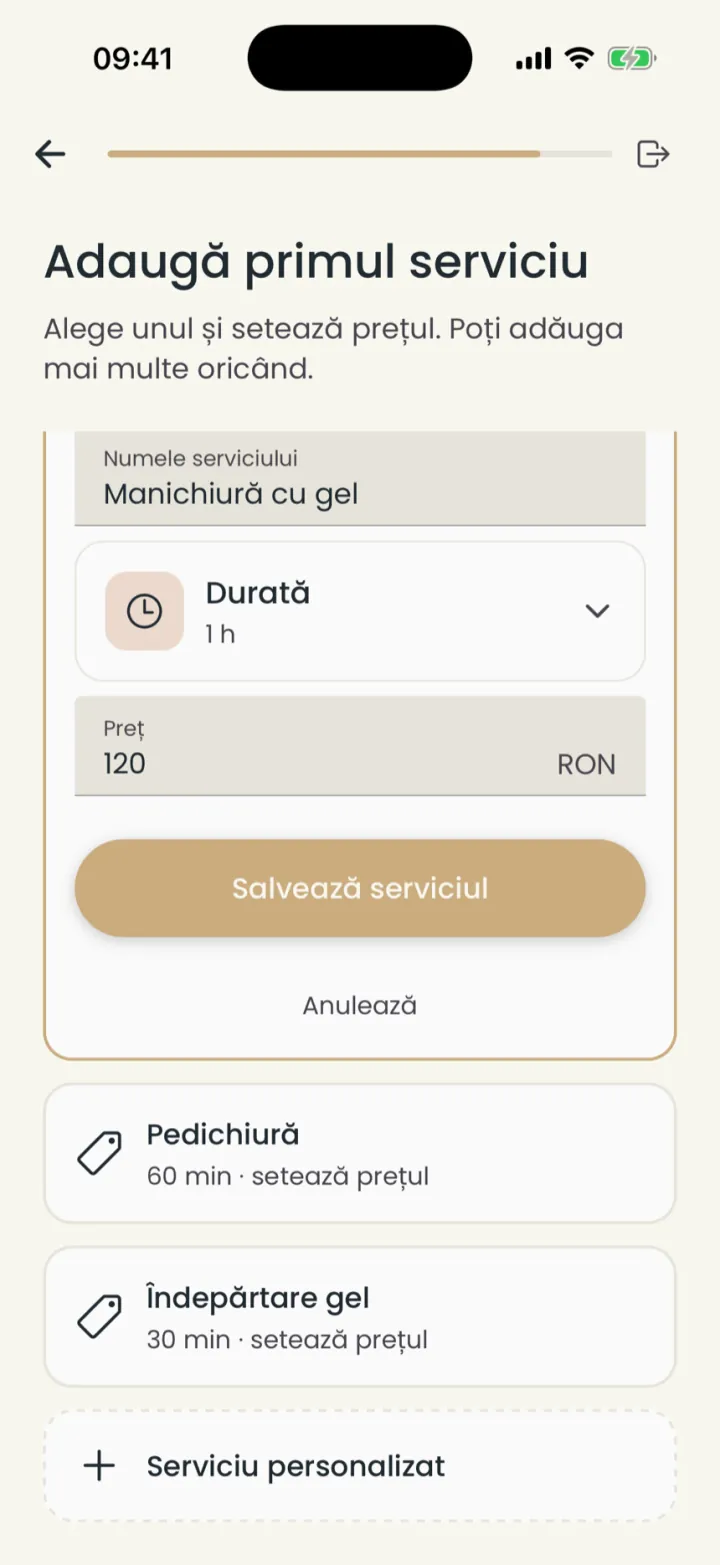
- Pick your first service from the suggestions or tap Custom service (Serviciu personalizat).
- Set the price and tap Save service (Salvează serviciul), then Continue (Continuă).
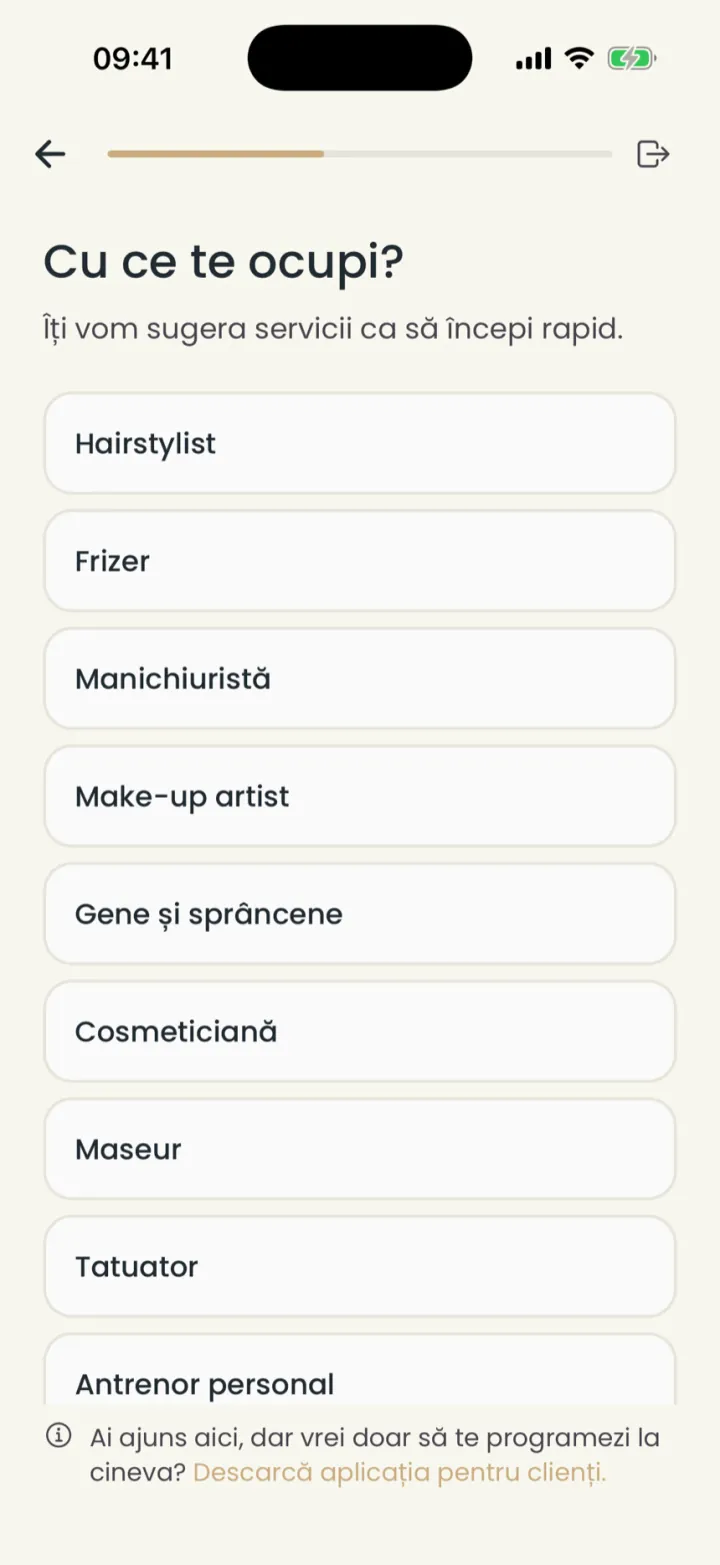
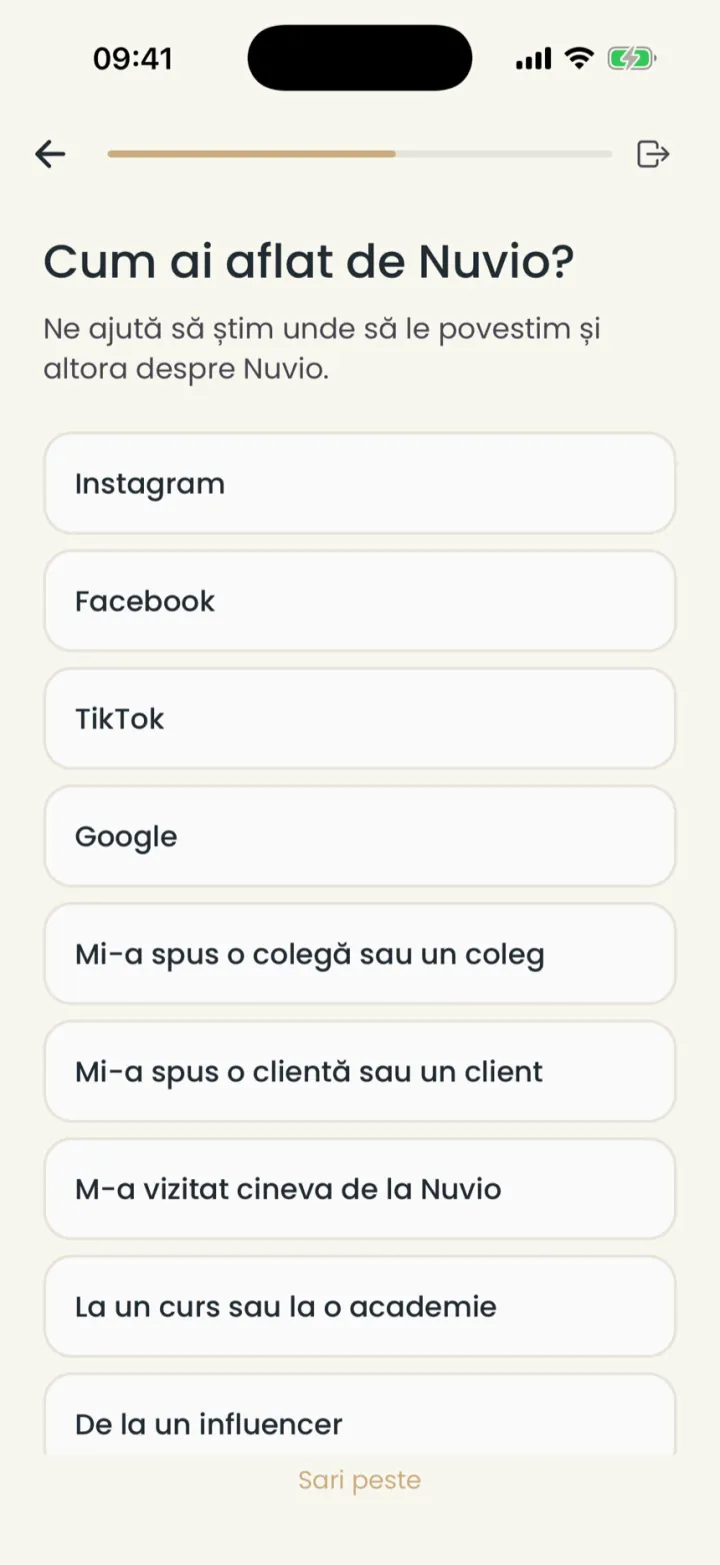
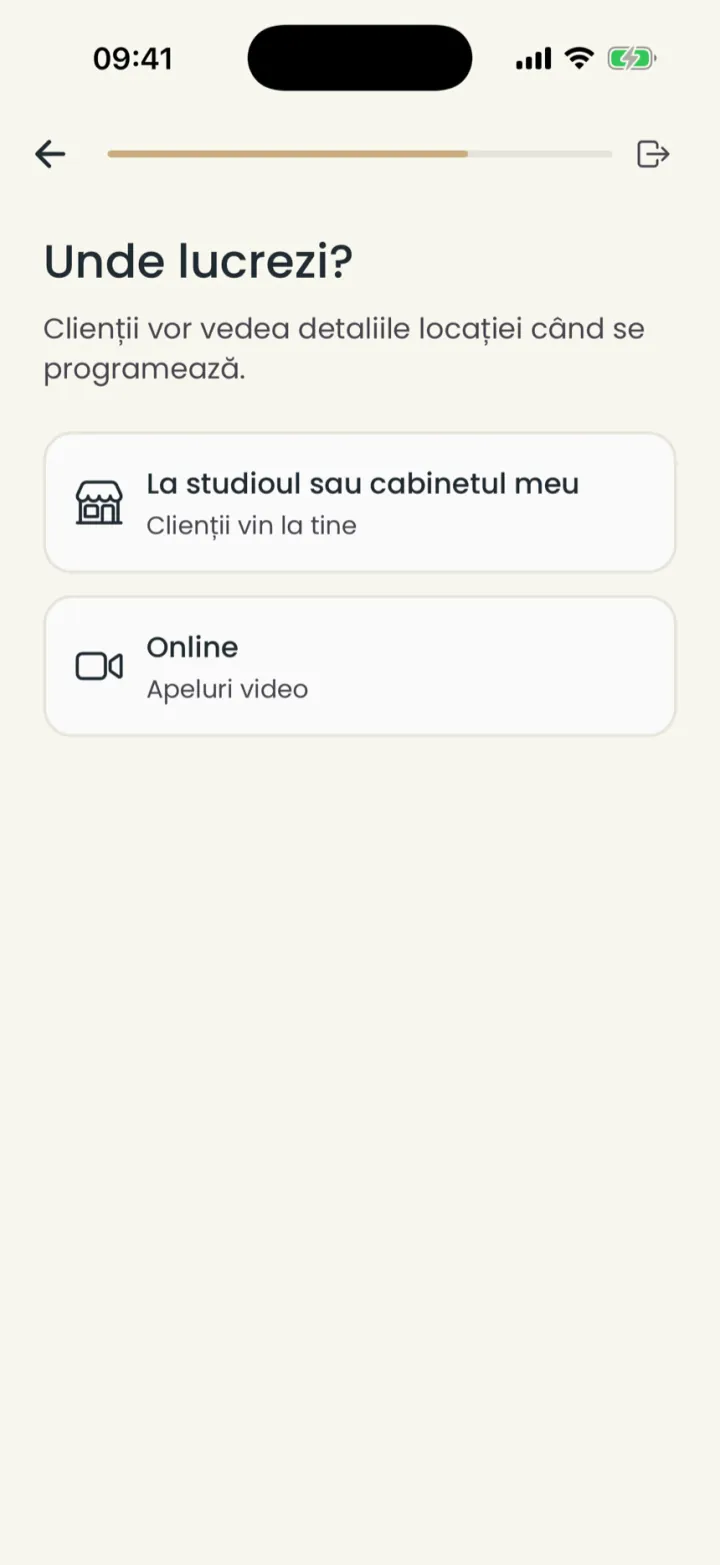
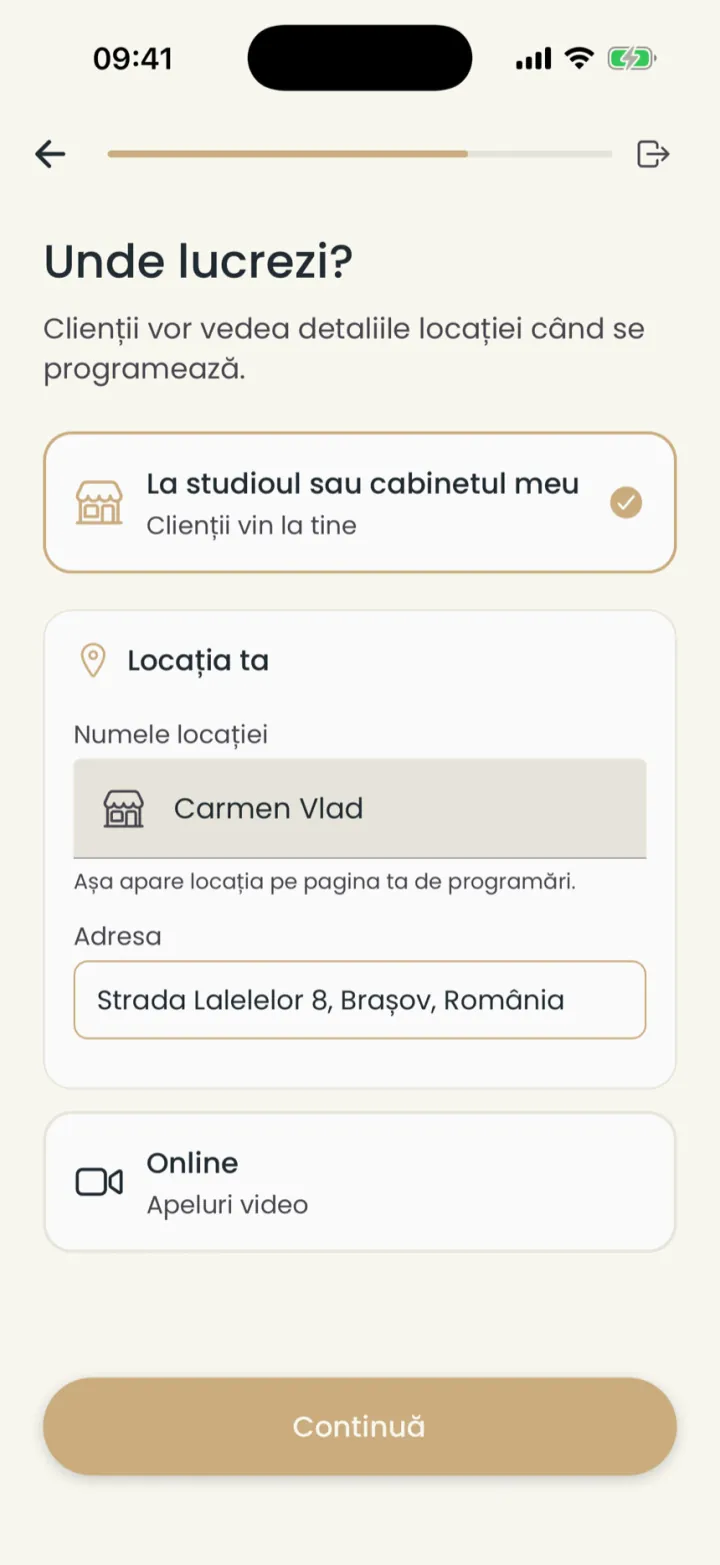
- Default hours
- Monday to Friday, 09:00-18:00. You change them any time in Work schedule.
- Services
- You can tap I'll add services later (Adaug serviciile mai târziu) and add them from Services.
- Business
- With I only run a business (Doar administrez un business) you have no bookings of your own. See Business.
Common problems
My address is not in the list. What do I do?
Type the street and the city, without the block or flat number.
Pick the closest address. You can put the details in the location name.
The free trial
The first 14 days are free, with no card and everything Premium has.
During the trial you use every feature, including the ones marked PREMIUM.
We do not ask for a card. When the trial ends, you pick a plan on pro.nuvio.ro or in the app.
Plans and prices are in Your Nuvio plan.
Your booking page
At the end you get the link of your page, nuvio.ro/your-name, which you send to clients.
- On the last setup step you see your page and its link.
- Tap WhatsApp or Instagram to send it, or Copy (Copiază).
- Later you find the link in Settings, next to the QR code.
Clients see your services, prices, hours and free times. See Your profile and page.
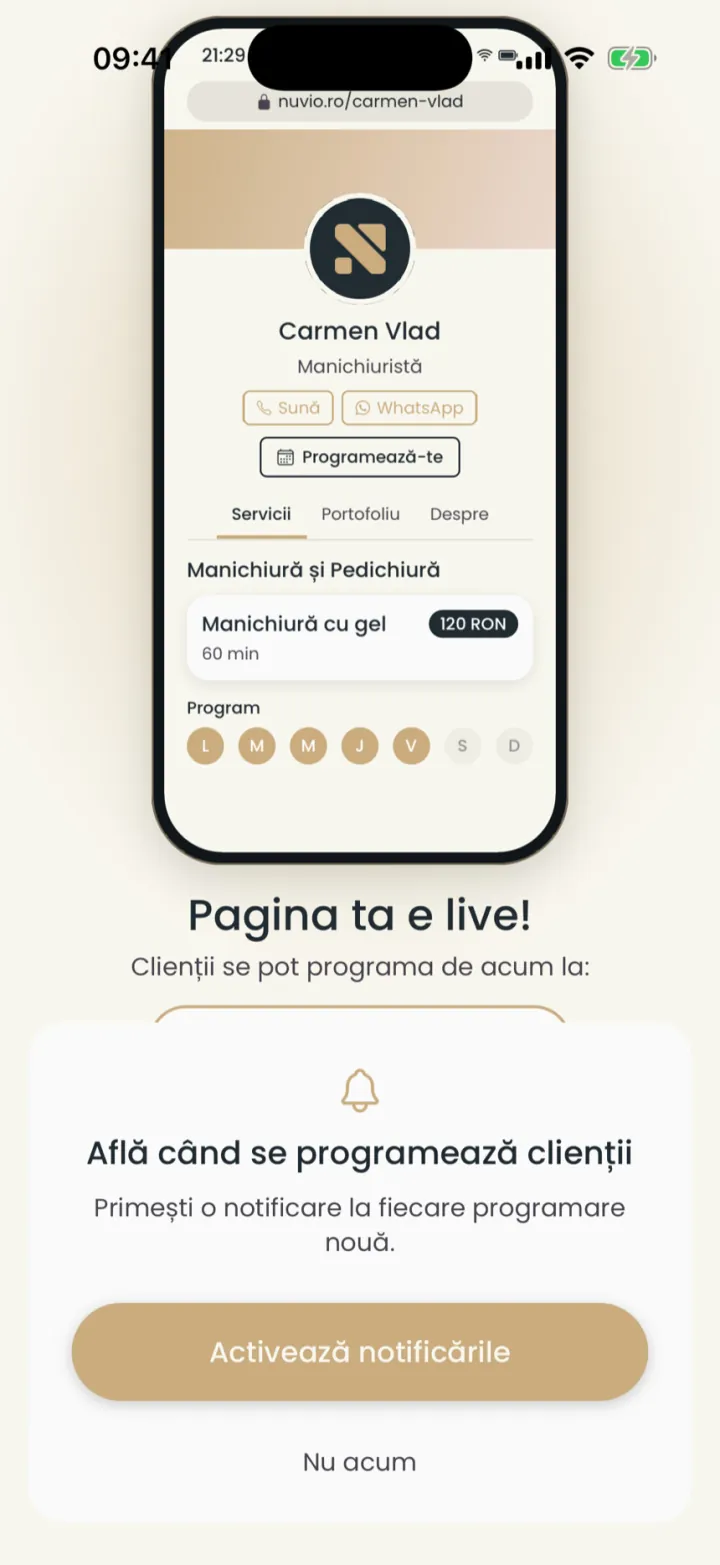
At the end, the app also asks whether you want a notification for every new booking. Tap Turn on notifications (Activează notificările).
What to do in the first days
A short list of what is worth setting before you send the link to clients.
- Add a profile photo and a title, from your profile.
- Add all your services with the right duration and price, from Services.
- Check your work schedule and add your breaks.
- Choose your online booking rules.
- Turn on reminders for clients.
- Put the link of your page in your Instagram bio and in your WhatsApp messages.
On the first launch, the app shows a short tour of the screens. You can stop it with Skip tutorial (Omite tutorialul).
Move from another app
We move your clients, services and future appointments from the app you use now, for free.
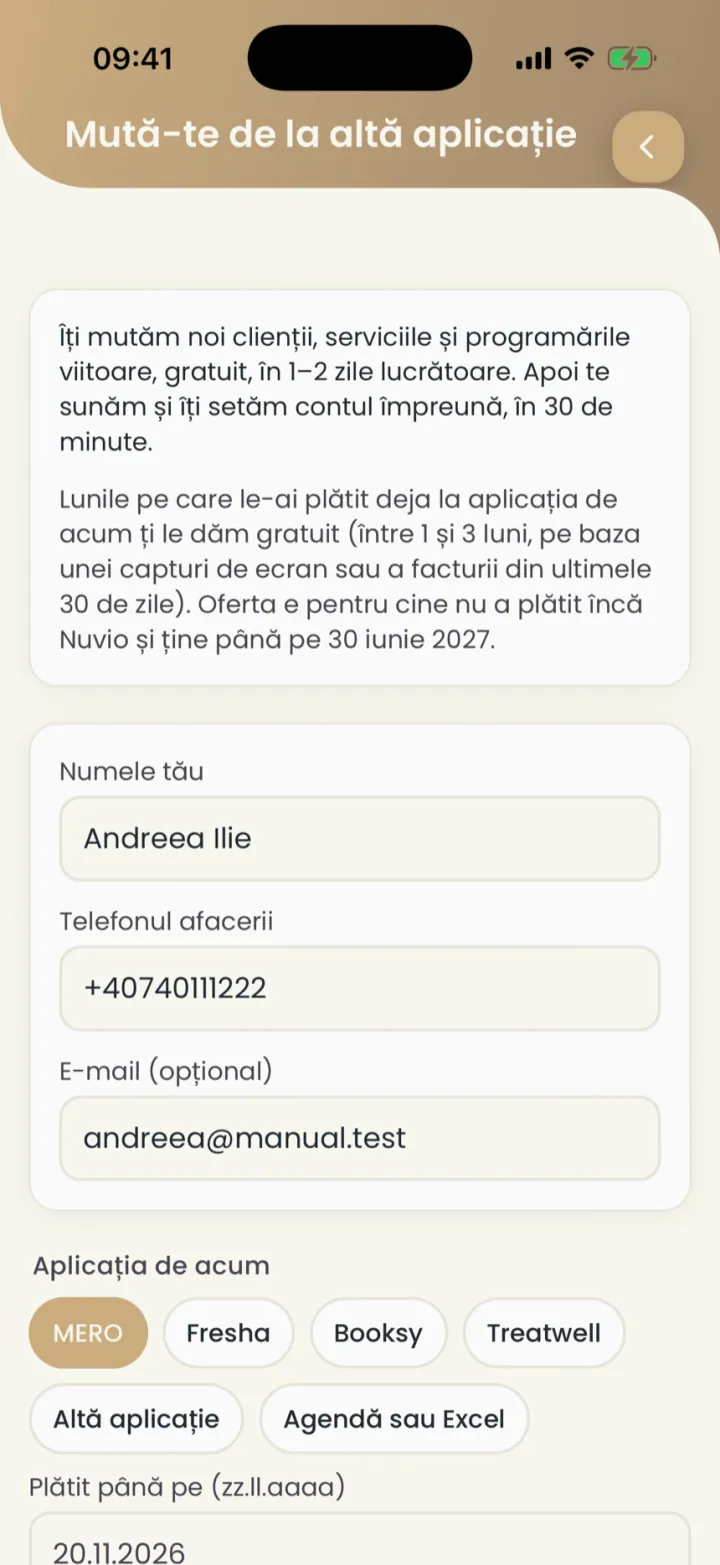
Where to find it:Settings (Setări)Move from another app (Mută-te de la altă aplicație)
- Open Settings and tap Move from another app (Mută-te de la altă aplicație).
- Check your name, phone and e-mail (optional).
- Pick the app you use now.
- Type until when you paid there and add a screenshot or the invoice.
- Tap Send the request (Trimite cererea).
- What we move
- Clients, services and future appointments, in 1-2 working days.
- Months paid
- The months you already paid in the other app you get free in Nuvio, between 1 and 3 months.
- Who can ask
- Anyone who has not paid for Nuvio yet. The offer runs until 30 June 2027.
After the move we call you and set up your account together, in about 30 minutes.
Updated on
Help
If the answer is not here, write to us on WhatsApp or by e-mail.