
Reports, the AI report and expenses
Your takings by period, the monthly AI report and your expenses.
The app screens shown here are in Romanian; each button's Romanian name follows it in brackets.
Reports
You see how much you earned, which services do best and how many clients come back.
Where to find it:Settings (Setări)Reports (Rapoarte)
- Open Settings and tap Reports (Rapoarte).
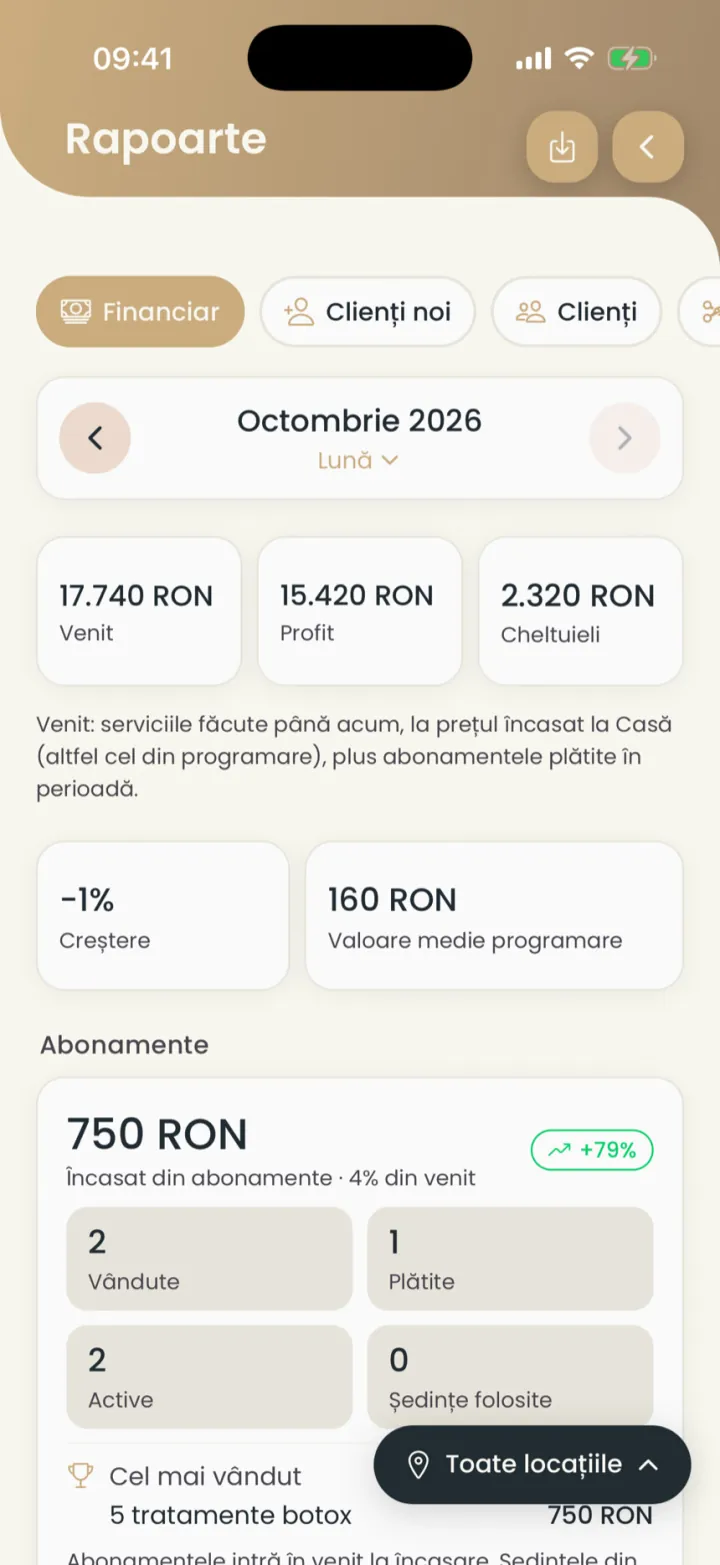
- At the top pick the topic: Financial (Financiar), Clients (Clienți), Services (Servicii), Appointments (Programări) or Projections (Proiecții).
- Pick the period.
- The report topic
- The period
Reports are included in both plans.
The period
You pick a week, a month, a year or any period you want.
Where to find it:Settings (Setări)Reports (Rapoarte)
- Tap the period at the top, for example Month (Lună).
- Pick This month (Luna aceasta), Last month (Luna trecută), Last 7 days (Ultimele 7 zile), This year (Anul acesta) or Custom (Personalizată).
- The arrows go to the previous or next period.
What the financial report shows
Revenue, profit, expenses and subscriptions, for the chosen period.
- Revenue (Venit)
- The services done so far, plus the subscriptions paid in the period.
- Profit
- Revenue minus expenses.
- Growth
- The difference against the period before.
- Average value
- What an appointment brings on average.
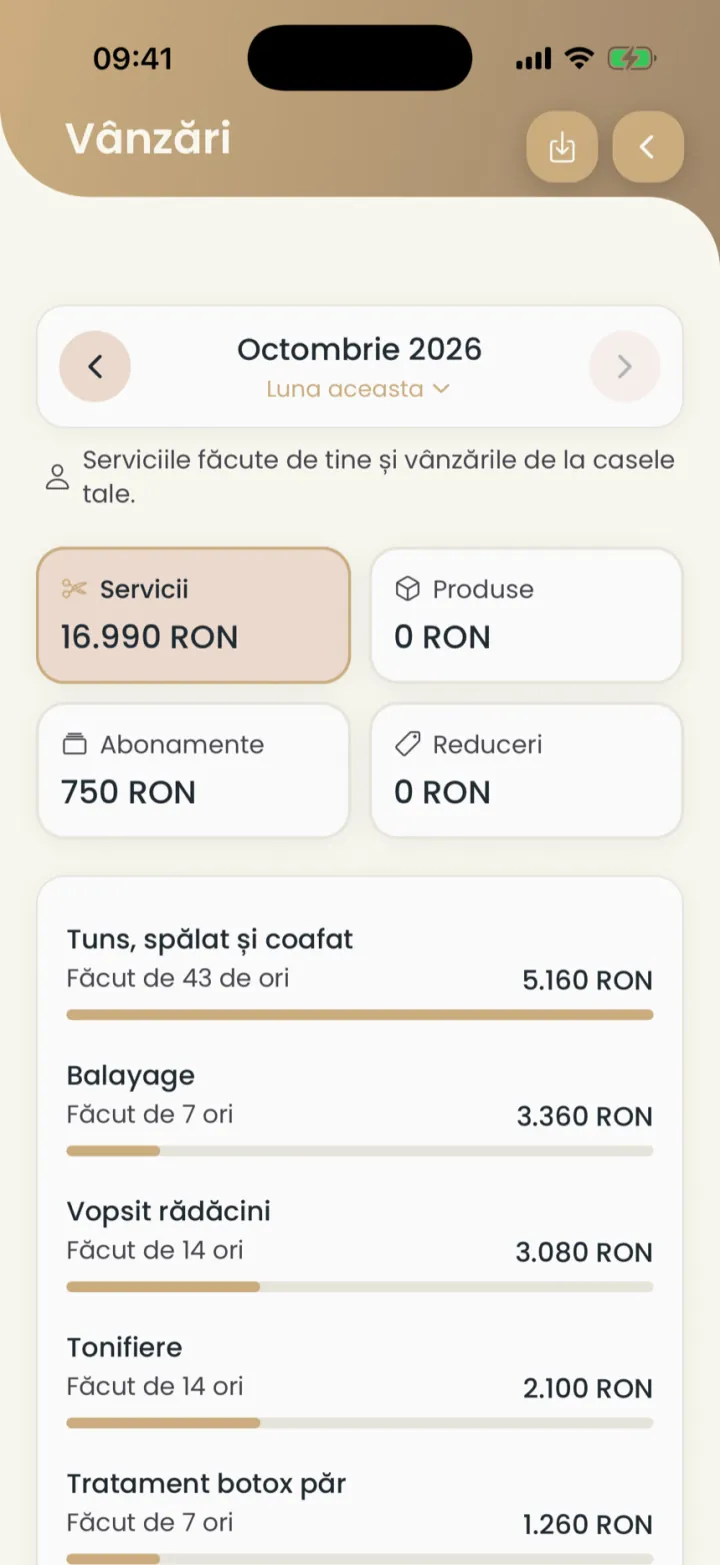
Tap the revenue to see the sales of each service.
Export the report
You download the figures of the report in a CSV file.
Where to find it:Settings (Setări)Reports (Rapoarte)Export (Exportă)
- In Reports (Rapoarte) tap the download button, at the top.
- Pick CSV and open the file.
The file has the same figures as the report. The link is valid for 10 minutes.
The monthly AI report
On the 1st of the month you get a summary of the month before, with practical advice.
Where to find it:Settings (Setări)AI Overviews (Rapoarte AI)
- On the 1st of the month you get a notification.
- Open it, or go to Settings, AI Overviews (Rapoarte AI).
- Read the summary and the advice.
- On advice with a promotion or a campaign, apply it with one tap.
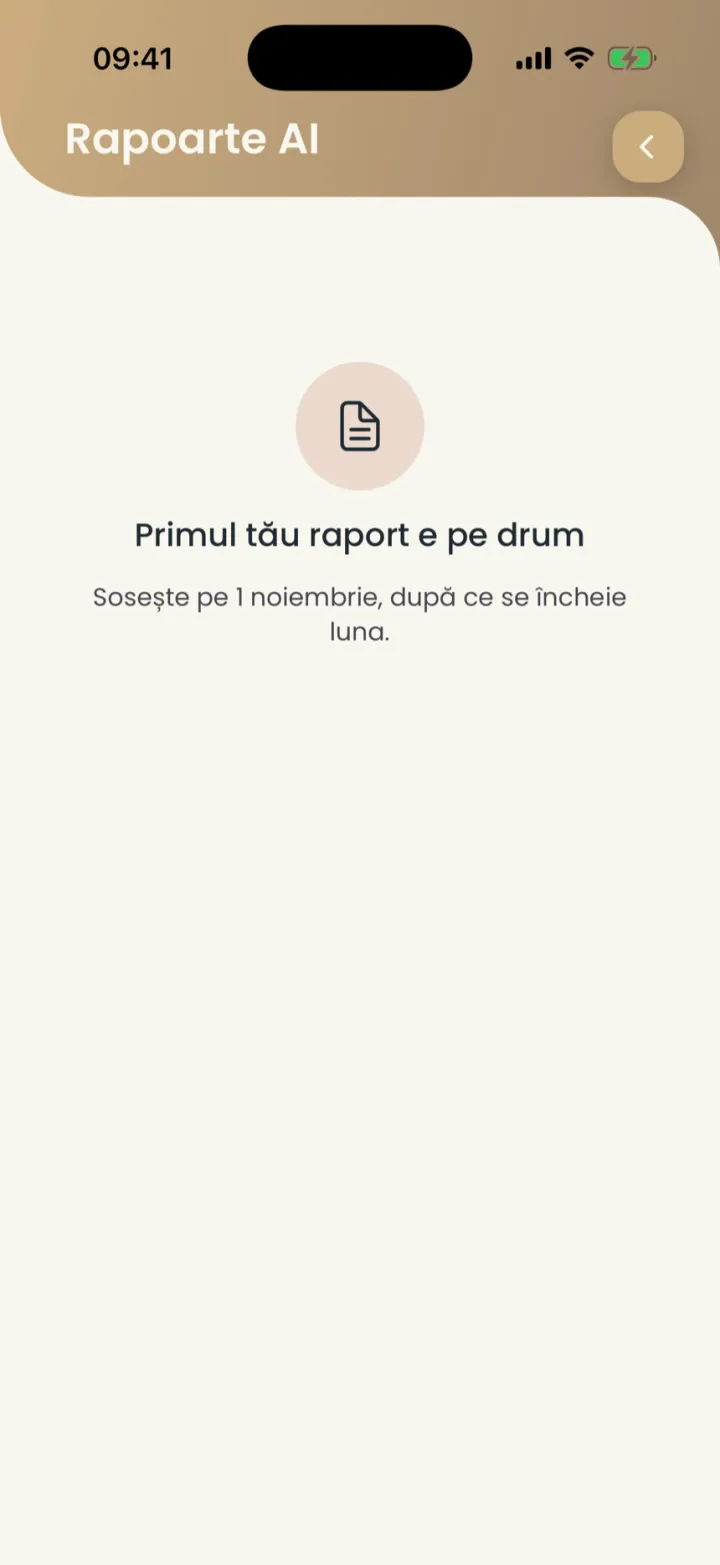
The report is made only if you had at least 5 appointments in the month before.
Expenses
You note rent, products and other expenses, so you see your profit.
Where to find it:Settings (Setări)Expenses (Cheltuieli)
- Open Settings and tap Expenses (Cheltuieli).
- Tap Add expense (Adaugă cheltuială).
- Type the name, the amount and the date, then save.
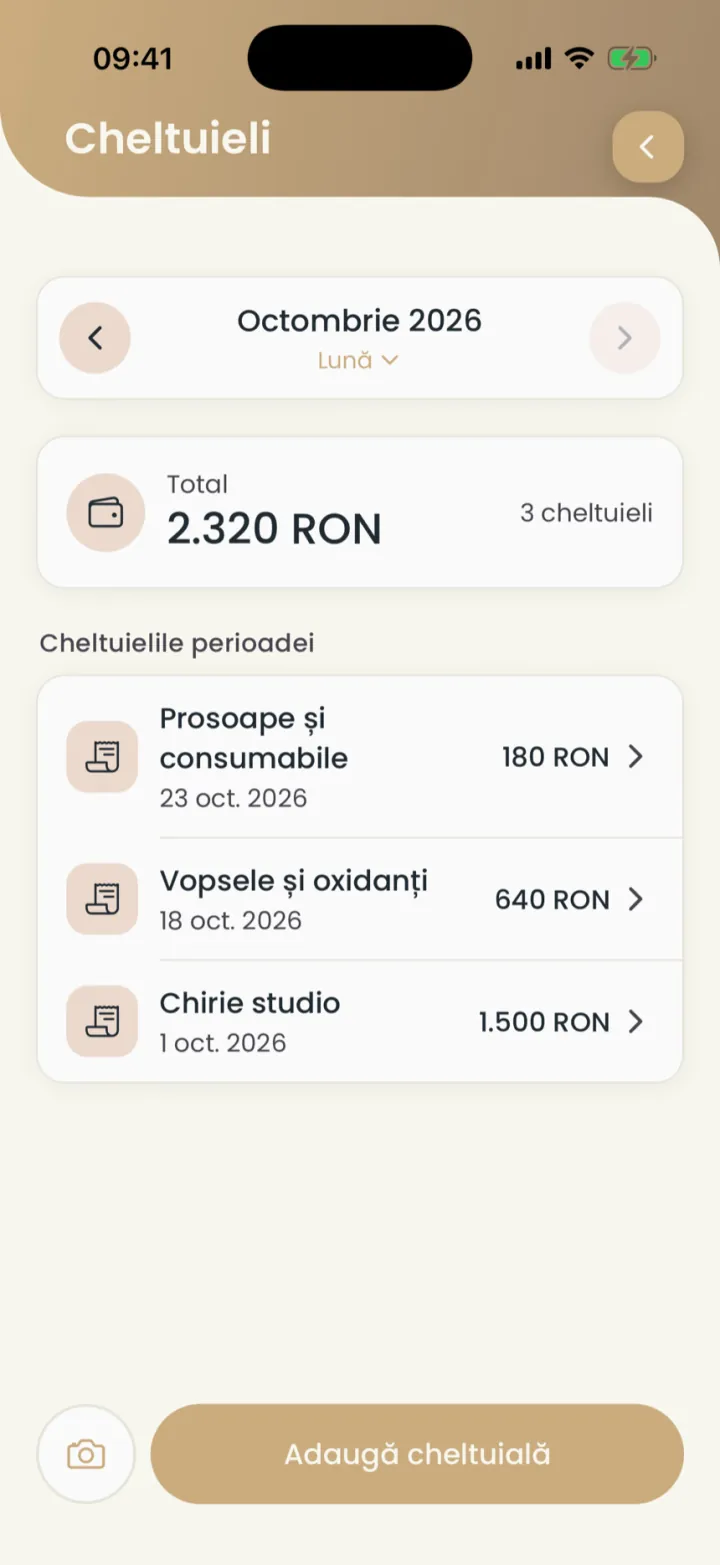
An expense from a photo of the receipt
You take a photo of the receipt, and the app reads the amount.
Where to find it:Settings (Setări)Expenses (Cheltuieli)
- In Expenses (Cheltuieli) tap the camera button, next to Add expense (Adaugă cheltuială).
- Take the photo of the receipt.
- Check the amount and date that were read, and save.
Updated on
Help
If the answer is not here, write to us on WhatsApp or by e-mail.