
Business: the team and roles
Invite specialists, create profiles and front-desk logins, set roles, money terms and what each person sees.
The app screens shown here are in Romanian; each button's Romanian name follows it in brackets.
Invite a specialist with a Nuvio account
The specialist gets the invitation on their phone and accepts it in the app.
Where to find it:Team (Echipa)Add people (Adaugă oameni)Specialist with a Nuvio account (Specialist cu cont Nuvio)
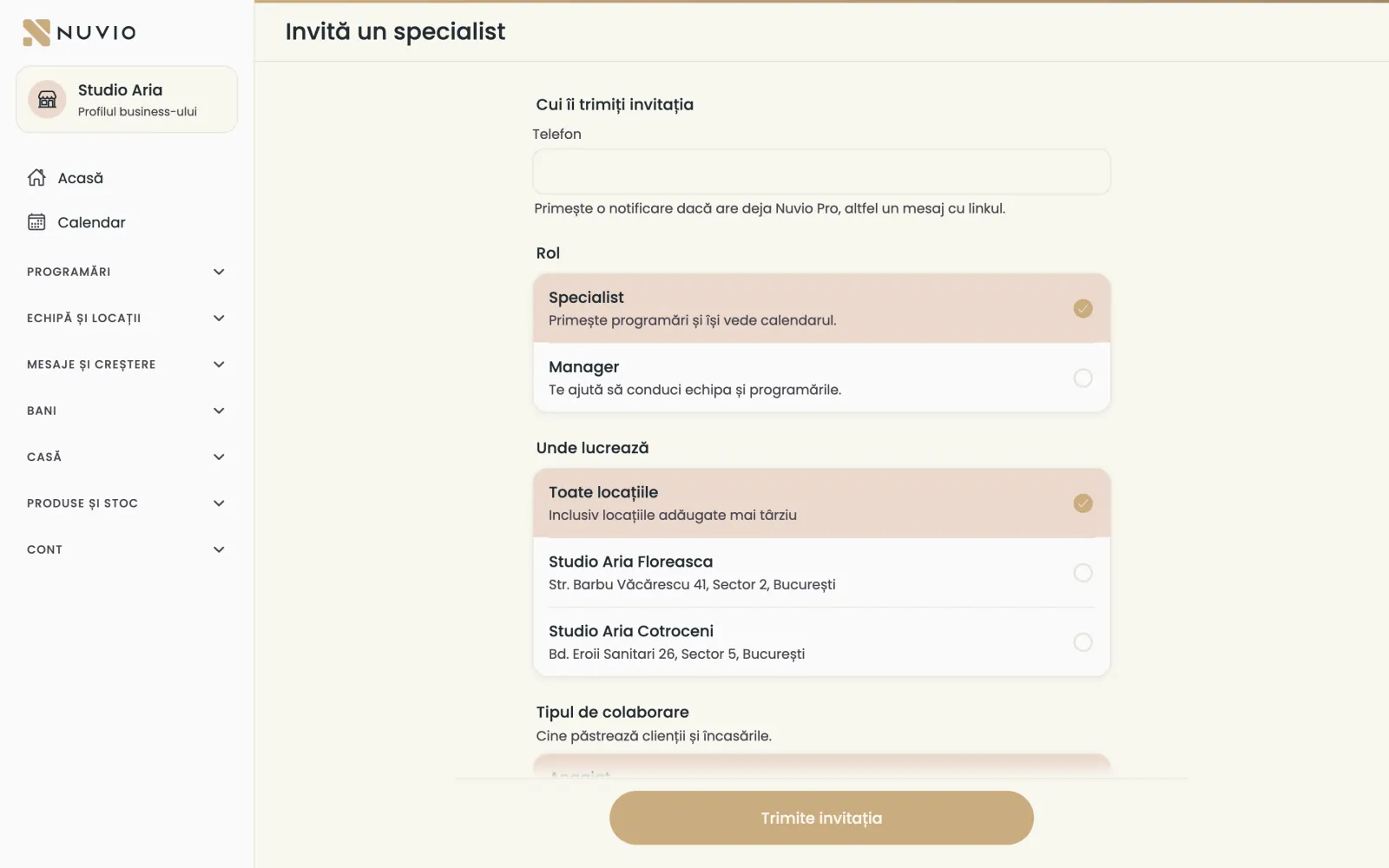
- Open Team (Echipa) and tap Add people (Adaugă oameni).
- Choose Specialist with a Nuvio account (Specialist cu cont Nuvio).
- Type the specialist's phone number.
- Choose the role: Specialist or Manager.
- Tick the locations where they work.
- Choose the kind of collaboration and who pays the plan.
- Tap Send the invitation (Trimite invitația).
If they already use Nuvio Pro they get a notification; otherwise they get a message with the invitation link.
Invitations waiting for an answer are under Sent invitations (Invitații trimise), where you can withdraw them.
Common problems
What if the specialist doesn't see the invitation?
Check the phone number in the invitation.
Send them the invitation link on WhatsApp, with Send the link (Trimite linkul).
Specialist without an account
You create the profile, services and hours of a specialist who doesn't use the app.
Where to find it:Team (Echipa)Add people (Adaugă oameni)Specialist without an account (Specialist fără cont)
- Tap Add people (Adaugă oameni) and choose Specialist without an account (Specialist fără cont).
- Type their name and phone number (optional).
- Tick the locations where they work.
- Pick a colleague to copy services and hours from, or copy nothing.
- Tap Create the profile (Creează profilul).
The business always pays the plan of a profile without an account.
The specialist can claim the profile at any time with their phone, from the link you send from their card.
Front-desk login
A login with e-mail and password for whoever books at the front desk, with no public profile and no paid plan.
Where to find it:Team (Echipa)Add people (Adaugă oameni)Front-desk login (Cont de recepție)
- Tap Add people (Adaugă oameni) and choose Front-desk login (Cont de recepție).
- Type the name, the e-mail and a password of at least 8 characters.
- Tick the locations it can access.
- Tap Create the login (Creează contul).
- Tap Send the sign-in details (Trimite datele de autentificare) to give them the e-mail and password.
The password shows only now; you can change it any time from the member's card, with Change the password (Schimbă parola).
The front desk signs in on a phone or at app.nuvio.ro and sees only the business.
Roles: who sees and does what
Each team member has a role, and the role decides what they see and can change.
Where to find it:Team (Echipa)
- Owner (Proprietar)
- Runs the business: everything, including money, paid plans and transferring the business.
- Manager
- Runs the team and bookings at their locations; money only if you gave that right.
- Front desk (Recepție)
- Makes, moves and cancels bookings for the team and charges at the till, with no public profile.
- Specialist
- Takes bookings and sees their own calendar; sees the team calendar only if you allow it.
Choose what a specialist sees
- Open Team (Echipa) and tap their name.
- Under What they can see (Ce poate vedea), turn on Sees the team calendar (Vede calendarul echipei) or Sees the location's reports (Vede rapoartele locației).
These switches apply at once, with no need to save.
Kind of collaboration and money terms
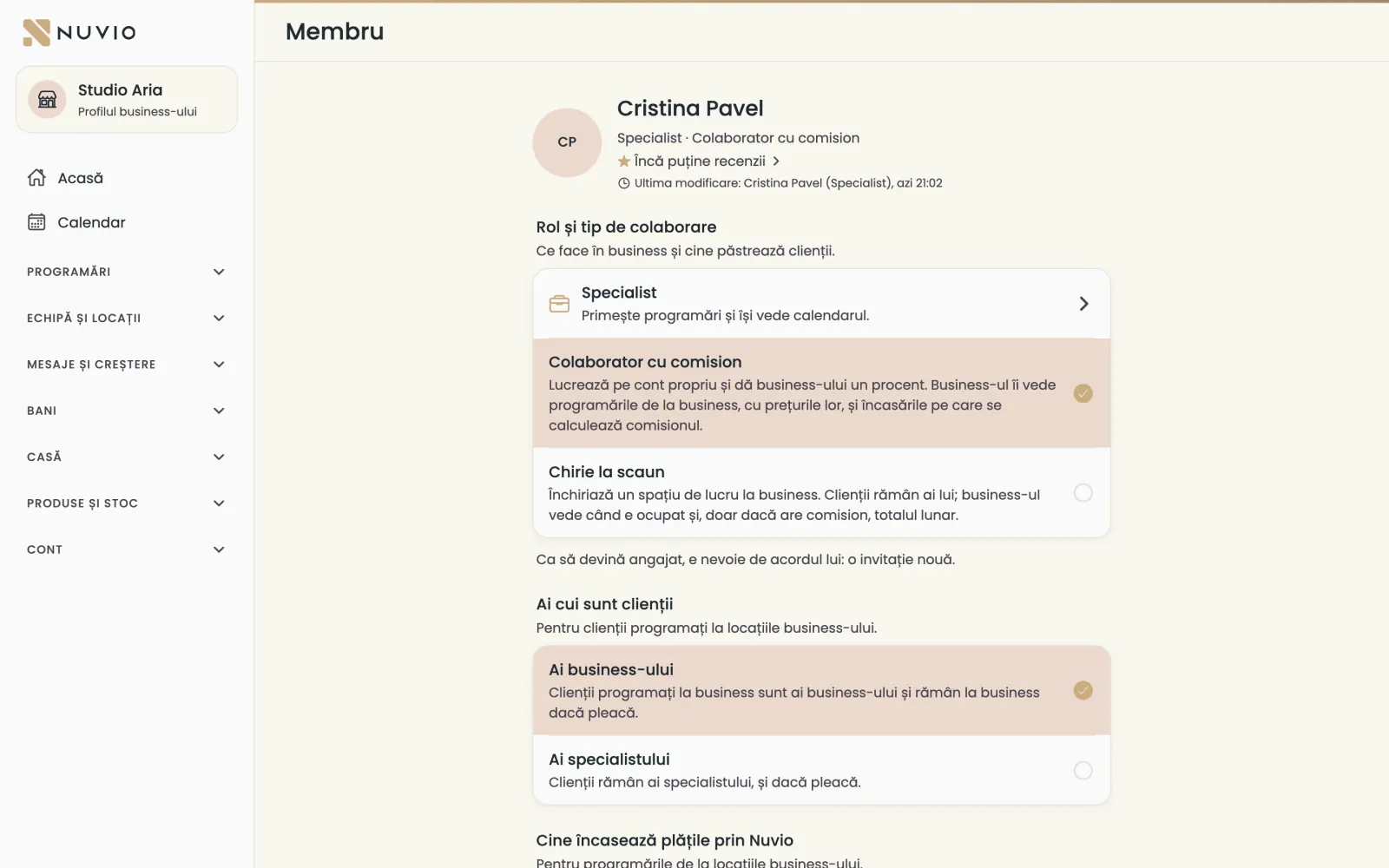
Choose whether the person is an employee, a commission collaborator or rents a chair, and what they give the business.
Where to find it:Money (Bani)Money terms (Condiții financiare)
- Employee (Angajat)
- Works for the business; their clients and takings belong to the business.
- Commission collaborator (Colaborator cu comision)
- Works on their own account and gives the business a percentage of their takings.
- Chair rent (Chirie la scaun)
- Rents a workplace; the clients stay theirs, and the business only sees when they are busy.
- Open Money terms (Condiții financiare) and choose the person.
- Under Commission (Colaborator cu comision), type the percentage they give the business.
- With Add a fixed amount (Adaugă o sumă fixă) add a monthly sum, for example the chair rent.
- Tap Save (Salvează).
Under the percentage you see an example: of 1,000 RON taken, how much goes to the business.
Whose clients they are
For a commission collaborator you choose whether clients booked at the business stay with the business or with them.
Where to find it:Team (Echipa)Whose clients (Ai cui sunt clienții)
- The business's (Ai business-ului)
- Clients booked at the business stay with the business even if the specialist leaves.
- The specialist's (Ai specialistului)
- Clients stay with the specialist, even if they leave.
For employees clients always belong to the business; for chair rent, always to the specialist.
A change applies only to new clients; existing ones stay where they are.
Private bookings
A chair-rent specialist can show the team only the busy time, with no client and no service.
Only the specialist decides this, from their own account, with The owner and managers see my bookings (Proprietarul și managerii îmi văd programările).
A commission collaborator's bookings are always visible to the business, with their prices.
The specialist can also let the front desk book for them, with The front desk can make and cancel bookings for you (Recepția poate face și anula programări pentru tine).
Client phone numbers
Choose whether employees see the phone numbers of the business's clients.
Where to find it:Team (Echipa)The team sees client phone numbers (Echipa vede telefonul clienților)
- Open Team (Echipa).
- Turn The team sees client phone numbers (Echipa vede telefonul clienților) on or off.
- For an exception, open the person's card and choose Sees it (Vede) or Doesn't see it (Nu vede).
It applies to employees and to commission collaborators whose clients belong to the business.
Without the number, they see the client's name, notes and history and can book them by name.
The owner and managers always see the number.
When someone leaves the team
Before you remove someone, you move or cancel their upcoming bookings.
Where to find it:Team (Echipa)Remove from the team (Scoate din echipă)
- Open the member's card and tap Remove from the team (Scoate din echipă).
- See how many upcoming bookings they have at the business.
- Move them to colleagues, one by one or all at once, or cancel them with Cancel the rest (Anulează cele rămase).
- Confirm the removal.
Notified clients get the new time or the cancellation.
A specialist can also leave on their own, from the business card in Settings, with Leave the business (Ieși din business).
A team member's hours
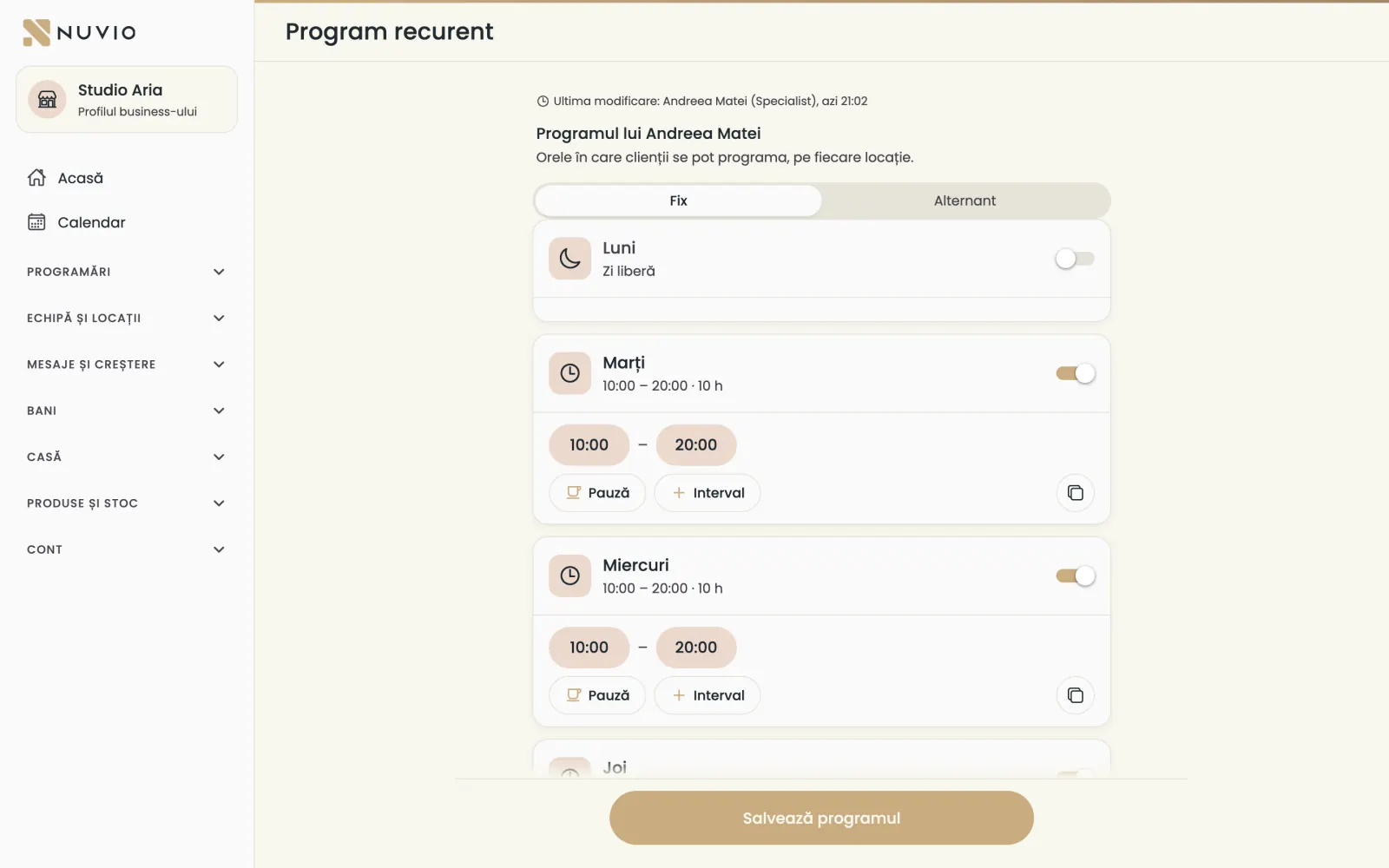
Set the hours when someone takes bookings, fixed or alternating over several weeks.
Where to find it:Team (Echipa)Recurring schedule (Program recurent)
- Open the member's card and tap Schedule (Program).
- Choose the days and hours for each location.
- Tap Save (Salvează).
If the business makes the employees' schedule, you change it from the Shift plan.
A team member's services
Choose which services from the location's menu each person does, with their own duration and price.
Where to find it:Team (Echipa)Services (Servicii)
- Open the member's card and tap Services (Servicii).
- Tick the services they do.
- Change the duration or price where it differs from the location's menu.
- Tap Save (Salvează).
Commission and chair-rent collaborators also keep their own services.
A team member's report
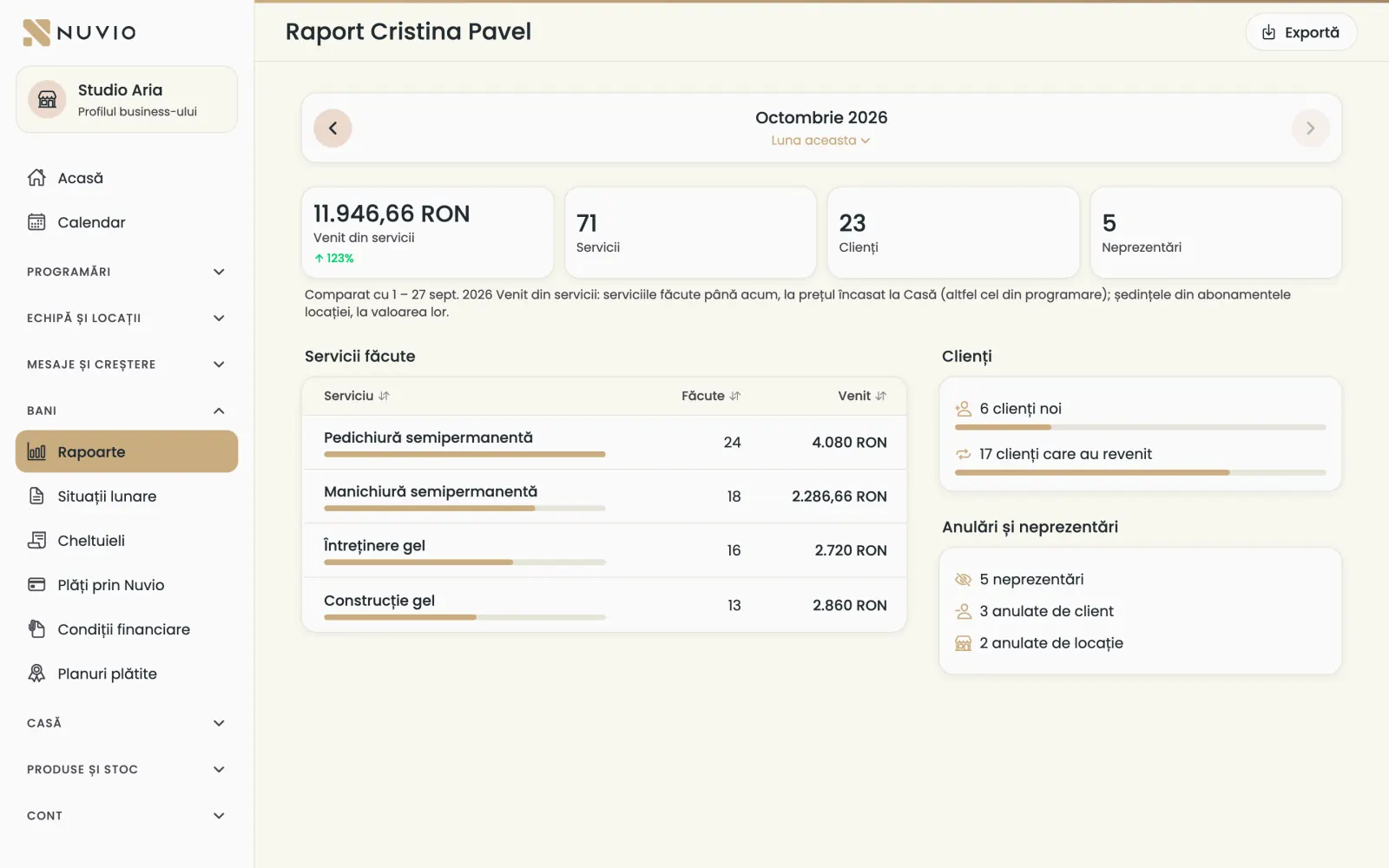
One person's bookings, booked hours, takings and clients, for the period you choose.
Where to find it:Money (Bani)Reports (Rapoarte)
- Open Reports (Rapoarte).
- Tap the person's name in the list.
- Choose the period.
For a commission collaborator you see the bookings; only they see the amounts.
The business you work at
As a specialist, you see in Settings which business you work at, your role, the locations and who pays your plan.
Where to find it:Settings (Setări)Business
- Your plan (Planul tău)
- You pay your plan yourself or the business pays it.
- The owner and managers see my bookings (Proprietarul și managerii îmi văd programările)
- If you rent a chair, you choose what the business sees.
- Leave the business (Ieși din business)
- First you see what happens to your bookings there.
Updated on
Help
If the answer is not here, write to us on WhatsApp or by e-mail.