
Services
You add services with a duration and a price, order them and choose what can be booked online.
The app screens shown here are in Romanian; each button's Romanian name follows it in brackets.
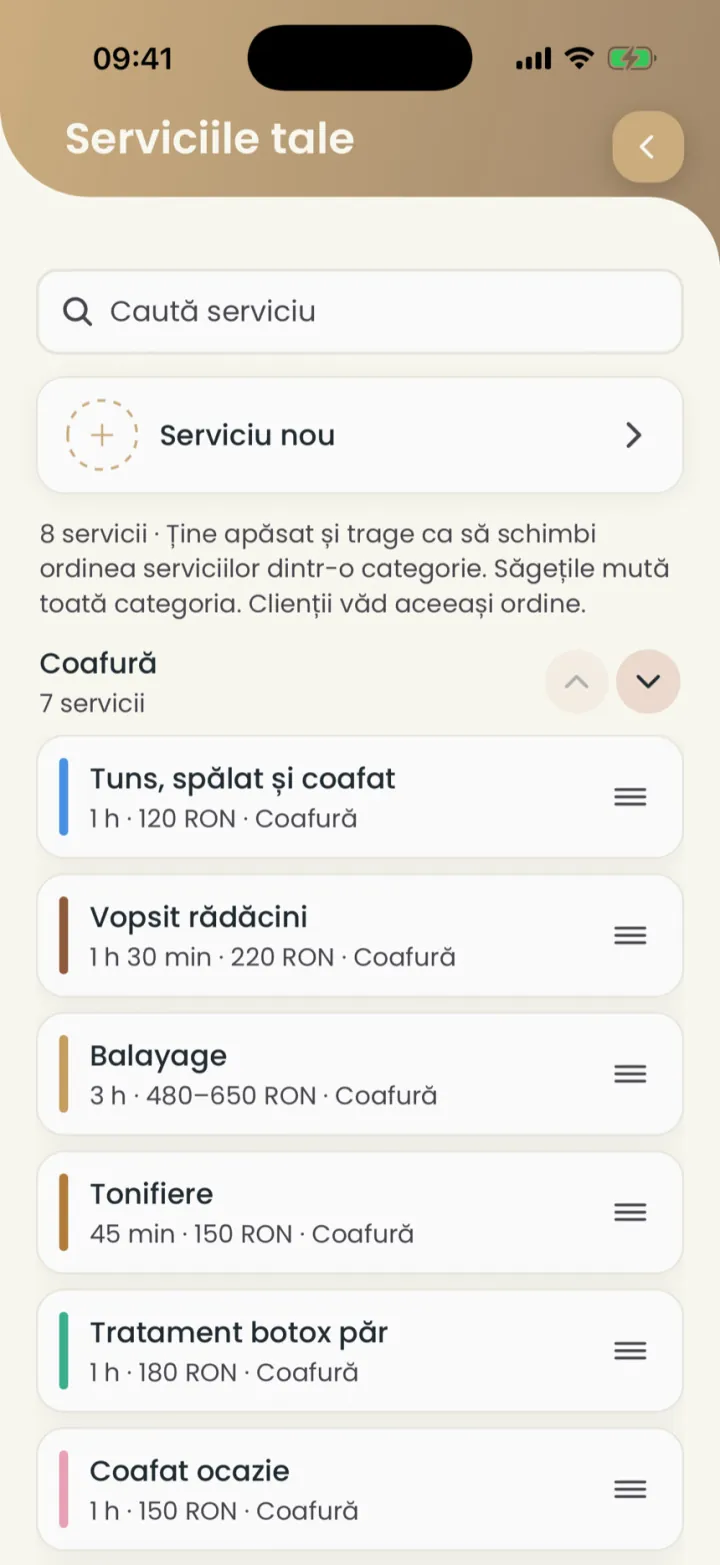
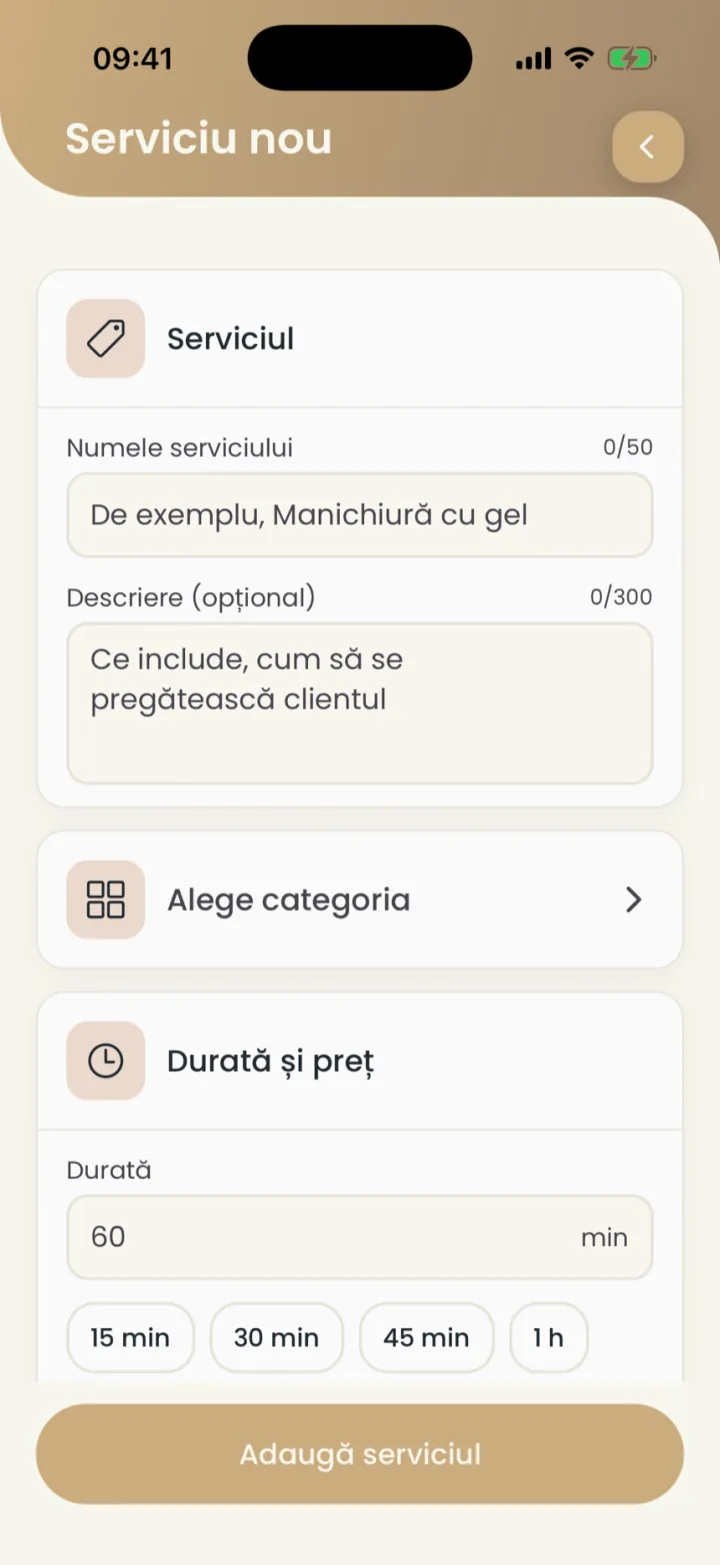
Add a service
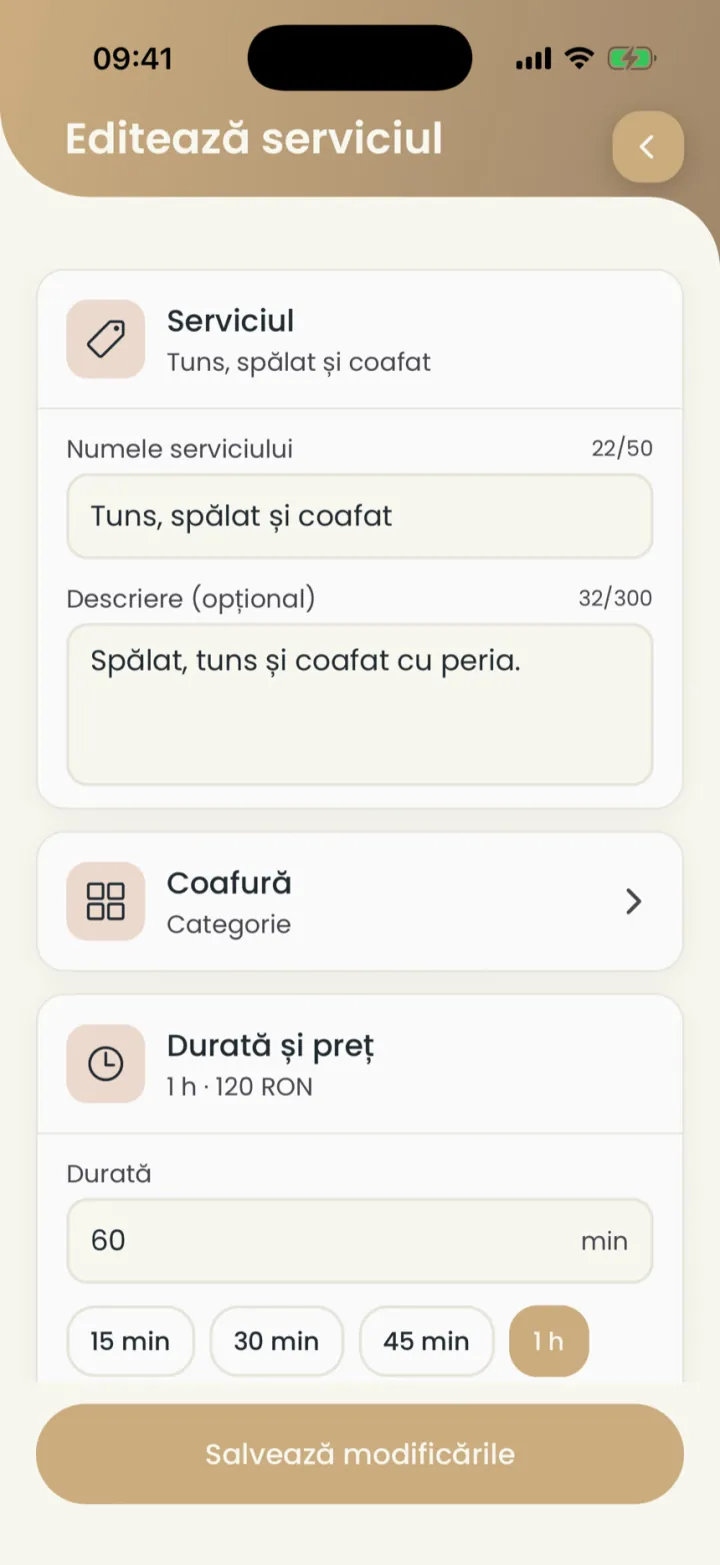
Every service has a name, a duration and a price.
Where to find it:Settings (Setări)Services (Servicii)New service (Serviciu nou)
- Open Settings and tap Services (Servicii).
- Tap New service (Serviciu nou).
- Type the Service name (Numele serviciului) and a description (optional).
- Tap Choose a category (Alege categoria) and pick the category.
- Pick the duration and type the price.
- Tap Add service (Adaugă serviciul).
Duration
The duration decides which free times a client sees.
Where to find it:Settings (Setări)Services (Servicii)Duration and price (Durată și preț)
- Open the service.
- At Duration (Durată) pick one of the durations or type the minutes.
- Tap Save changes (Salvează modificările).
Fixed price or price range
A service has a fixed price or a range, from one amount to another.
Where to find it:Settings (Setări)Services (Servicii)Duration and price (Durată și preț)
- Open the service.
- Pick Fixed price (Preț fix) or Price range (Interval de preț).
- Type the price, or the lowest and highest price.
- Tap Save changes (Salvează modificările).
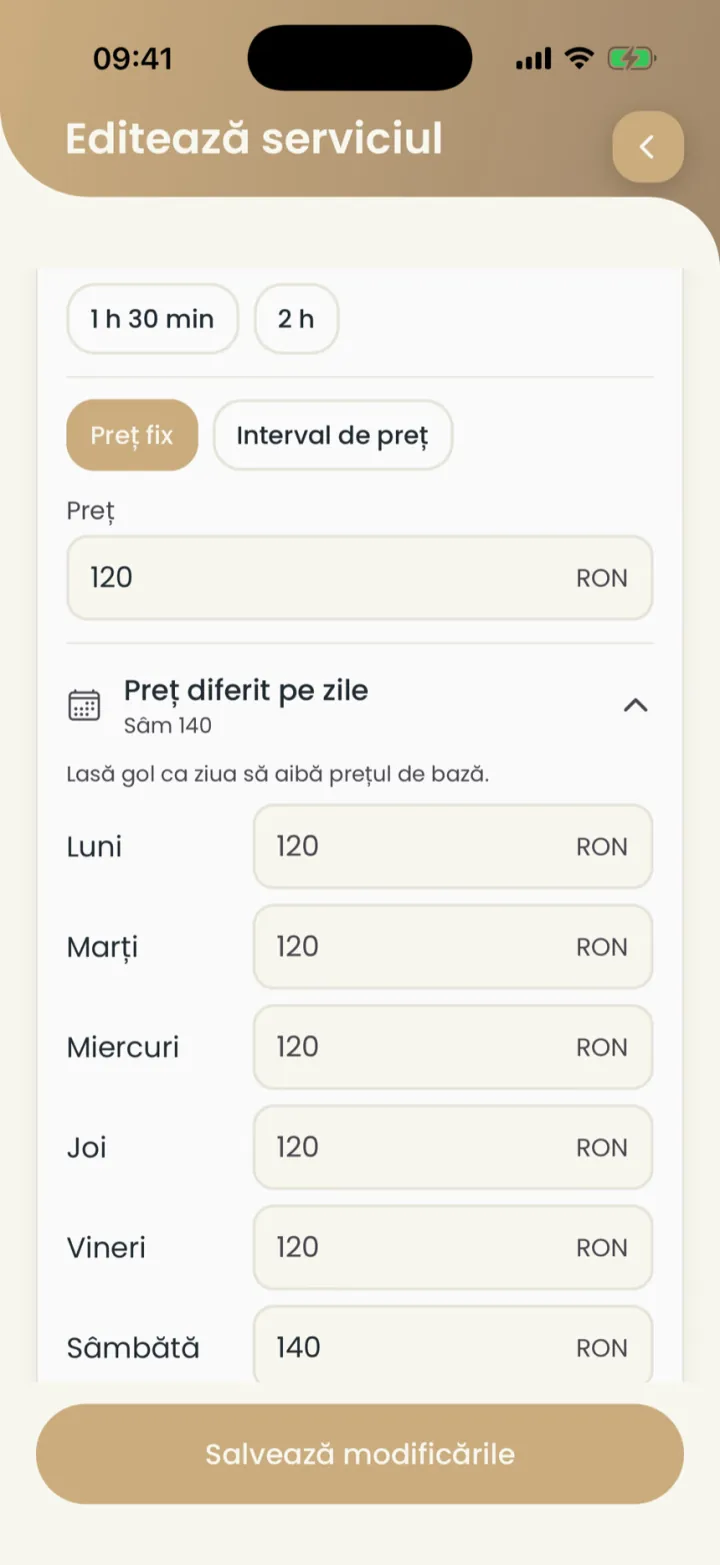
For a range, the client sees the price from one amount to the other, for example 480-650 RON.
A different price on some days
You can charge a different price on one weekday, for example on Saturday.
Where to find it:Settings (Setări)Services (Servicii)Different price by day (Preț diferit pe zile)
- Open the service.
- Tap Different price by day (Preț diferit pe zile).
- Type the price only on the days that differ.
- Tap Save changes (Salvează modificările).
A day left empty has the base price. Clear day prices (Șterge prețurile pe zile) goes back to one price.
Change the price from a date
You schedule a new price for appointments from the chosen date on.
Where to find it:Settings (Setări)Services (Servicii)Scheduled price changes (Modificări de preț programate)
- Open the service and scroll to Scheduled price changes (Modificări de preț programate).
- Tap Schedule a change (Programează o modificare).
- Pick the date the new prices start.
- Type the new price and prices by day (optional).
- Tap Schedule the change (Programează modificarea).
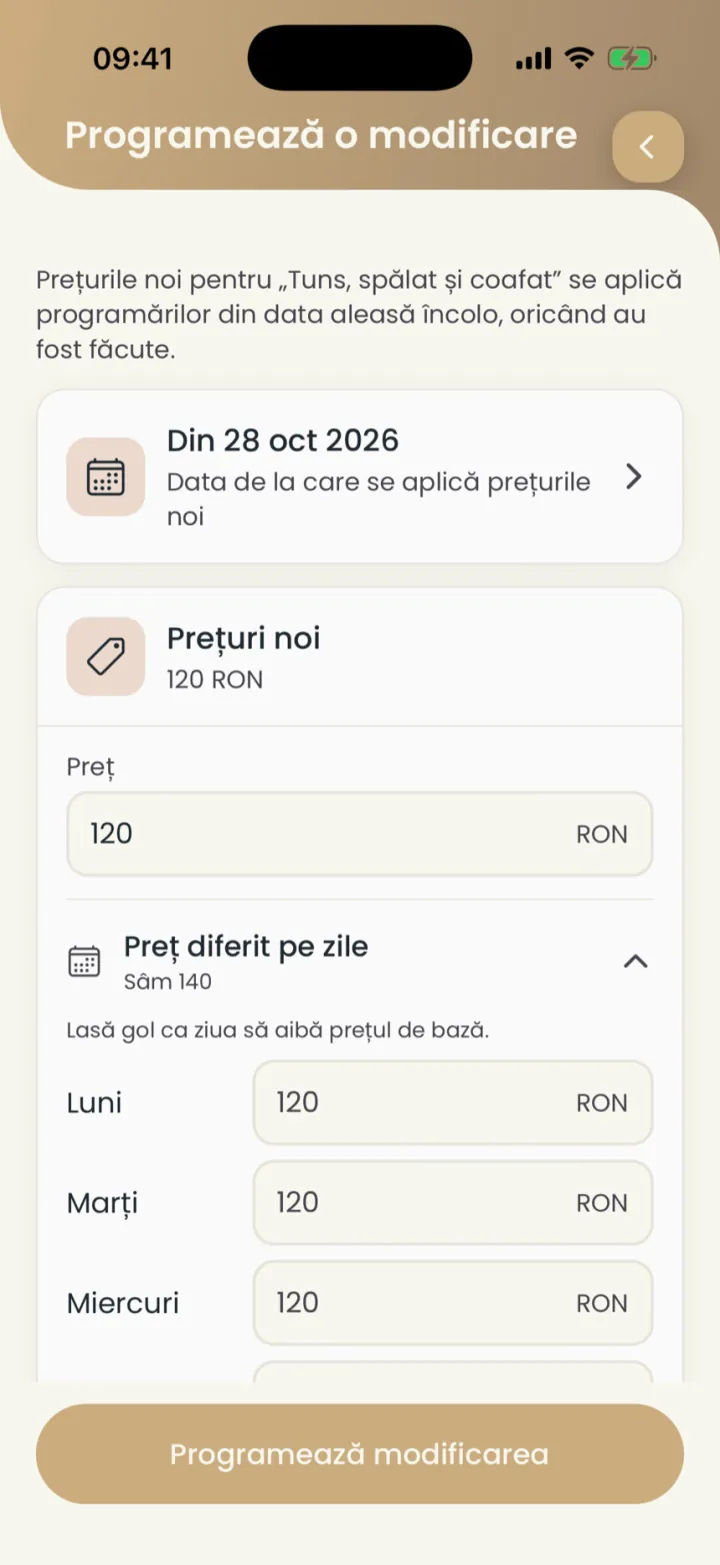
Appointments booked before the change keep the old price.
A service only you can book
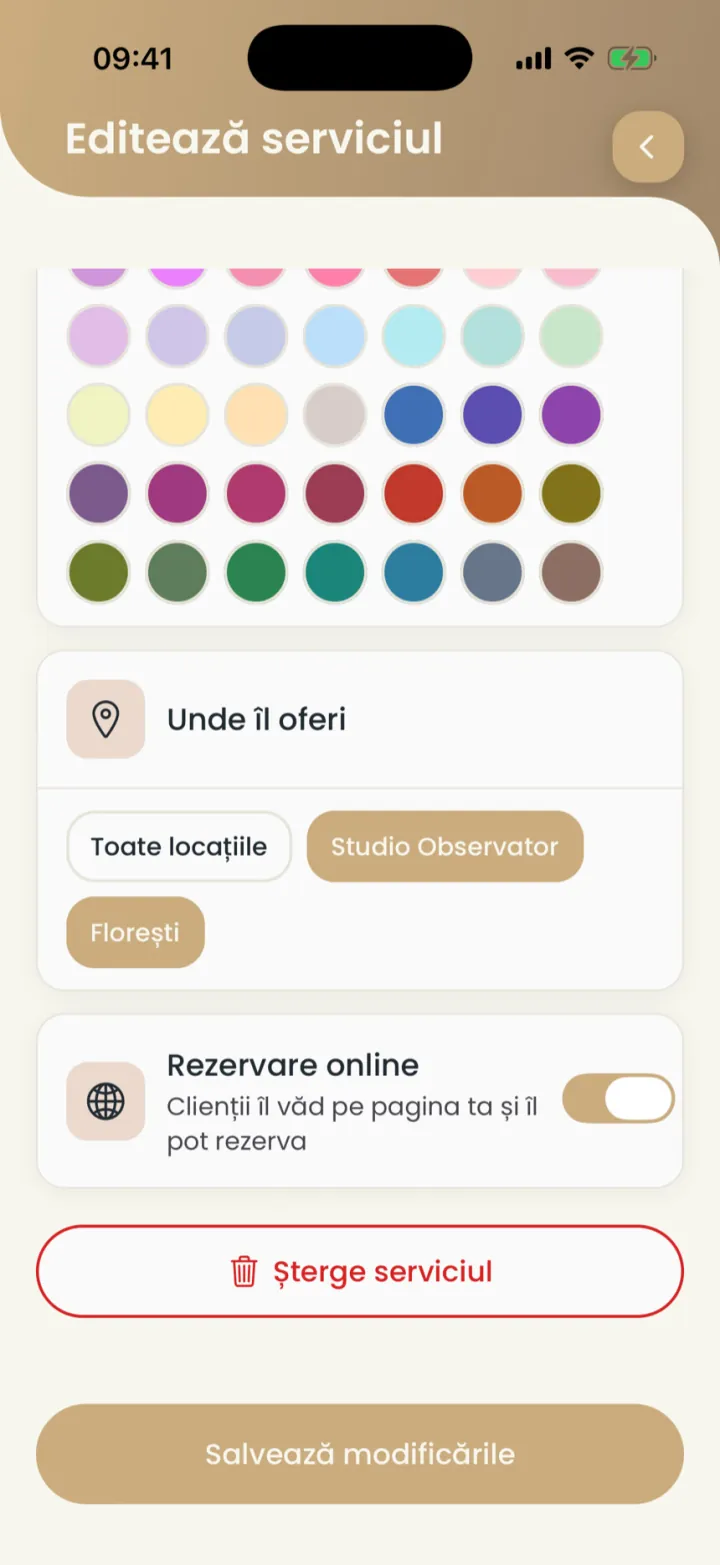
With online booking off, the service leaves your page, but you can still book it.
Where to find it:Settings (Setări)Services (Servicii)Online booking (Rezervări online)
- Open the service and scroll to the bottom.
- Turn off Online booking (Rezervări online).
- Tap Save changes (Salvează modificările).
Where you offer the service
You pick the locations where the service can be booked.
Where to find it:Settings (Setări)Services (Servicii)Where you offer it (Unde îl oferi)
- Open the service and scroll to Where you offer it (Unde îl oferi).
- Pick All locations (Toate locațiile) or only some locations.
- Tap Save changes (Salvează modificările).
At Calendar colour (Culoare în calendar) you pick the colour the service has in your calendar.
The order of services
Clients see your services in the same order as you.
Where to find it:Settings (Setări)Services (Servicii)
- Open Settings and tap Services (Servicii).
- Touch and hold a service and drag it up or down.
- The arrows next to a category move the whole category.
Service categories
The category groups services on your page, for example Hair or Nails.
Where to find it:Settings (Setări)Services (Servicii)Choose a category (Alege categoria)
- Open the service.
- Tap the category and pick another one.
- Tap Save changes (Salvează modificările).
Delete a service
A deleted service leaves your page and your list, and past appointments stay in the history.
Where to find it:Settings (Setări)Services (Servicii)Delete service (Șterge serviciul)
- Open the service and scroll to the bottom.
- Tap Delete service (Șterge serviciul) and confirm.
Updated on
Help
If the answer is not here, write to us on WhatsApp or by e-mail.