
Clients
The client list, the client card, notes, history and blocked clients.
The app screens shown here are in Romanian; each button's Romanian name follows it in brackets.
The client list
All your clients in alphabetical order, with search by name or phone.
Where to find it:Settings (Setări)Clients (Clienți)
- Open Settings and tap Clients (Clienți).
- Type a name or phone number in the search.
- Tap a client to open their card.
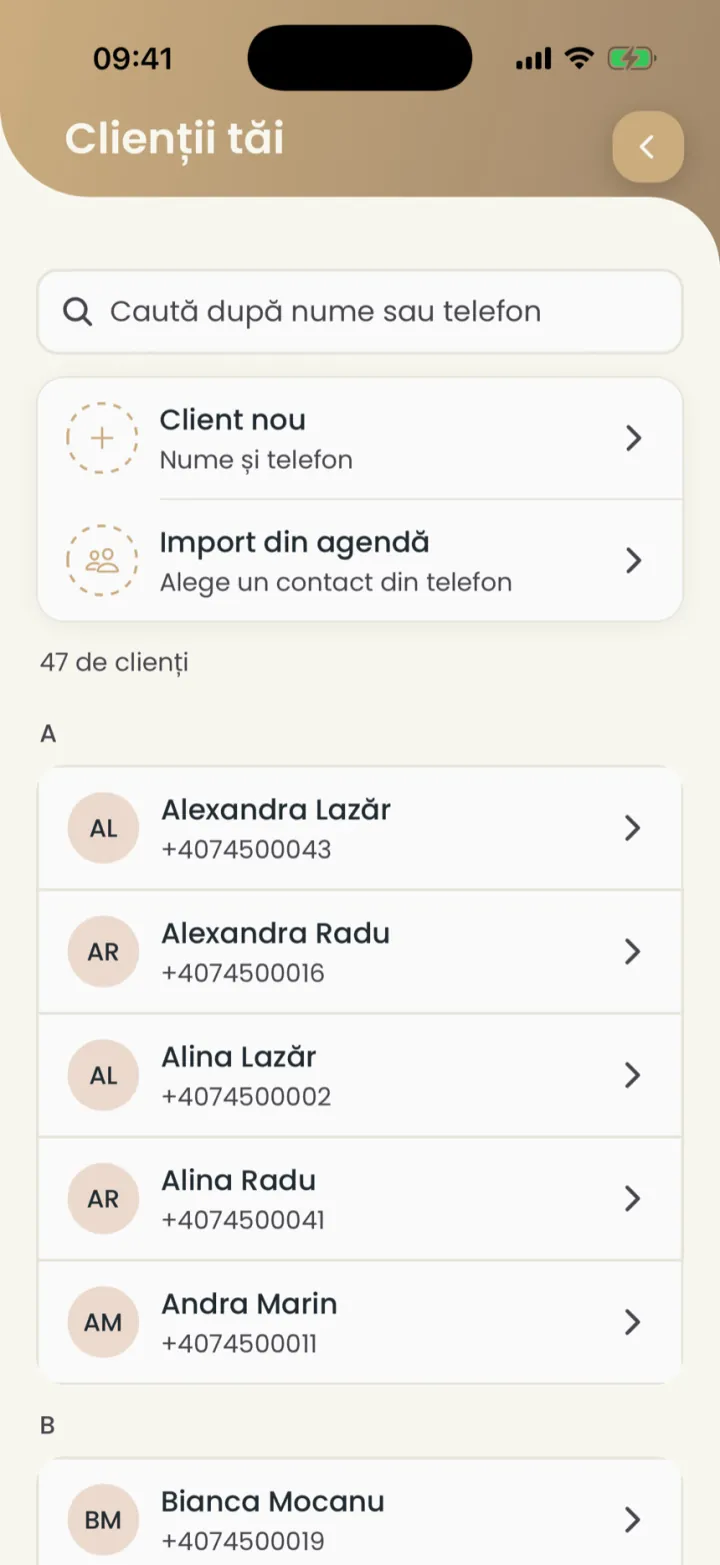
Clients who book online show in the list by themselves.
Add a client
You add a client with a name and a phone number.
Where to find it:Settings (Setări)Clients (Clienți)New client (Client nou)
- In the client list tap New client (Client nou).
- Type the name and the phone number.
- Save.
Take clients from your phone contacts
You pick a contact from your phone and make it a client.
Where to find it:Settings (Setări)Clients (Clienți)Import from contacts (Import din agendă)
- In the client list tap Import from contacts (Import din agendă).
- Let the app see your contacts, if it asks.
- Pick the contact.
The client card
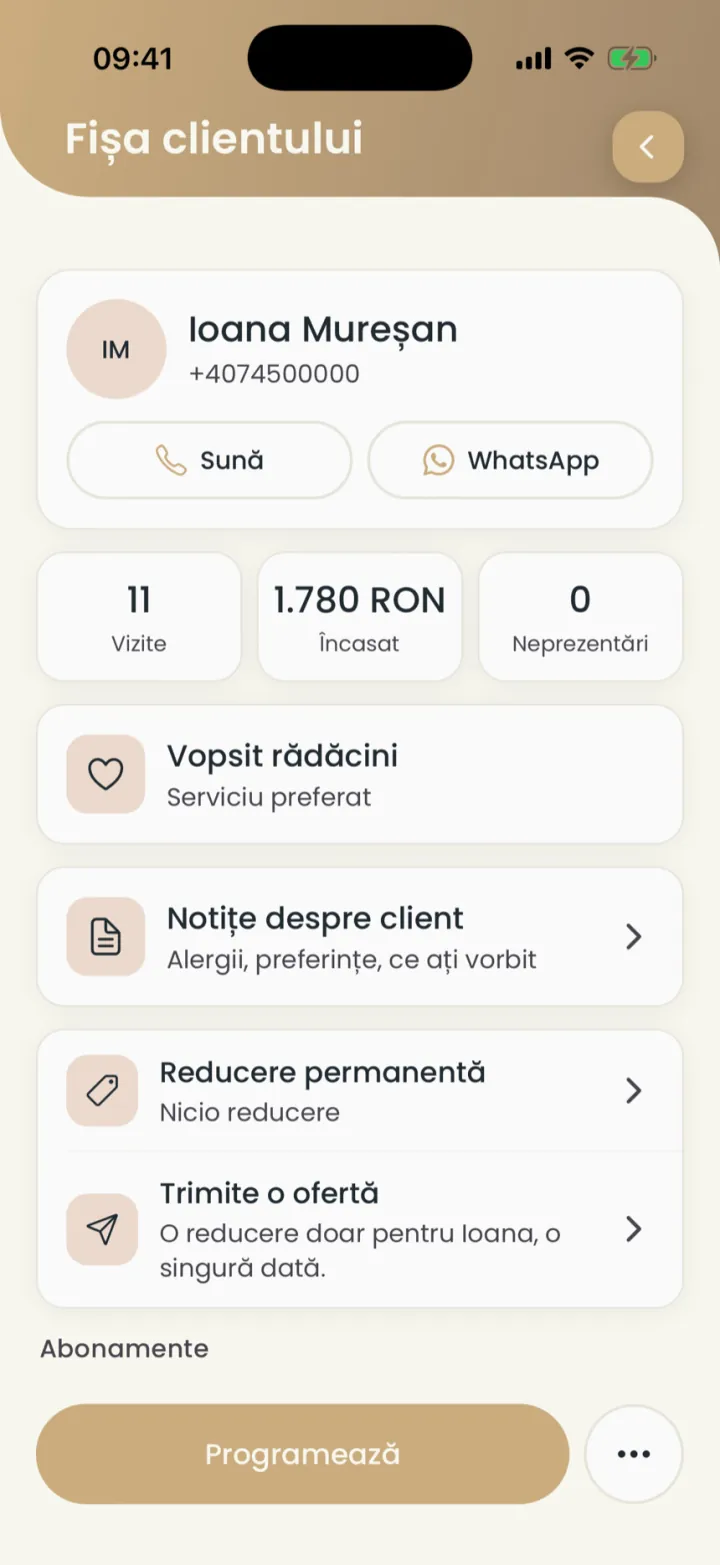
The card shows visits, money collected, no-shows and everything about the client.
Where to find it:Settings (Setări)Clients (Clienți)
- At the top
- The name, the phone and the Call (Sună) and WhatsApp buttons.
- The figures
- Visits (Vizite), Collected (Încasat) and No-shows (Neprezentări).
- Favourite service (Serviciu preferat)
- The service they book most often.
- Subscriptions (Abonamente) and Gift cards (Carduri cadou)
- What they hold, with Assign subscription (Atribuie abonament) and Give a gift card (Oferă card cadou).
- Book (Programează)
- Makes a new appointment for the client right away.
Notes about the client
Allergies, preferences, formulas, what you talked about, which only you see.
Where to find it:Settings (Setări)Clients (Clienți)Notes about the client (Notițe despre client)
- Open the client card.
- Tap Notes about the client (Notițe despre client).
- Tap Add note (Adaugă notiță), write and save.
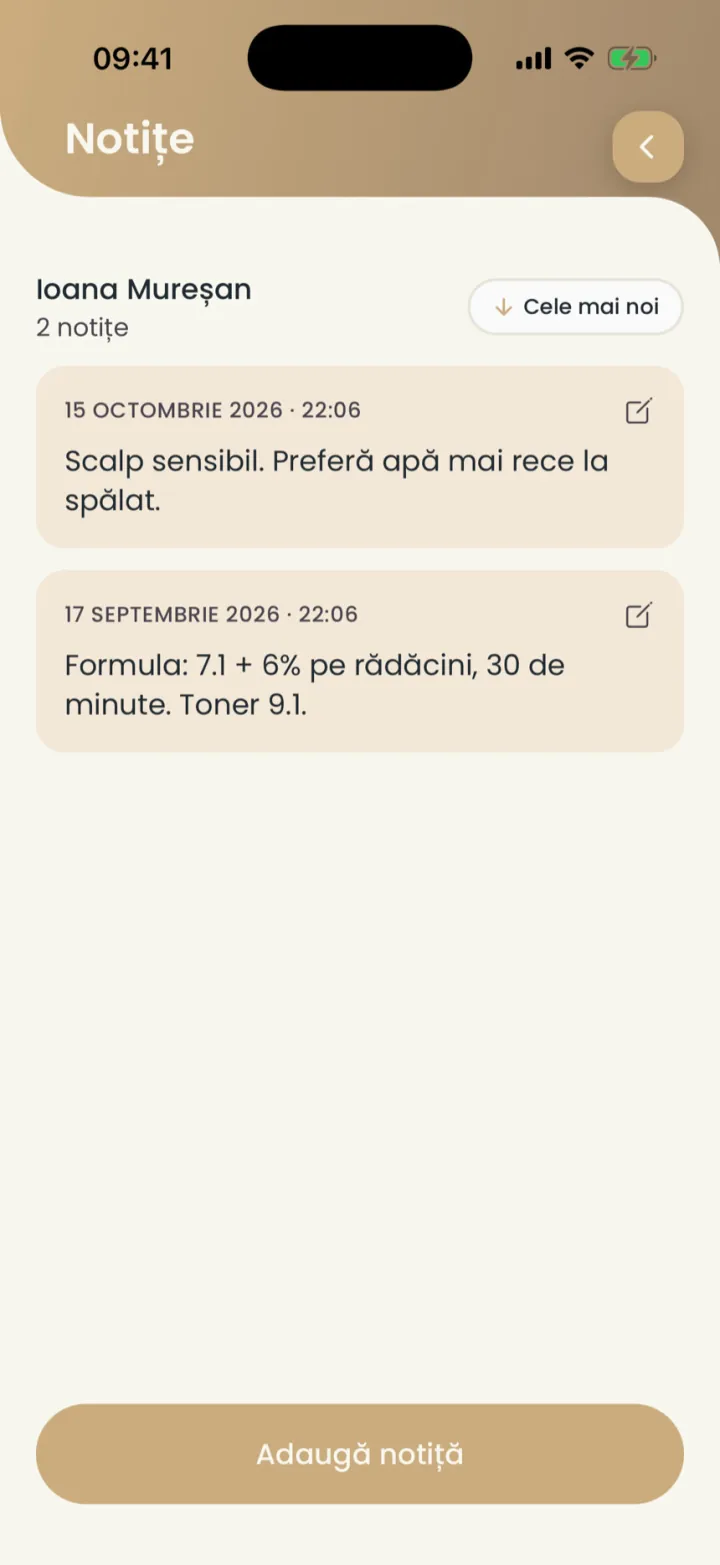
You can also add a note from an appointment. The client never sees your notes.
Visit history
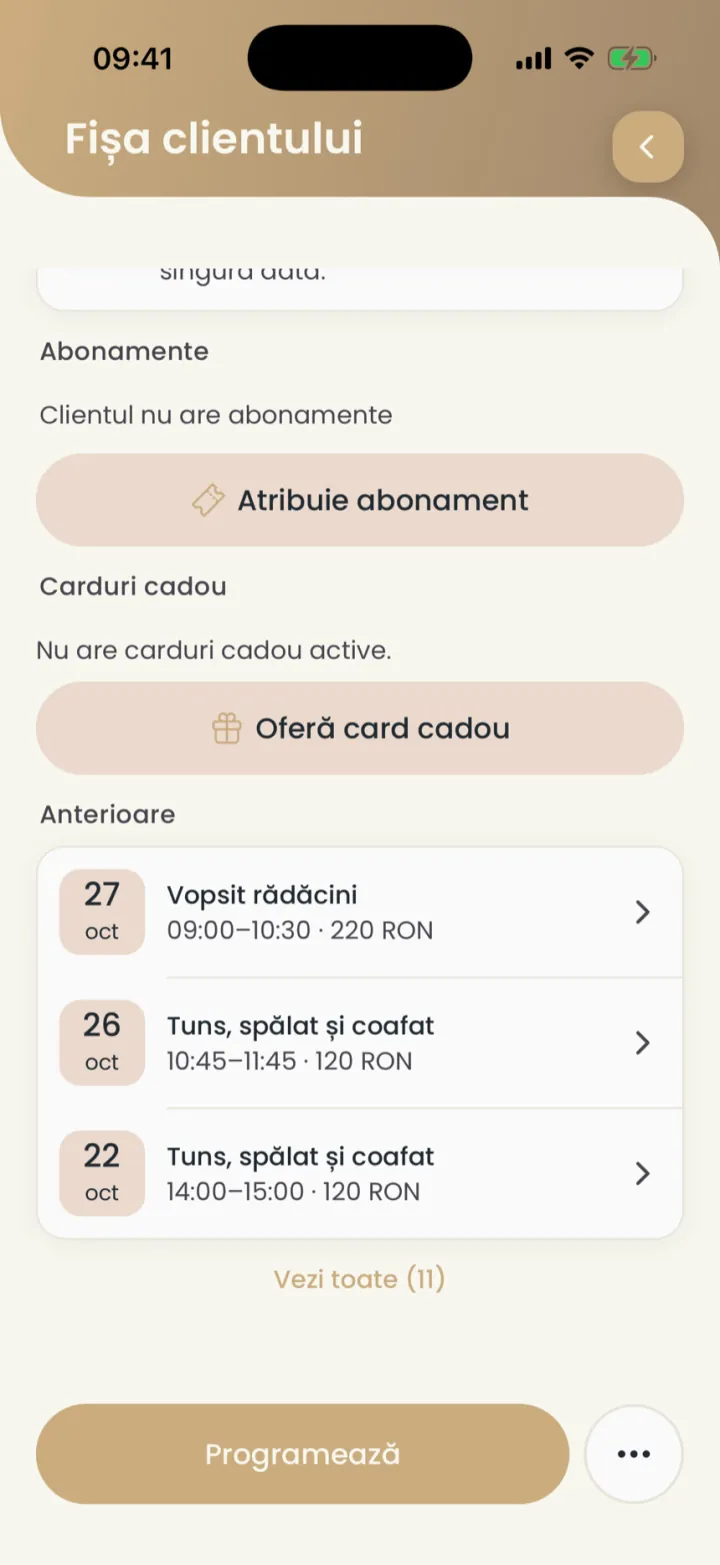
Every visit of the client, including the ones they missed.
Where to find it:Settings (Setări)Clients (Clienți)Past (Anterioare)
- Open the client card and scroll to Past (Anterioare).
- Tap See all (Vezi toate) to see every visit.
- Tap a visit to open it.
Permanent discount
A discount the client gets on every appointment.
Where to find it:Settings (Setări)Clients (Clienți)Permanent discount (Reducere permanentă)
- Open the client card.
- Tap Permanent discount (Reducere permanentă).
- Pick the discount and save.
To send a discount just once, use Send an offer (Trimite o ofertă). See Campaigns.
Block a client
A blocked client cannot book online.
Where to find it:Settings (Setări)Clients (Clienți)Actions (Acțiuni)Block client (Blochează clientul)
- Open the client card.
- Tap the three dots next to Book (Programează).
- Tap Block client (Blochează clientul) and confirm.
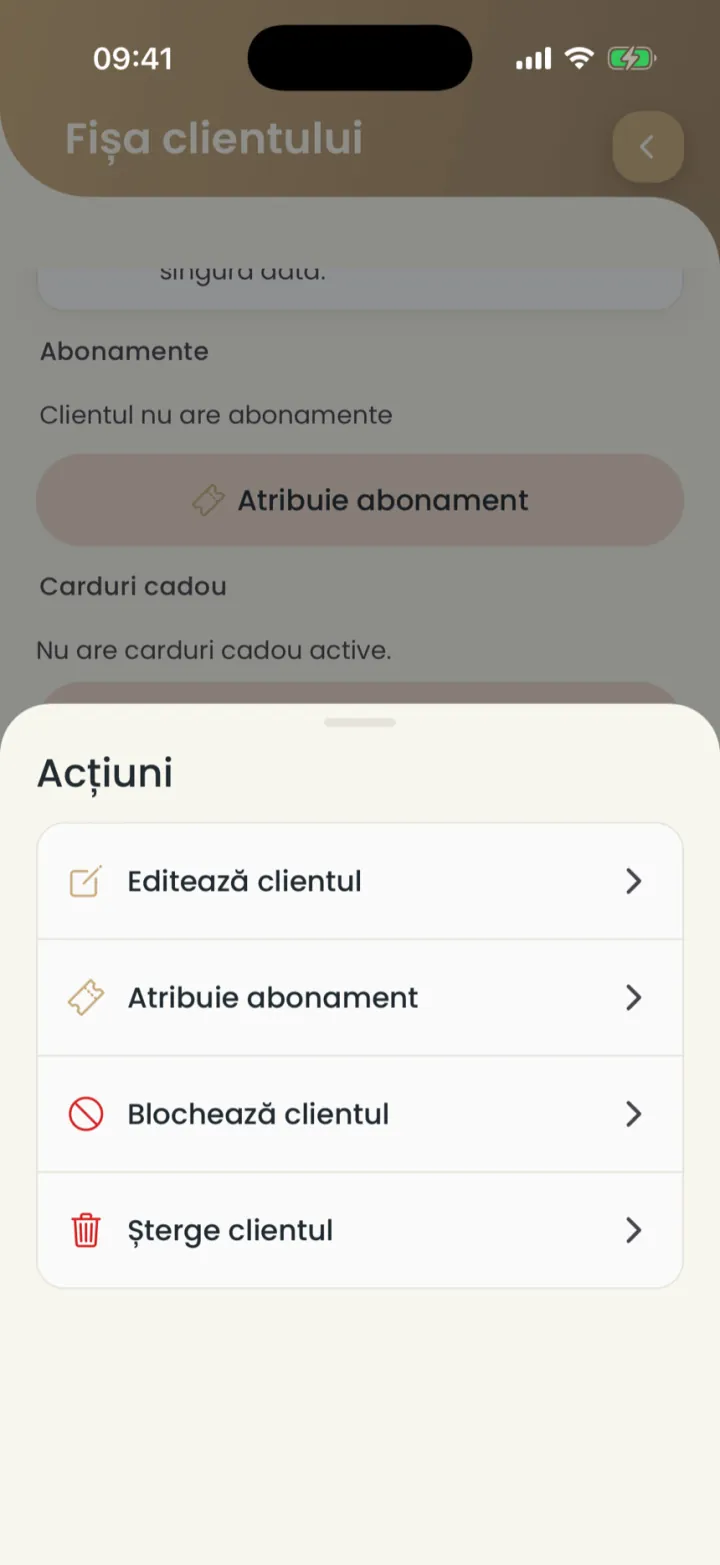
The list of blocked clients is in Blocked clients.
The same client twice
Nuvio knows a client by phone, so a client without a phone can show up twice.
- Open the extra card and check it has no upcoming appointments.
- Tap the three dots and Delete client (Șterge clientul).
- On the remaining card, with Edit client (Editează clientul), add the phone.
The client's name
The name on the card is yours, and the name in the client's account is theirs.
Where to find it:Settings (Setări)Clients (Clienți)Edit client (Editează clientul)
- Open the client card.
- Tap the three dots and Edit client (Editează clientul).
- Change the name and save.
Only you see the change. The client's account in the Nuvio app keeps the name they chose.
Updated on
Help
If the answer is not here, write to us on WhatsApp or by e-mail.