
Products and categories
Add the products you sell and use at work, with their price, VAT, barcode, packaging and category.
The app screens shown here are in Romanian; each button's Romanian name follows it in brackets.
Add a product
A new product, with its name, price and category.
Where to find it:Products and stock (Produse și stoc)Products (Produse)Add a product (Adaugă un produs)
- Open Products (Produse) and tap Add a product (Adaugă un produs).
- Type the Name (Denumire) and the brand (optional).
- Under Use (Utilizare) choose For sale (Pentru vânzare), For work (Pentru lucru) or For sale and work (Pentru vânzare și lucru).
- Fill in the price, the VAT rate and the category.
- Tap Save (Salvează).
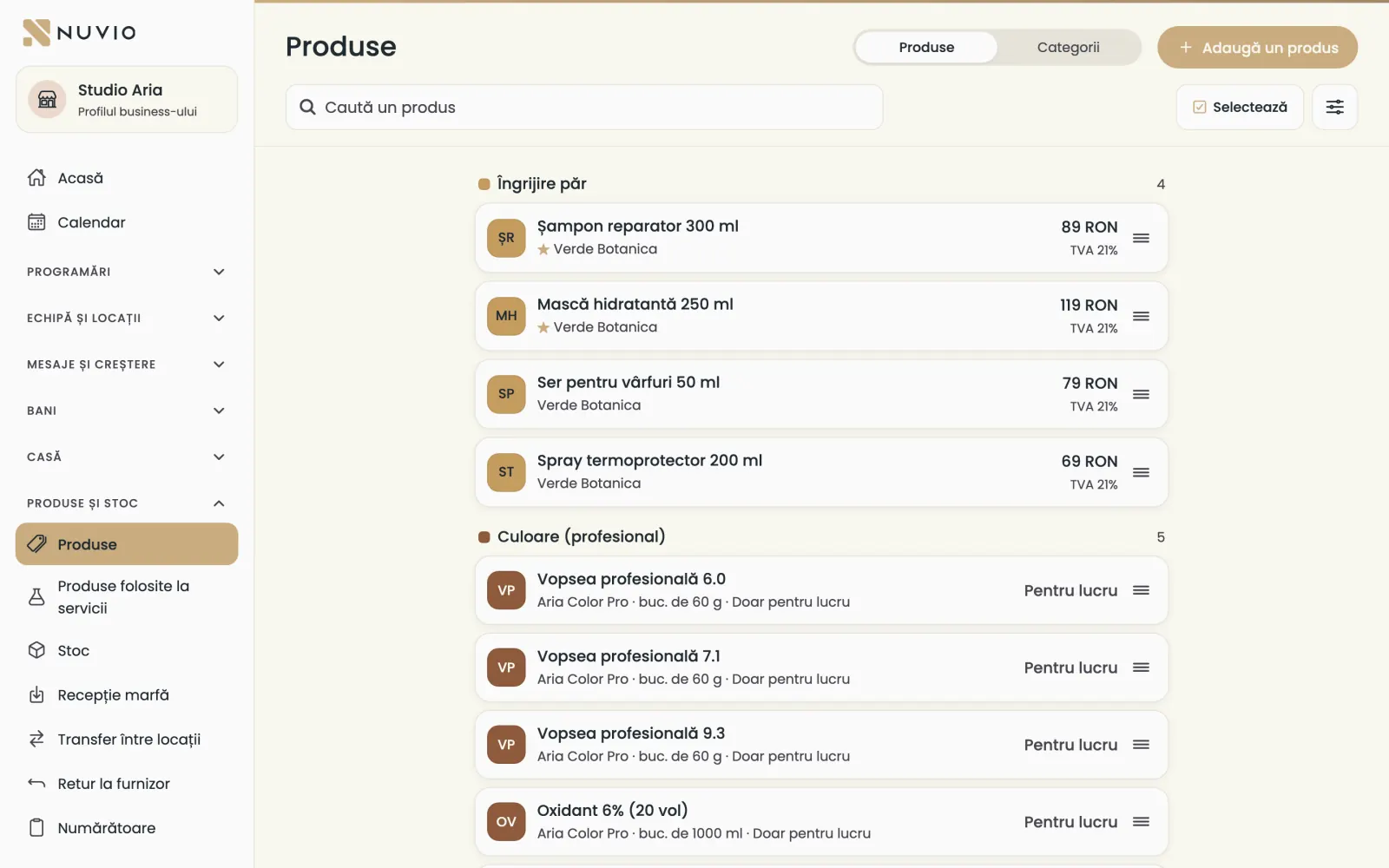
Categories
Group products in categories and subcategories, up to three levels.
Where to find it:Products and stock (Produse și stoc)Products (Produse)Categories (Categorii)
- In Products (Produse), open the Categories (Categorii) tab.
- Add a category, give it a name and a colour.
- Put a category inside another to make a subcategory.
If you delete a category, its products and subcategories move to the category above.
Price and VAT
The sale price includes VAT, and the VAT rate is picked from the list.
- Sale price incl. VAT (Preț de vânzare cu TVA)
- The price the client pays.
- VAT rate (Cotă TVA)
- The product's rate, for example 21%.
A product only for work doesn't need a sale price.
The barcode
With a barcode, the product goes into the cart with one scan.
- In the product, under Barcode (optional) (Cod de bare (opțional)), scan or type the code.
- Tap Save (Salvează).
The same code can't be on two products.
Unit of measure and packaging
Say how the product is measured: pieces, grams or millilitres, and how much one pack holds.
- Unit of measure (Unitate de măsură)
- Pieces (Bucăți), Grams (Grame) or Millilitres (Mililitri).
- Packaging name (optional) (Denumire ambalaj (opțional))
- Bottle, tube, box: what one piece is called.
- Sold (Se vinde)
- By the piece (La bucată), By the gram (La gram) or by the ml; for grams and ml you type the price per unit.
- How it comes from the supplier (optional) (Cum vine de la furnizor (opțional))
- The supplier's pack, for example a box of 6 tubes, so goods in is easy.
The unit and the pack size can't change after the first stock movement.
Suppliers
Choose the supplier you buy the product from, to order and receive goods more easily.
- In the product, choose the supplier under Supplier (Furnizor).
- If it doesn't exist, add it at goods in, with Add a supplier (Adaugă un furnizor).
- Minimum stock, in units (optional) (Stoc minim, în bucăți (opțional))
- Below this stock, the product shows under To order.
- Usual order quantity, in units (optional) (Cantitate uzuală la comandă, în bucăți (opțional))
- How many units the To order list suggests.
- Note for matching invoices (optional) (Notă pentru potrivirea facturilor (opțional))
- How the product appears on the supplier's invoice.
Favourites
Products you sell often show on the first page of the till, under Favourites.
- In the product, turn on Favourite on the till (Favorit în Casă).
- Tap Save (Salvează).
The order on the till
Drag the products into the order you want them on the till.
- In Products (Produse), press and hold a product and drag it where you want it.
- The order saves at once.
The order changes only without a search or filters; you can also change it from Arrange the till.
Products only for work
Colour or gloves you use for services, without selling them.
A For work (Pentru lucru) product doesn't show on the till, but it is in stock and in the products used in services.
A For sale and work (Pentru vânzare și lucru) product shows on the till and is also used up in services.
Deactivate a product
A product you have stopped using is deactivated, and its history stays.
- Open the product and turn off Active (Activ).
- Tap Save (Salvează).
An inactive product isn't sold and doesn't show in lists; products are never deleted.
Change several products at once
Move, favourite or deactivate several products in one go.
- In Products (Produse), tap Select (Selectează).
- Tick the products.
- Choose the action: move to another category, favourite or deactivate.
Updated on
Help
If the answer is not here, write to us on WhatsApp or by e-mail.